
What's New in DVR+O / SCI v7.12.0
New GPS data in Menu → Streaming
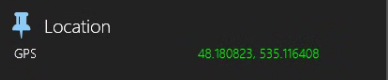
Location
GPS - Global Positioning System - This field displays the location of your System on which SubC Application is installed and has active Channel(s).

This GPS data is tied to our new Map View in Streaming Service Web application. See images below.
Take your GPS source into the SubC Software Desktop application on Channel 1 using Menu → Data I/O → Data Input
Standard GPS using $GPGGA or $EXIF data string formats as shown in example below.

GPS Map View
In SubC Streaming Service Web application, you can now see where your SubC Desktop Application System is located on the globe.
Take your GPS source into the SubC Software Desktop application on Channel 1 using Menu → Data I/O → Data Input
Standard GPS using $GPGGA or $EXIF data string formats as shown in example below.
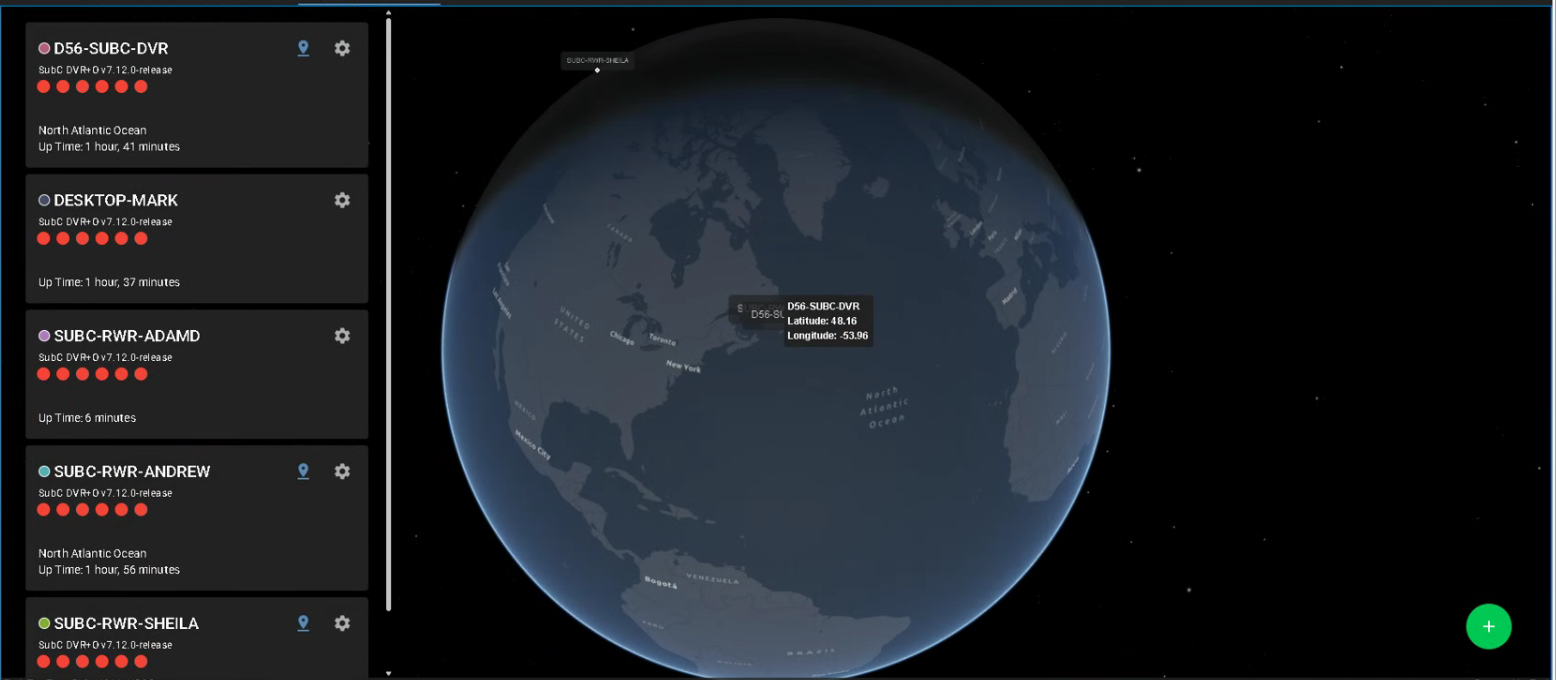
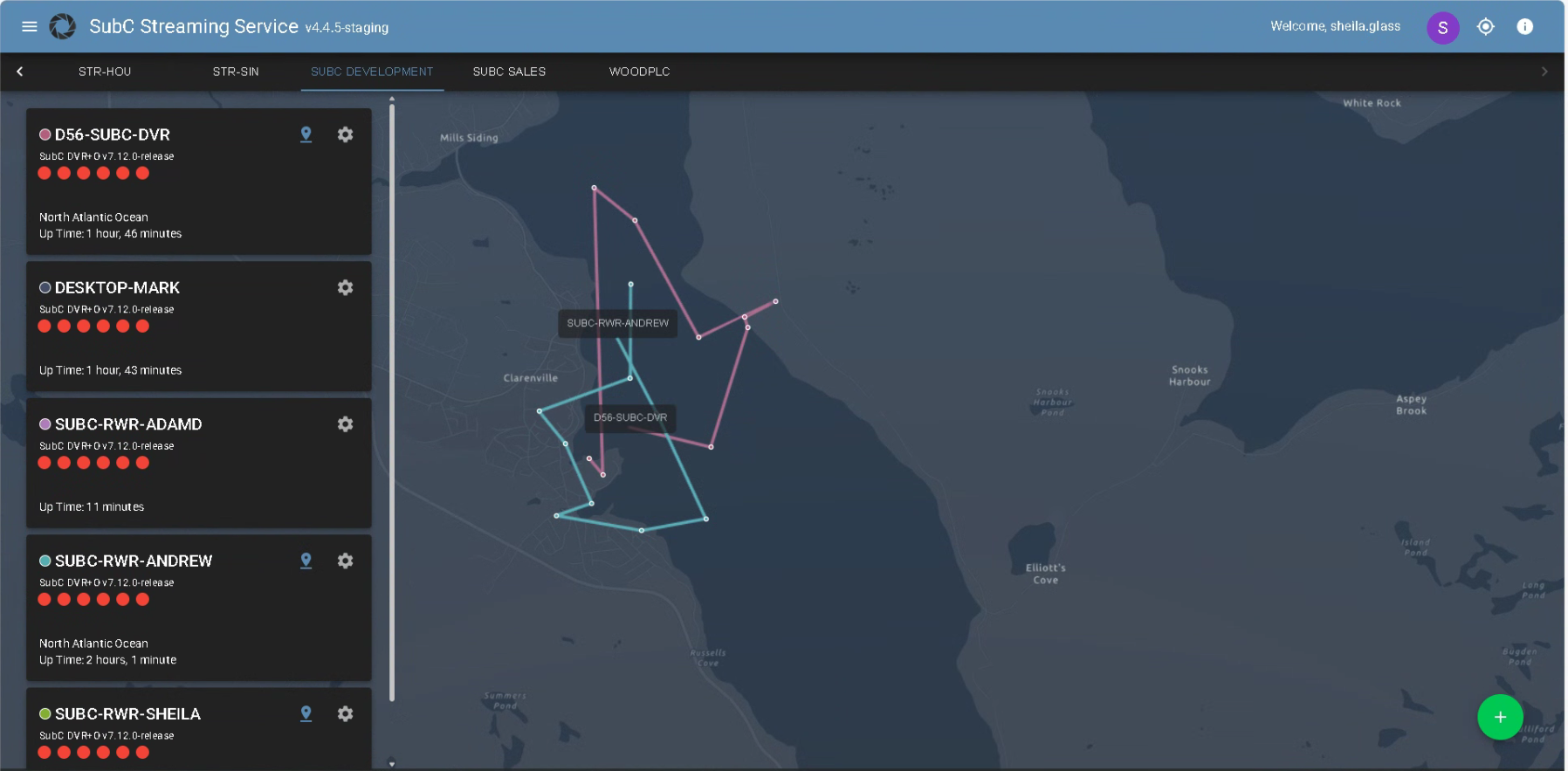
Active SubC Desktop Application System in your Streaming Service Group are listed in the left.

Click the location pin to zoom in on that system’s location
The dots & lines shows movement - where your system is and has been.

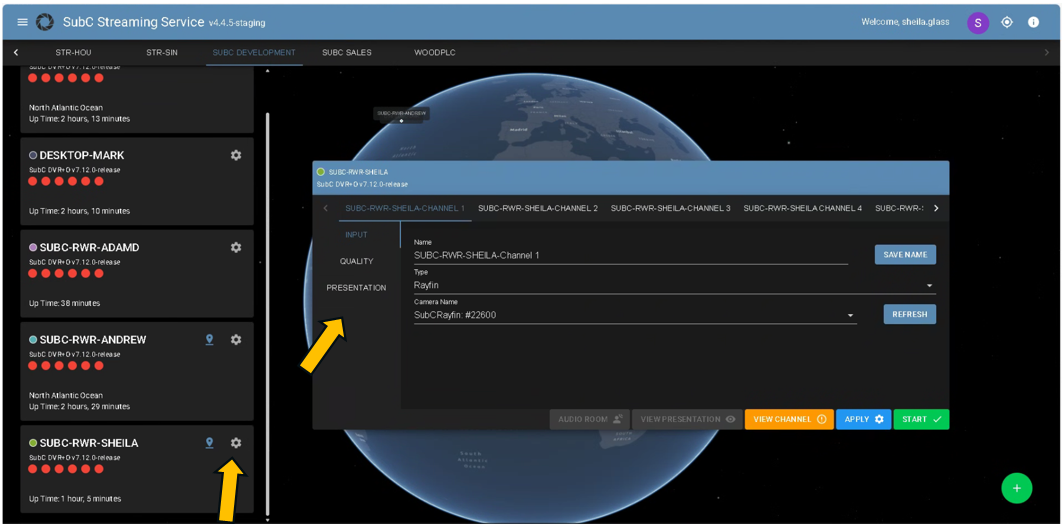
Click on the gear wheel icon to open the Configuration UI for your SubC System Channels
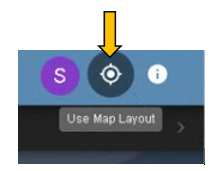
Click the Use Map Layout toggle button to switch back & forth between the SubC Streaming Service web new Map UI and the Original UI
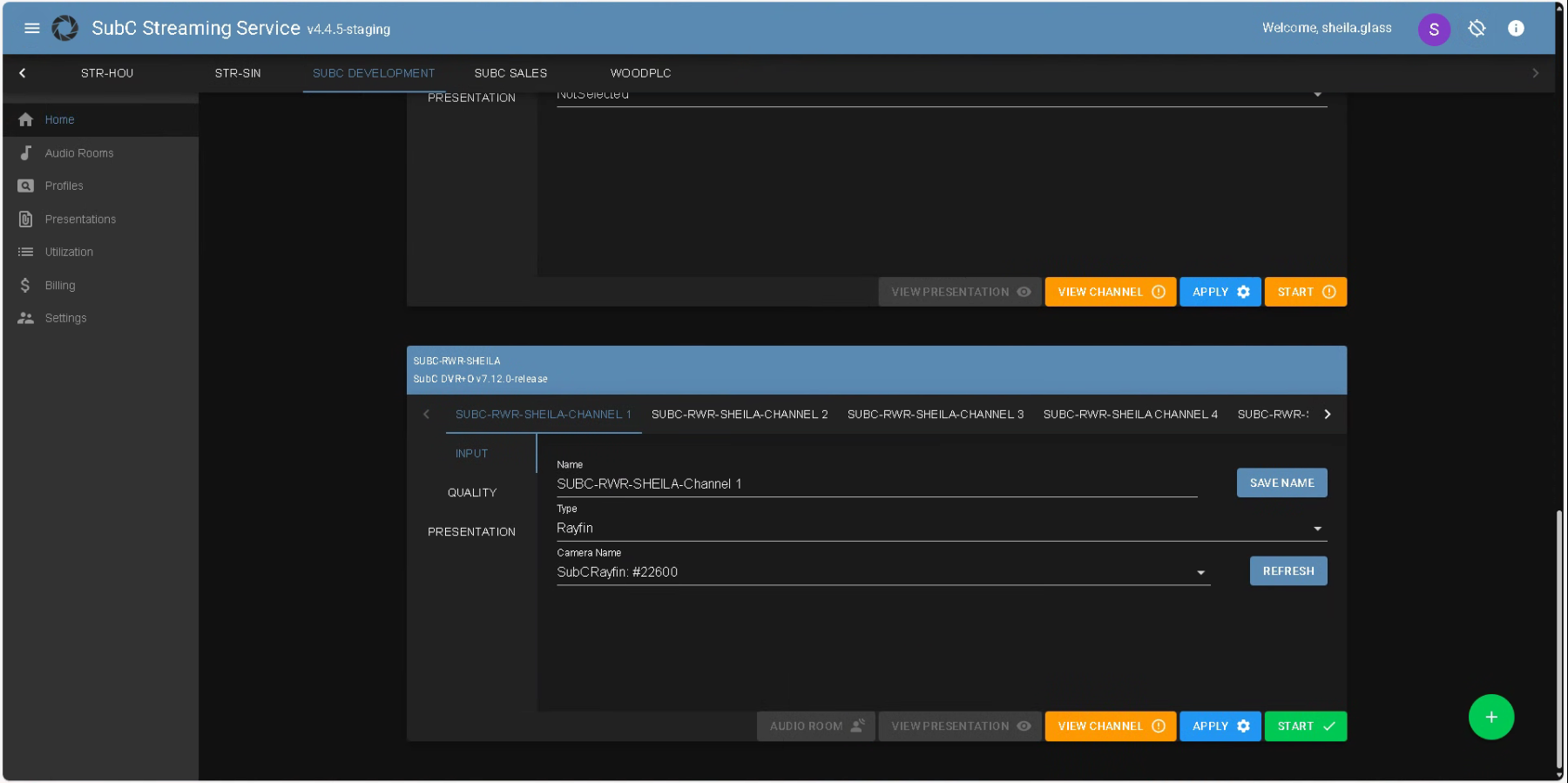
See SubC Streaming Service Web User Manual for details.
Edge Streaming now includes Audio feature
UNKNOWN ATTACHMENT
New Access Buttons in Streaming Service Web → Channel UI
We’ve added convenient access button for you to easily enter AUDIO ROOM, VIEW PRESENTATION and VIEW CHANNEL when the Channel is actively streaming.
We’ve also added a new APPLY button to commit your Channel configuration before proceeding to START the Channel streaming.
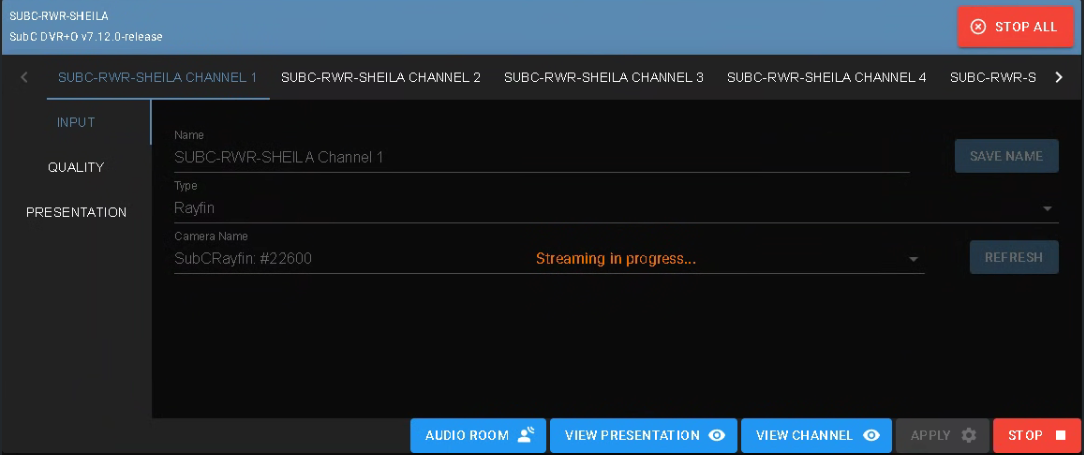
ACCESS BUTTONS
AUDIO ROOMS - Opens SubC Audio Rooms web app in a new browser to a private room associated with Channel’s assigned Presentation
VIEW PRESENTATIOM - Opens SubC Presentation web app in new browser and connects to the Channel’s assigned Presentation
VIEW CHANNEL - Opens a view of the streaming Channel in a new browser

The above features are only active when Channel Streaming is Started
APPLY - When you are finished configuring the Channel, click APPLY to commit those settings
START - To begin streaming the Channel
STOP - To end streaming the Channel