
Download SubC Inspector
When you install SubC DVR+O v7, the Inspector Desktop Application installation package is located in the DVR+O folder: C:\SubC DVR+O v7\InspectorDesktop\SubC.Inspector
-
On the computer where you want to install SubC Inspector:
-
Open a web browser and enter: http://DVRO-IP-ADDRESS:80/
-
Example: http://192.168.2.96:80/ replacing the DVRO-IP-ADDRESS with the IP Address of the system on which the SubC DVR+O software is installed and running.
-
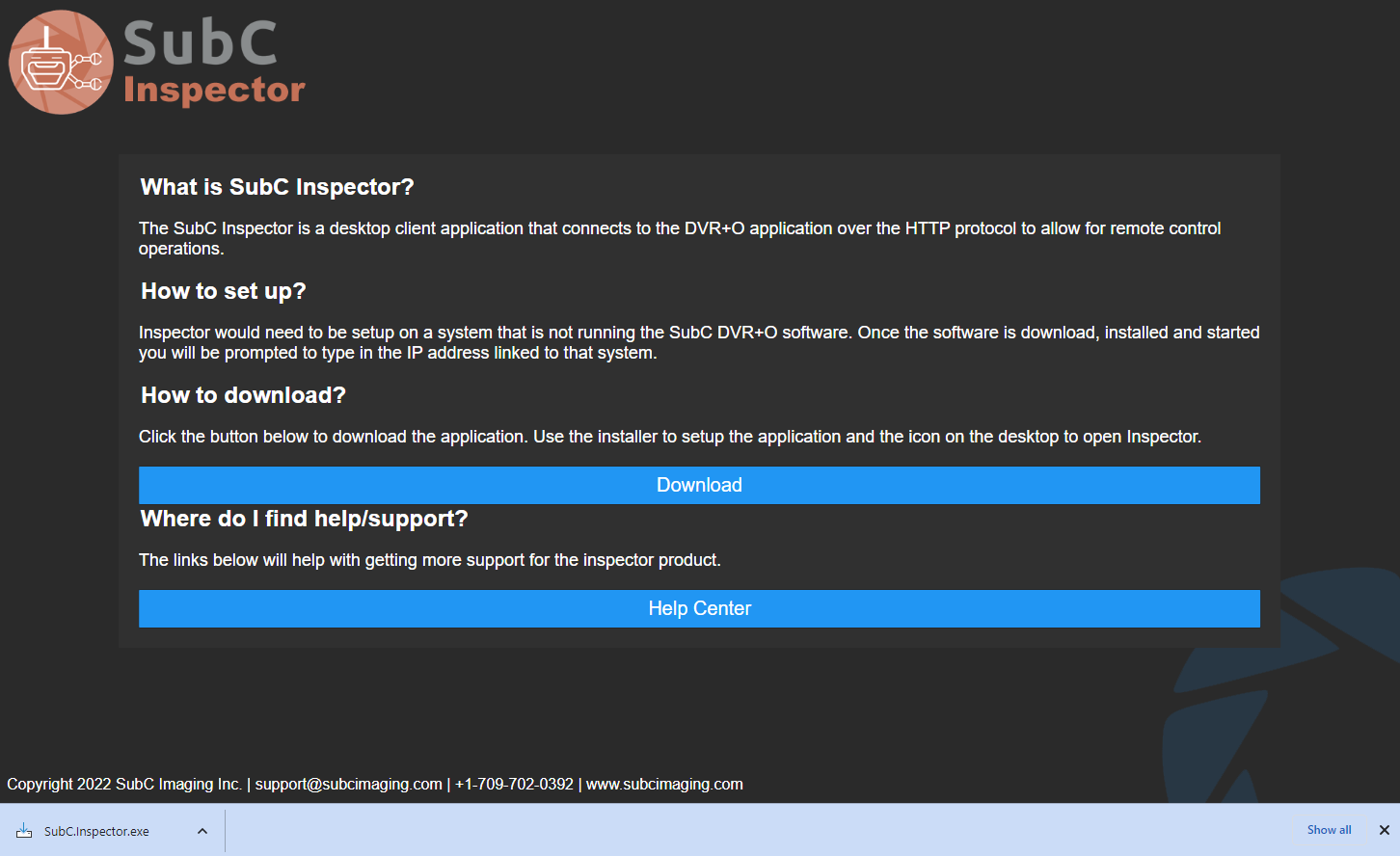
This will make a connection to the DVR+O application and display the following information in your browser.
-
-
-
Click on the Download button and the SubC.Inspector.exe installation file will be transferred to the Downloads folder on the current system.
-
The Help Center button will open the SubC Client Help Center in a browser window.
Install SubC Inspector
After you’ve downloaded the SubC Inspector installation file:
-
Go to the Download folder and run SubC.Inspector.exe
-
Alternatively, you can copy the SubC.Inspector.exe file to the target system and click on the SubC.Inspector.exe to run the installation.
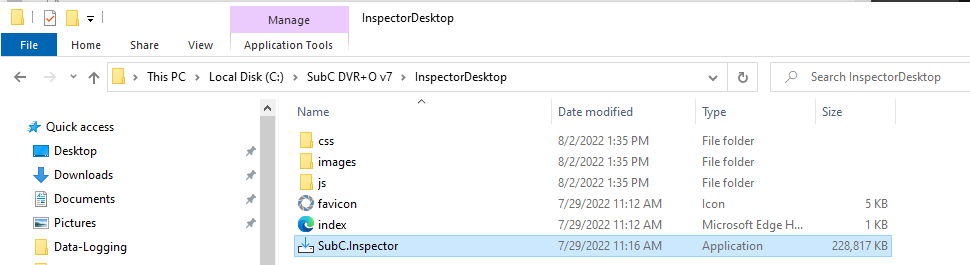
The SubC Inspector Installation begins
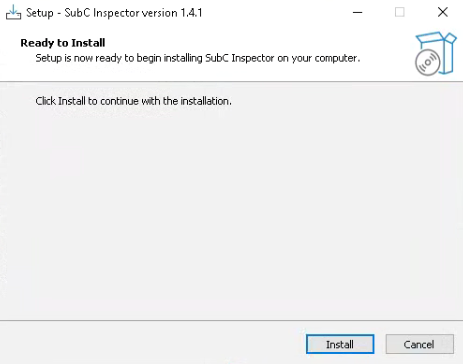
Click Install
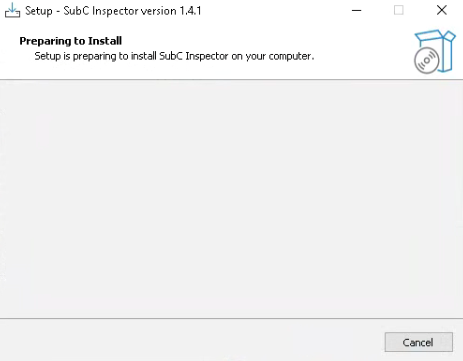
-
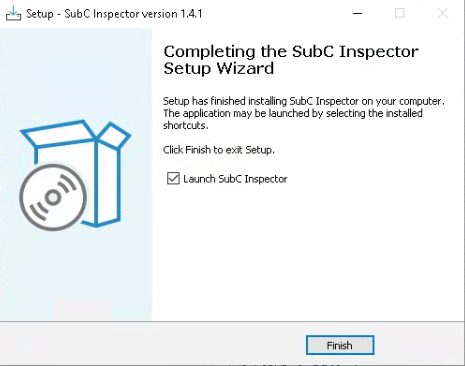
Click Finish
If “Launch SubC Inspector” checkbox is selected, SubC Inspector application will automatically open when you click Finish.

The SubC Inspector icon will appear on the Windows desktop.