
-
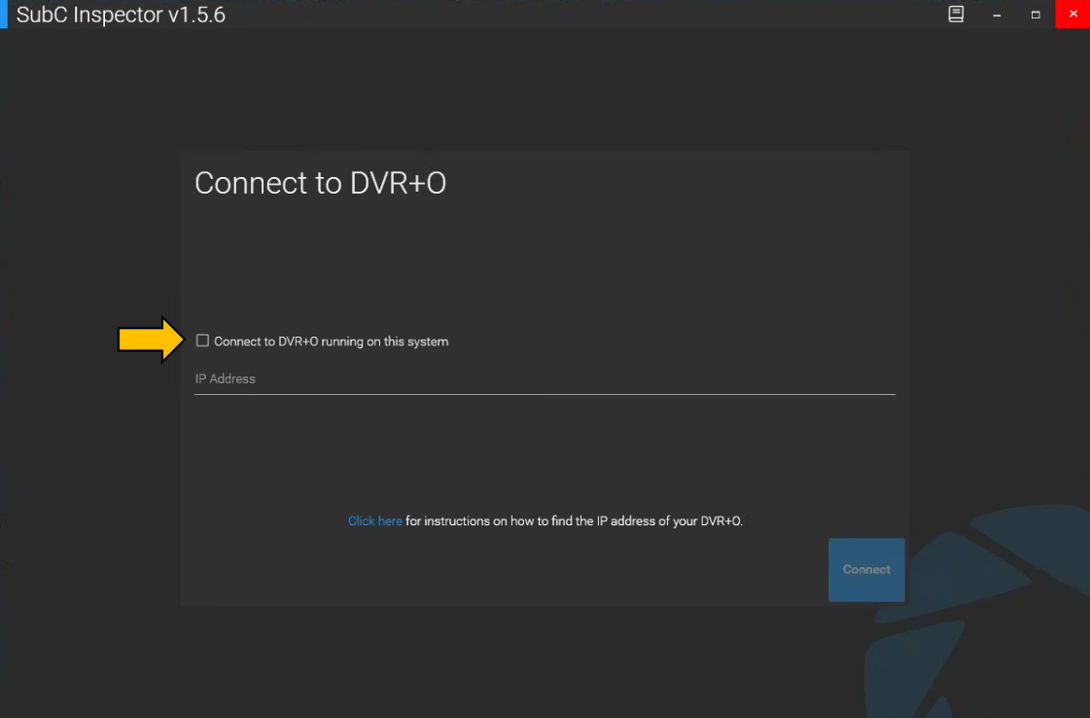
New convenient checkbox to “Connect to DVR+O running on this system”
-
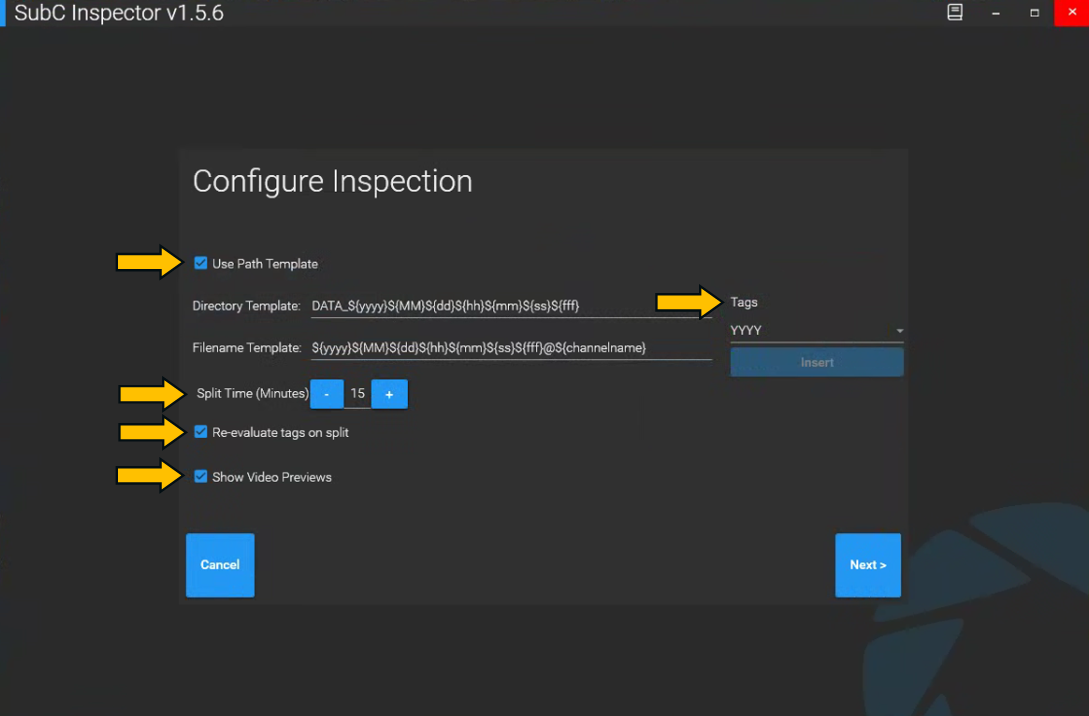
Use Path Template, when selected, will populate the Directory Template and Filename Template field with a default format (you can also edit these fields)
-
Split Time (Minutes) - Set this value to have your video files automatically save to specific recording time lengths. Example, if split time is set to 15 minutes, 1 hour of recording will produce 4x 15minute video files.
-
Re-evaluate tags on split, when selected, will modify the filename of recorded video files each time they split according to the tags in the Filename Template.
-
Tags are the parameters for Filename settings ${yyyy}${MM}${dd}-${hh}${mm}${ss}-${channel} also ${fff} for milliseconds.
-
Show Video Previews - Select this checkbox to allow the DVR+O /SCI Channel video(s) to display in the Inspector UI (unselect if you do not want to not display the Channel video(s))
-
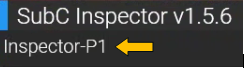
The Name of current Inspection Project is displayed in the top, left of the Inspector UI.
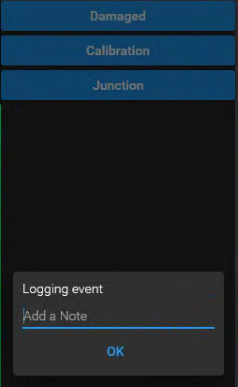
Logging event notes - While recording, when you click on an Event, the Logging event note field appears allowing you to optionally add a note pertaining to the event. When you click OK the note will be saved with the event in the eventslog.csv file in the Inspection Project folder.
-
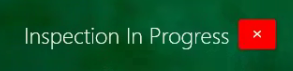
Inspection in Progress - When you start an Inspection session (when you start recording in Inspector UI) the “Inspection in Progress” message appears on the center video view of the DVR+O / SCI UI to which the Inspector session is connected. This message is to notify your Project Team members that the Inspection is active. Also, as a precaution, the DVR+O UI controls are made inactive to prevent any configuration changes occurring during the active Inspection - however, if necessary, you can click the red x button to reactivate the DVR+O UI controls.