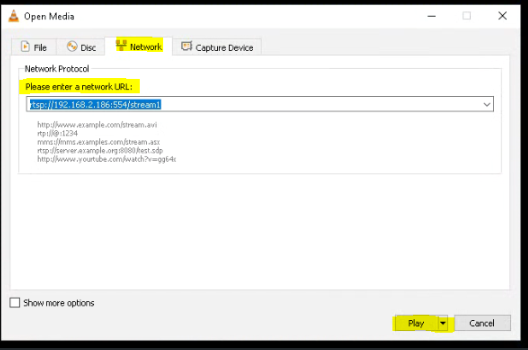
We’ve provided SubC Software Users with the flexibility to switch from the default port 8554 to port 554 in our RTSP Lan Streaming.
Both port 554 and 8554 are used for RTSP. The difference between these ports is, port 554 delivers data packets in the same order it was sent, whereas port 8554 does not guarantee data packets will be delivered in the same order.
Some receiving devices (such as some CCTV systems) require data to be delivered only via port 554.
Steps: How to change port from 8554 to 554 in SubC Software desktop applications
-
Download the latest version of SubC Software desktop application via the Download arrow on the SubC application UI.
-
Close the SubC Desktop application
-
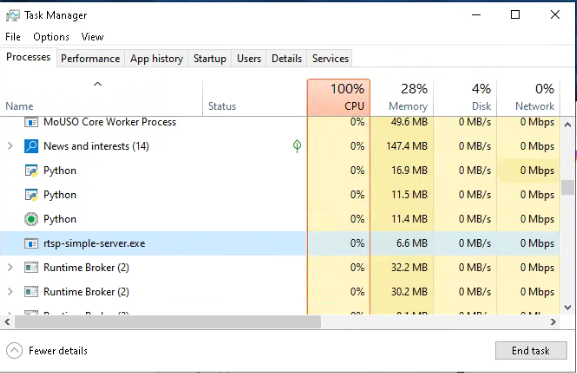
Go to Task Manager and check to see if rtsp-simple-server is still running - if it is, select it and click End Task.
-
-
Install the SubC Desktop application
After installation is complete, do not launch the application just yet.
Unselect “Launch” and Click Finish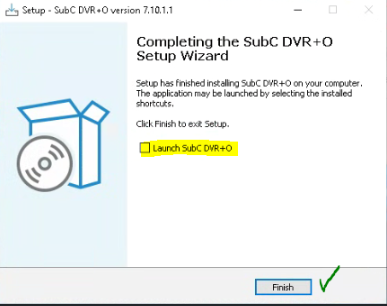
-
Open “C:\[SubC Application Name]\Utilities\rtsp-simple-server.yml" in Notepad:
Example: "C:\SubC DVR+O v7\Utilities\rtsp-simple-server.yml"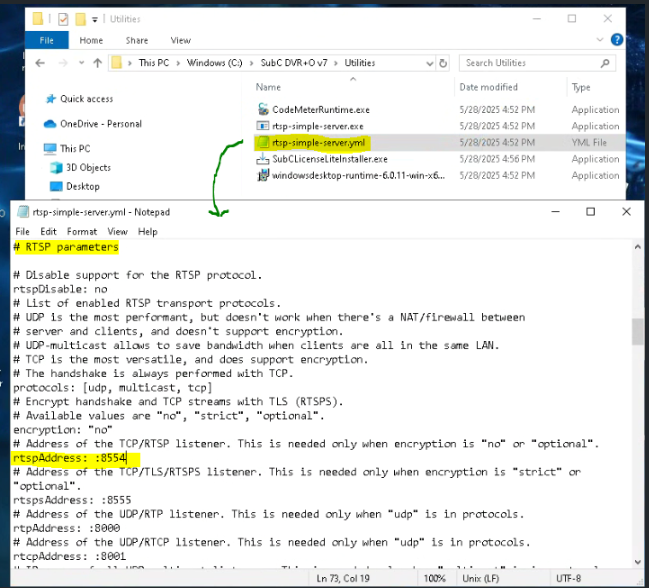
-
Change rtspAddress: :8554 to rtspAddress: :554
-
Save the yml file
-
-
Start the SubC Desktop application
-
Configure a Channel with Video Input
-
Open Menu → RTSP Lan Streaming → Select / Confirm the IP Address → Click Start
You’ll see that the RTSP Address now has port “554”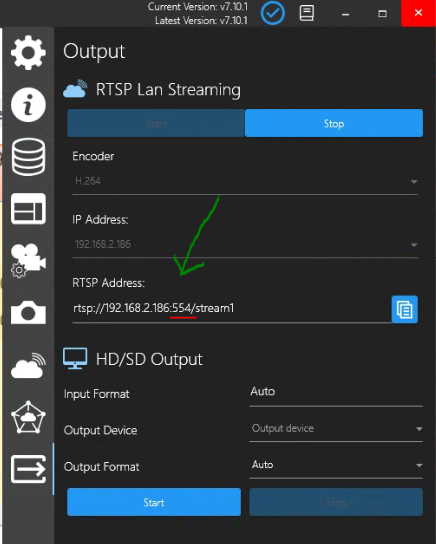
-
Copy the RTSP Address
-
-
You can now use this RTSP URL to send SubC Software application Channel video/data to devices that accept input on port 554.
-
Test
Open a Media player (such as VLC) and paste the RTSP Address and click Play