
What's New in DVR+ / SCI v7.14
New Name - DVR+
We’ve modified the name of our DVR+O software to DVR+ to more accurately represent the many essential features built into SubC DVR+ software.
In addition to the advanced media management solution our Digital Video Recording provides, the plus “+” in DVR+ represents its many and ever-expanding features.
Overlays give you the ability to apply dynamic graphical elements and data with your videos.
Data I/O for the inclusion of environmental and metadata.
Blackbox to capture backup copy of your video channels.
Inputs, such as Capture Cards, IP Cameras, Presentations, Screen/Window Capture, Secure Edge and Rayfin input designed for SubC Rayfin cameras so you can remotely interact with and adjust the Rayfin camera using Rayfin Controls presented in the SubC DVR+ Software user interface
Stream your live videos through SubC Cloud Stream Servers to reach your customers and stakeholders in real-time over the Internet, anywhere in the world.
Secure Edge is SubC’s DVR+ option for those who wish to live stream video contained within their own LAN.
Eventing is our latest feature that advances Inspection capabilities. See details below.

New Feature - DVR+ Eventing
SubC DVR+ now includes a new Eventing feature that provides your Inspection teams with the ability to capture events and objects observed during your expeditions.
Watch Eventing Demo: https://www.youtube.com/watch?v=XfCVQK8EJW4
Introduction
In Priority Mode, configure Channel(s) with video input.
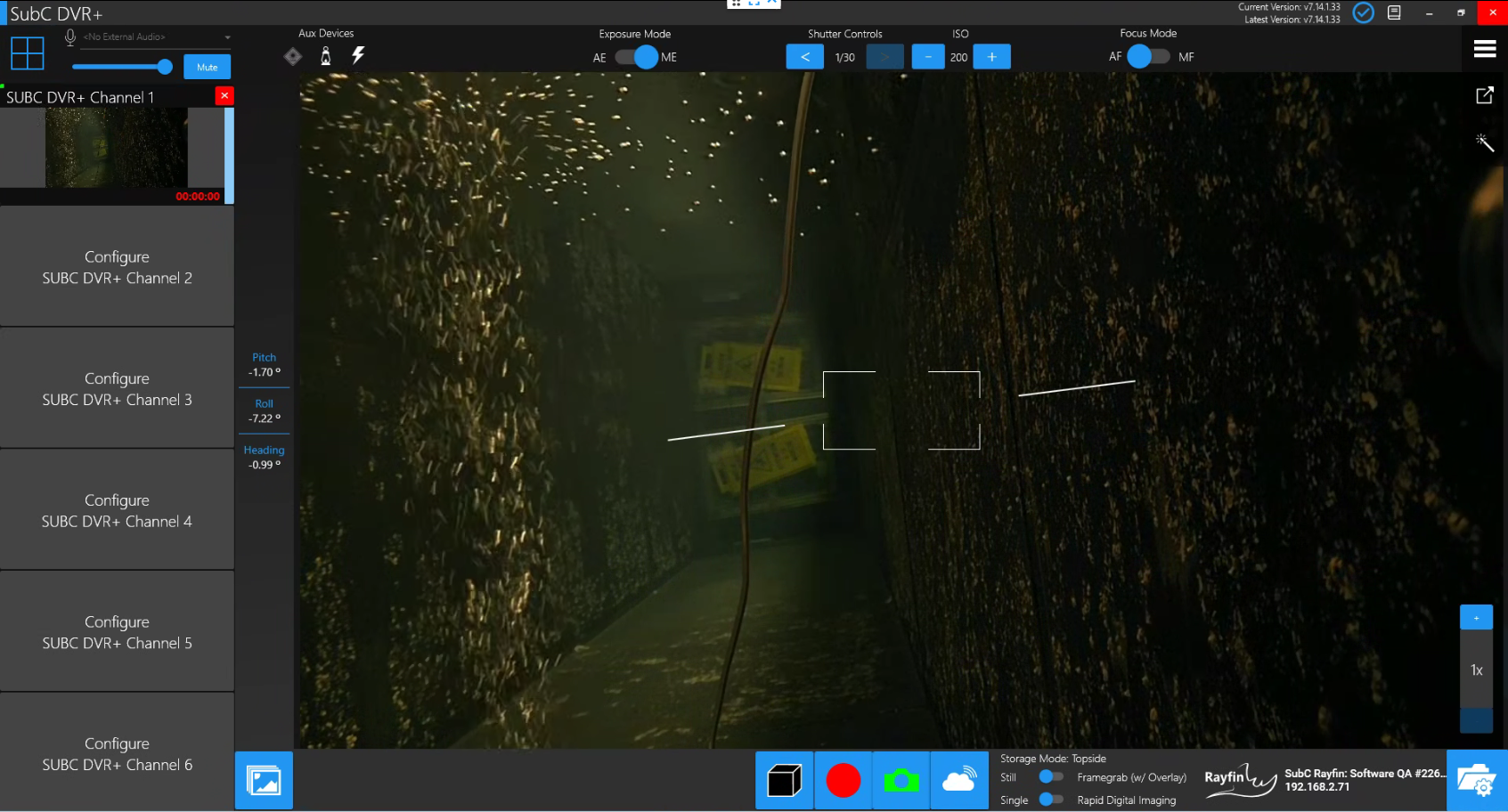
Click the 4-square box at the top-left to switch to Grid/Sync Mode

Click the expand button (<) on the right to open the Event Log UI.
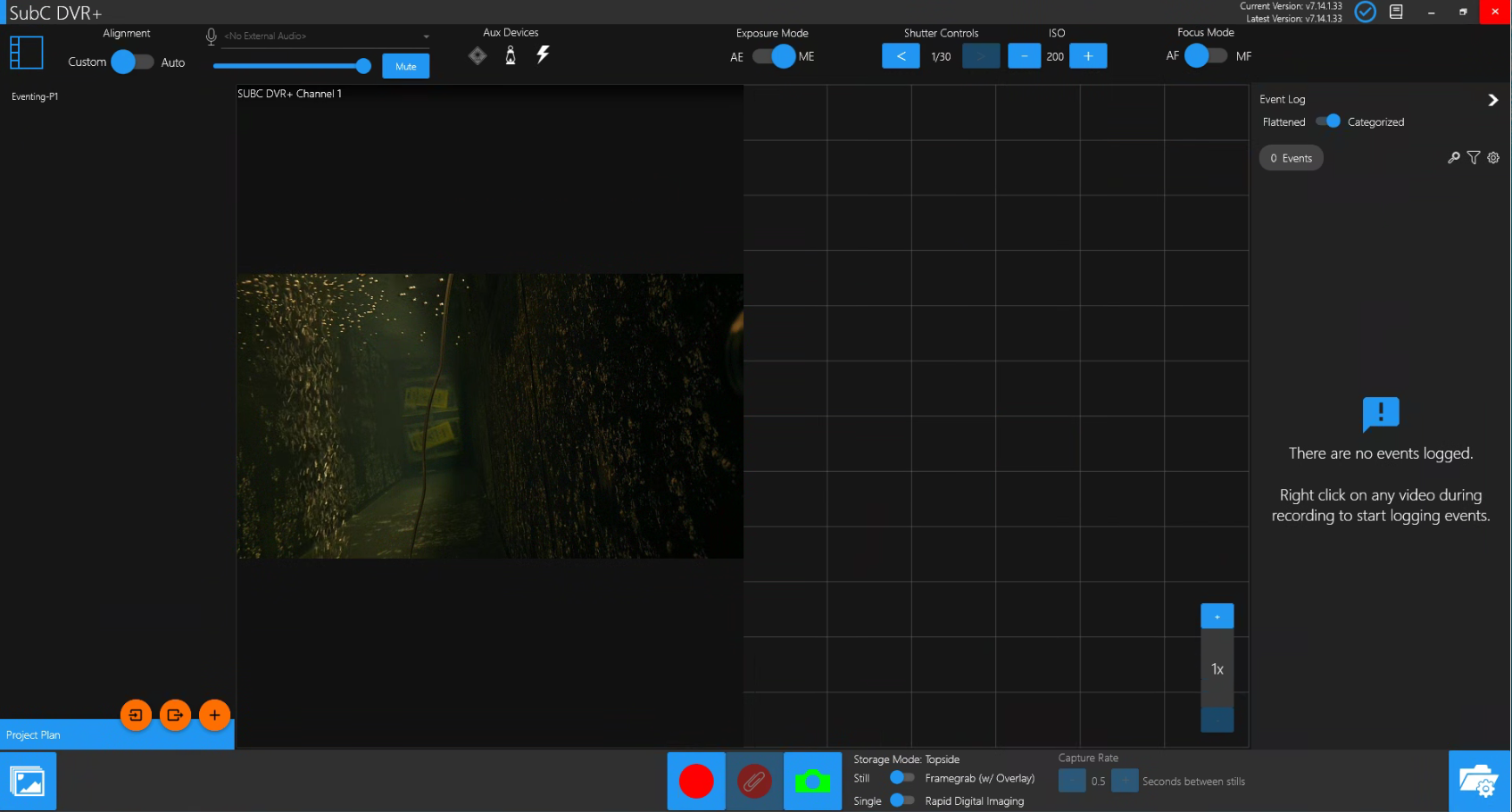
Click on Grid Folder / Filename Settings.

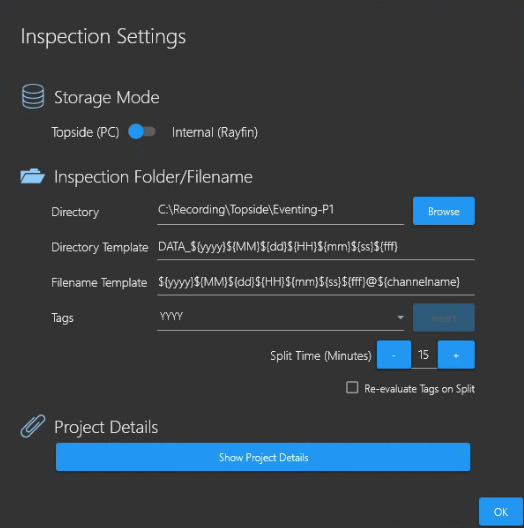
This will open the Inspection Settings UI. Populate the fields in this section.
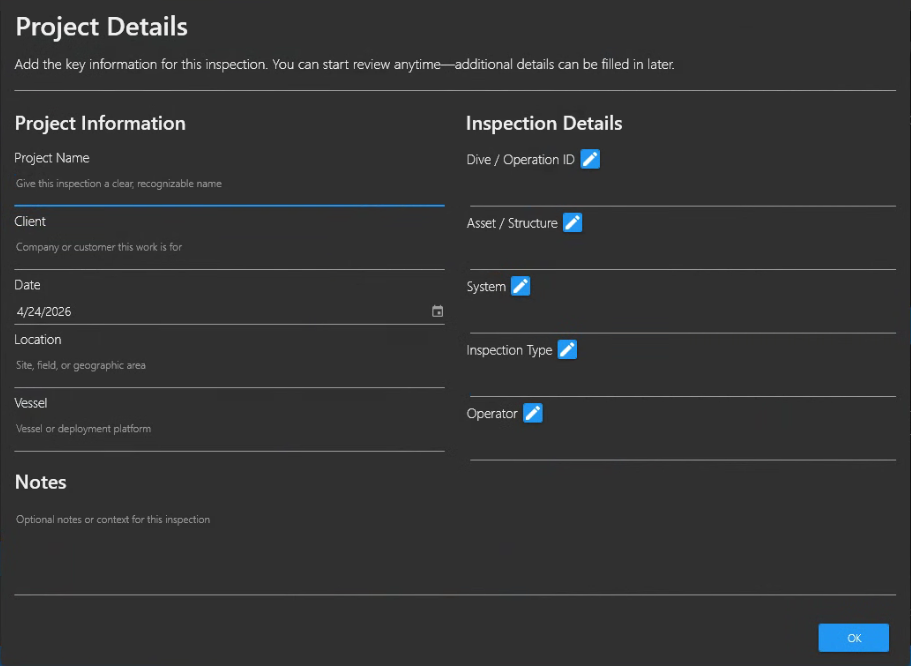
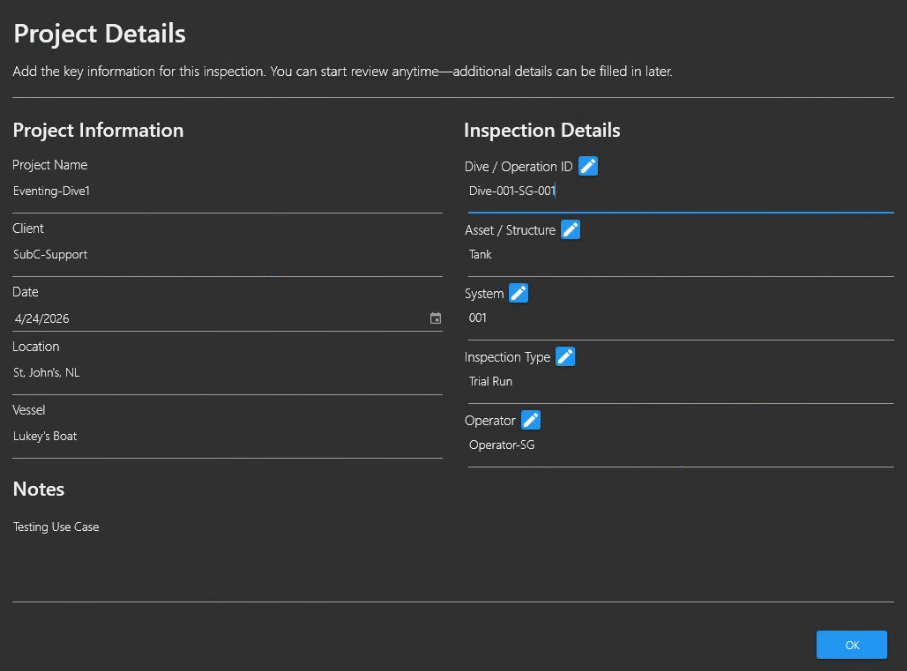
Project Details - Click Show Project Details to open this UI. Populate these fields with text that is relevant to your Inspection project. The Inspection Details field titles are customizable, allowing you to rename these field titles to better align with your project.
Inspection Settings
Storage Mode
Select Topside (PC) or Internal (Rayfin) as destination for your Inspection files.
Inspection Folder/Filename
These fields determine the Directory where your video Recording and Inspection Eventing files are to be saved. The Templates determine the Directory and Filename format.
Tags offer a convenient way of populating the Template fields. Select a tag from the list, place the cursor in the desired position in the Directory or Filename Template field and click Insert.
Split Time (Minutes) enables you to have your video Recording files produced on a specific time intervale; set the duration in minutes here.
Example: If you are continuously recording for 60 minutes, setting the Split Time to 15 minutes will produce 4 x 15-minute recording files.
Re-evaluate Tags on Split - When selected, will modify the filename of recorded video files each time they split according to the tags in the Filename Template.
Once you have your Project Details set, click OK to proceed to Event Logging.
See DVR+ Operation → Eventing for details.
Also see SubC ReviewStudio