GPS Map View
In SubC Streaming Service Web application, you can now see where your SubC Desktop Application System is located on the globe.
Take your GPS source into the SubC Software Desktop application on Channel 1 using Menu → Data I/O → Data Input
Standard GPS using $GPGGA or $EXIF data string formats as shown in example below.

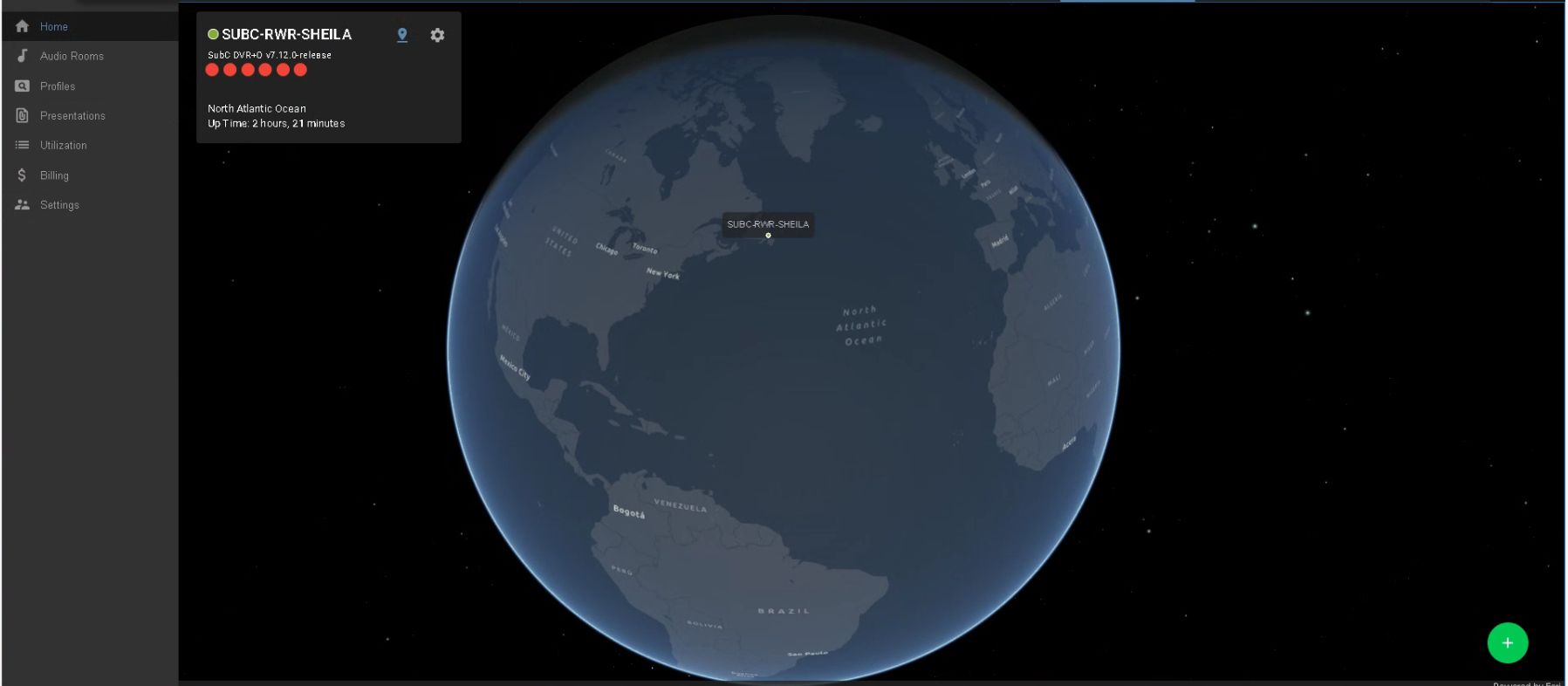
Active SubC Desktop Application System in your Streaming Service Group are listed on the left.

Click the location pin to zoom in on that system’s location
The dots & lines shows movement - where your system is and has been.
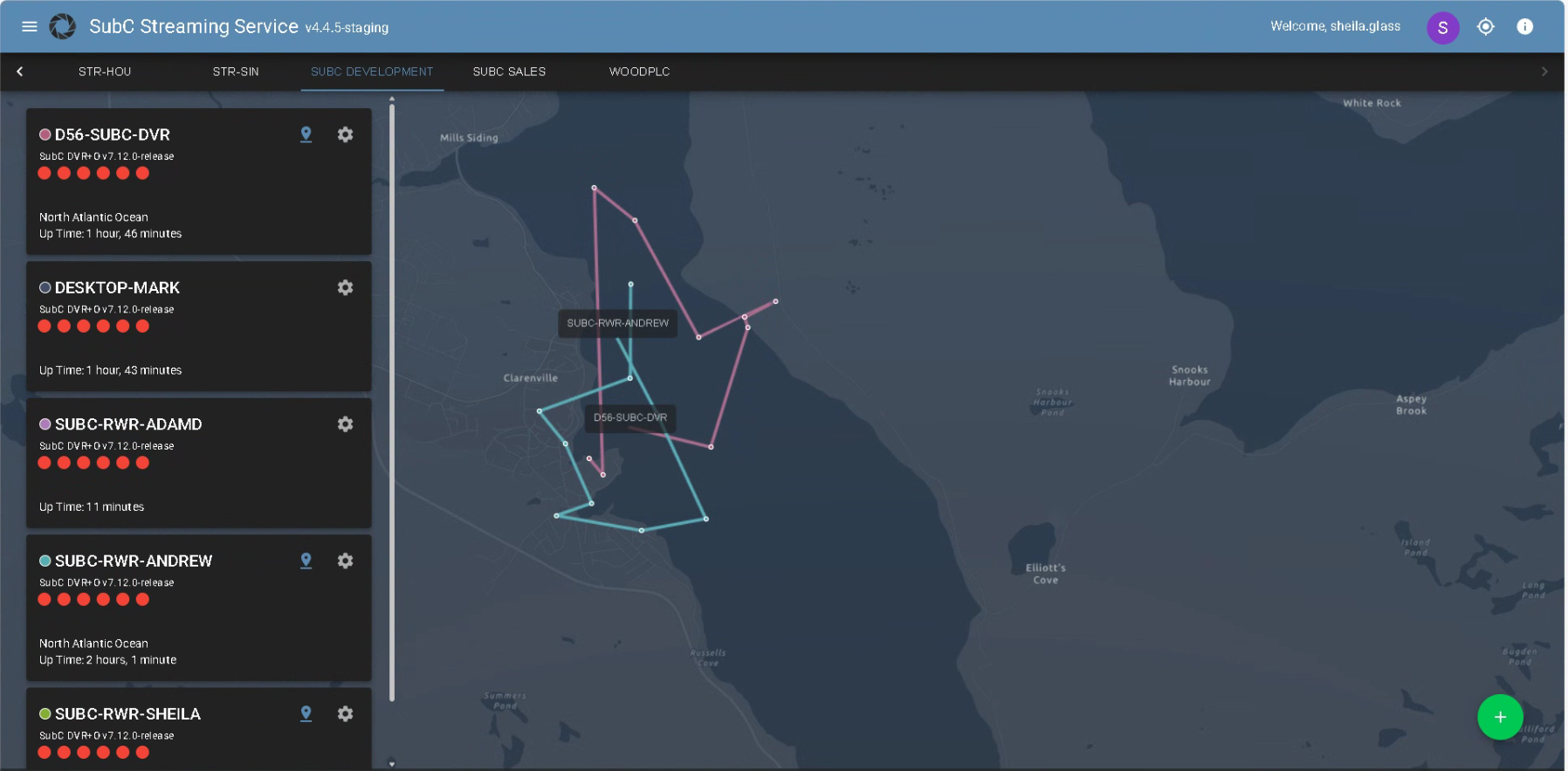

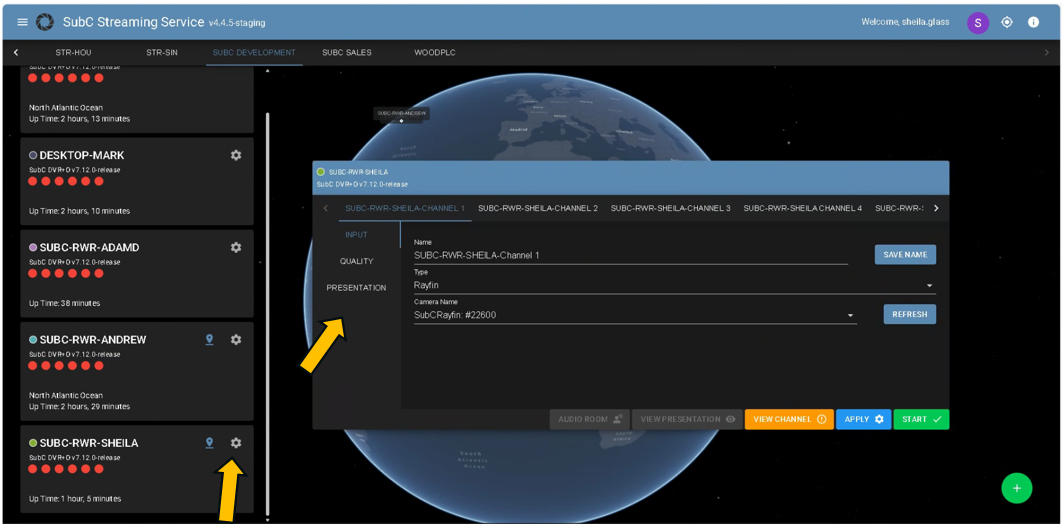
Click on the gear wheel icon to open the Configuration UI for your SubC System Channels
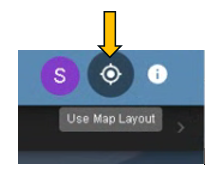
Click the Use Map Layout toggle button to switch back & forth between the SubC Streaming Service web new GPS Map UI and the Classic UI
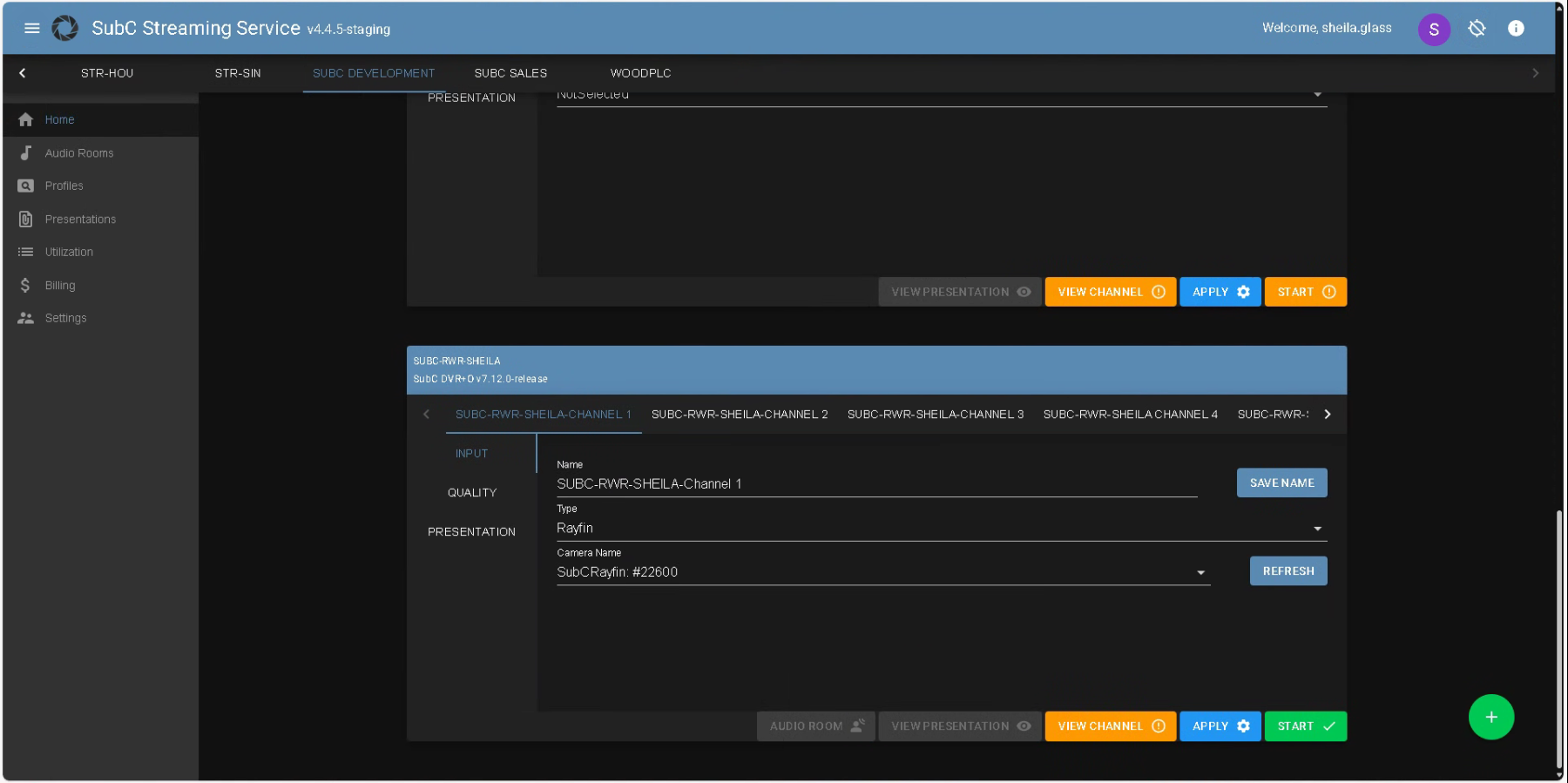
Channel Configuration UI now has new convenient Access & Control Buttons

-
Configure the Channel and APPLY to save the configuration
-
Click START to stream the Channel
-
The AUDIO ROOM | VIEW PRESENTATION | VIEW CHANNEL access buttons become activated:

-
Click on the AUDIO ROOM | VIEW PRESENTATION | VIEW CHANNEL buttons to open the corresponding SubC web applications in a new browser tab
-
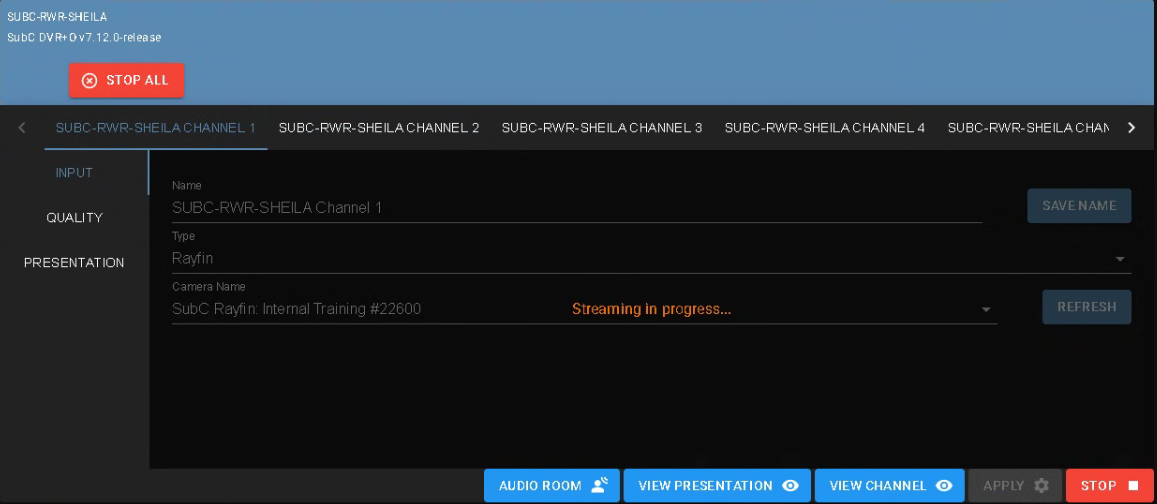
Click on STOP to stop streaming the current Channel
-
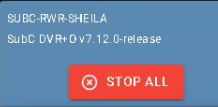
Click STOP ALL button in the top, left of the Channel Configuration UI to stop all active streaming Channels on this Source system.
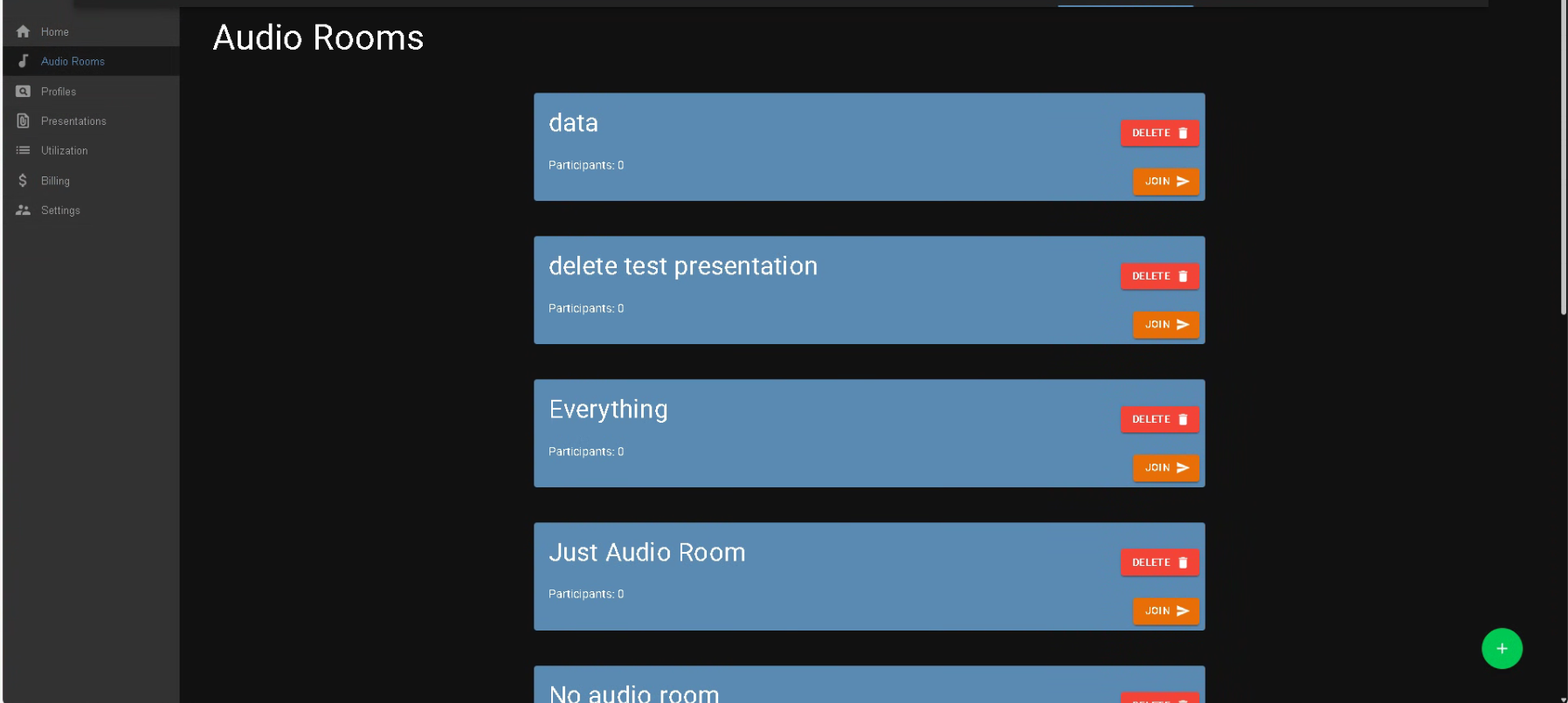
Audio Rooms is now the audio interface for Presentations. Audio Chat feature is decommissioned, but your older Presentations that were created with Audio Chat feature will still work - they will default to Audio Rooms.
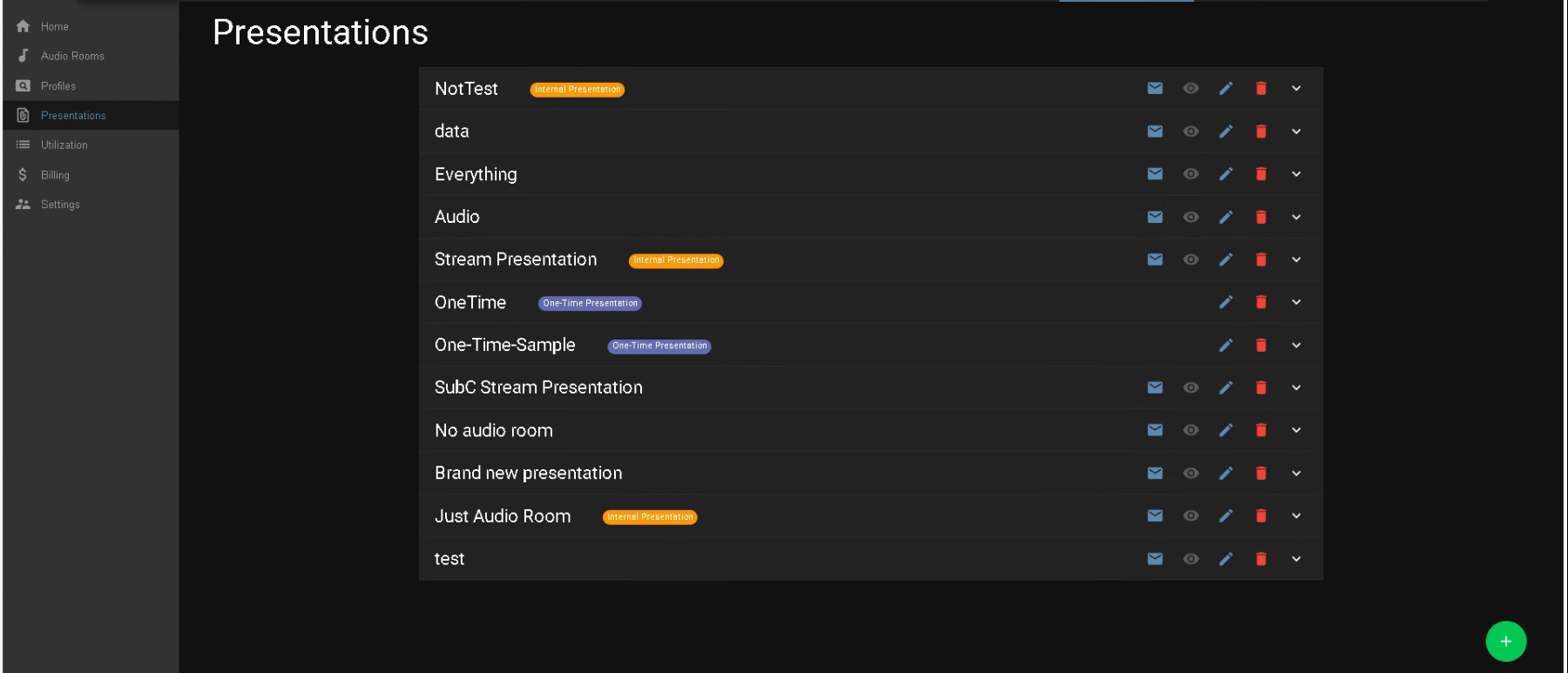
Presentations UI has been redesigned to provide a more informative, user-friendly interface.
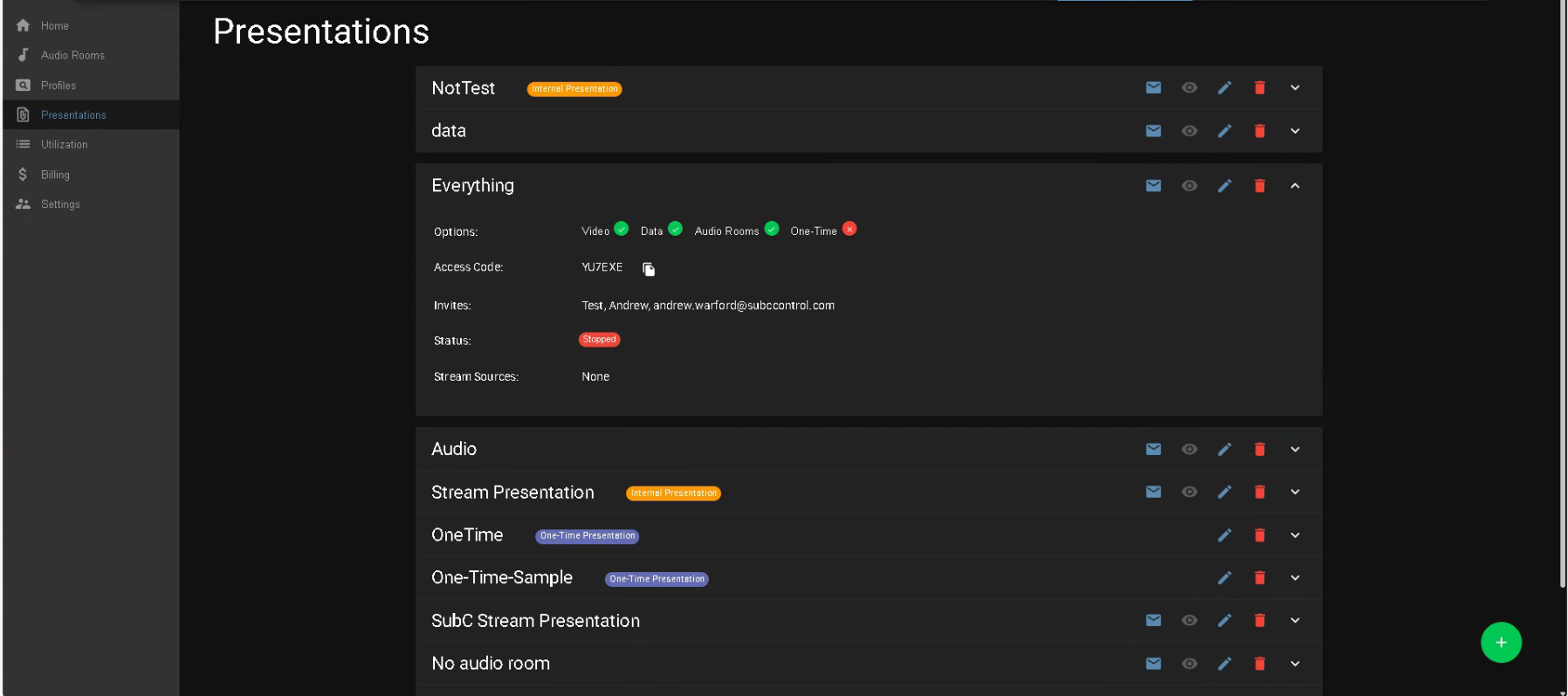
Click the “v” button to expand a Presentations to see the details.
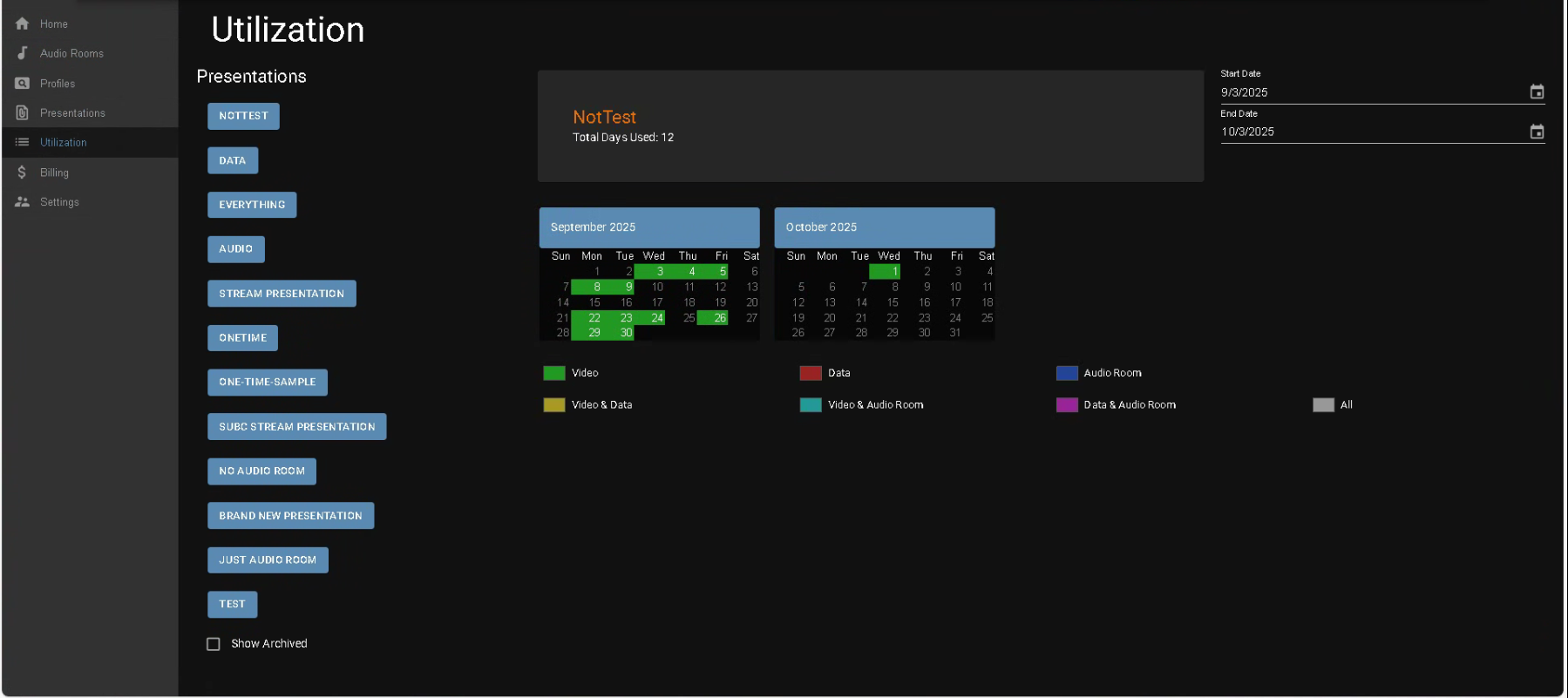
Utilization UI has also been redesigned to provide a more informative, user-friendly interface.
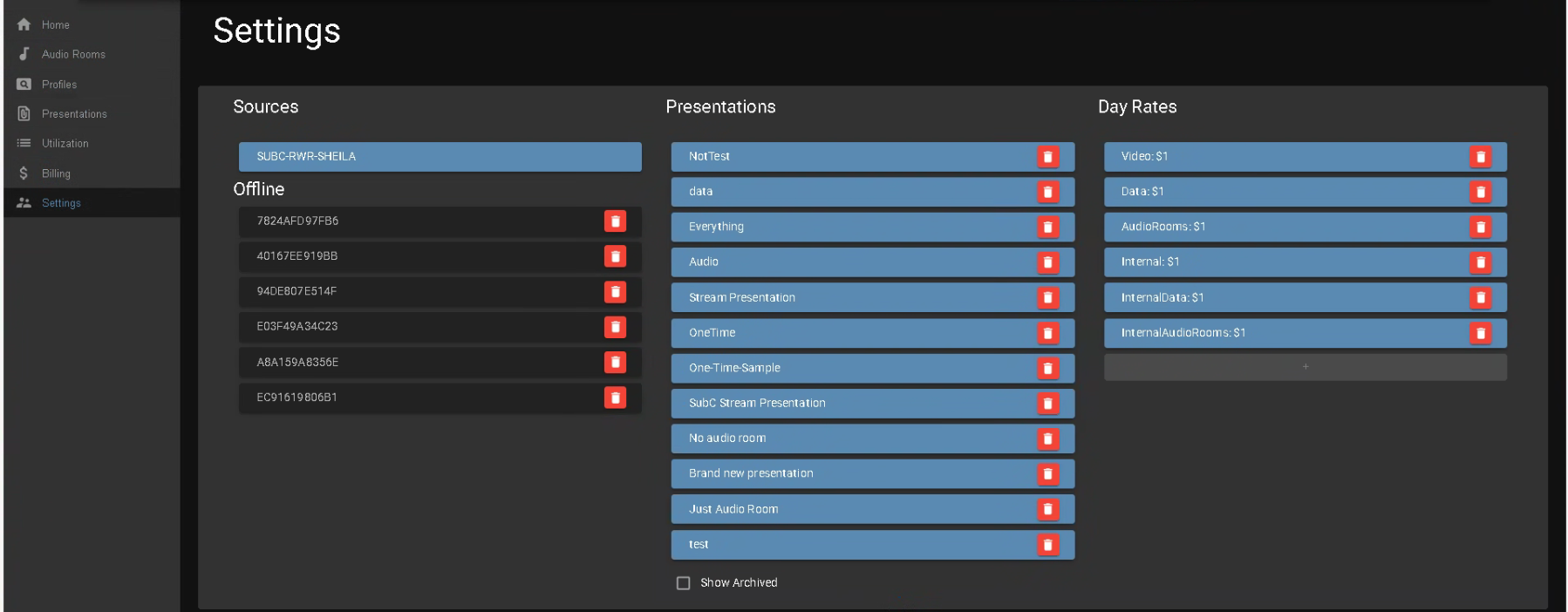
Settings is still where you find your Group’s Sources (Activated SubC desktop application host systems), Presentations Current & Archived and Day Rates.
We’ve restructured Day Rates:
Regular Presentations are to be used for live jobs/projects; See your Group's Video | Data | Audio Rooms rates.
Internal Presentations are to be used for testing your setup in preparation for live jobs/projects. Internal Presentations have SubC watermark overlay on the video.
See your Group's Internal (Video) | Internal Data | Internal Audio Rooms rates.
As mentioned, Audio Chat has been replaced with Audio Rooms, therefore Audio Chat is no longer listed in Day Rates.
Contact sales@subcimaging.com if you would like to add Presentations features or have any questions pertaining to your Day Rates.