The PC hosting the SubC software application and your Rayfin cameras must be on the same network. There are several reasons why an Ethernet device may not show up on a network.
To diagnose the issue, follow these steps:
-
Verify that your PC is connected to the same network as the camera.
A router is required for the initial setup between the Rayfin camera and your PC.
A switch does not serve IP addresses with DHCP as a router does.
SubC supplies a micro router with our Rayfin cameras to troubleshoot networking issues.
For more about switches and routers: https://www.cisco.com/c/en_ca/solutions/small-business/resource-center/networking/network-switch-vs-router.html
-
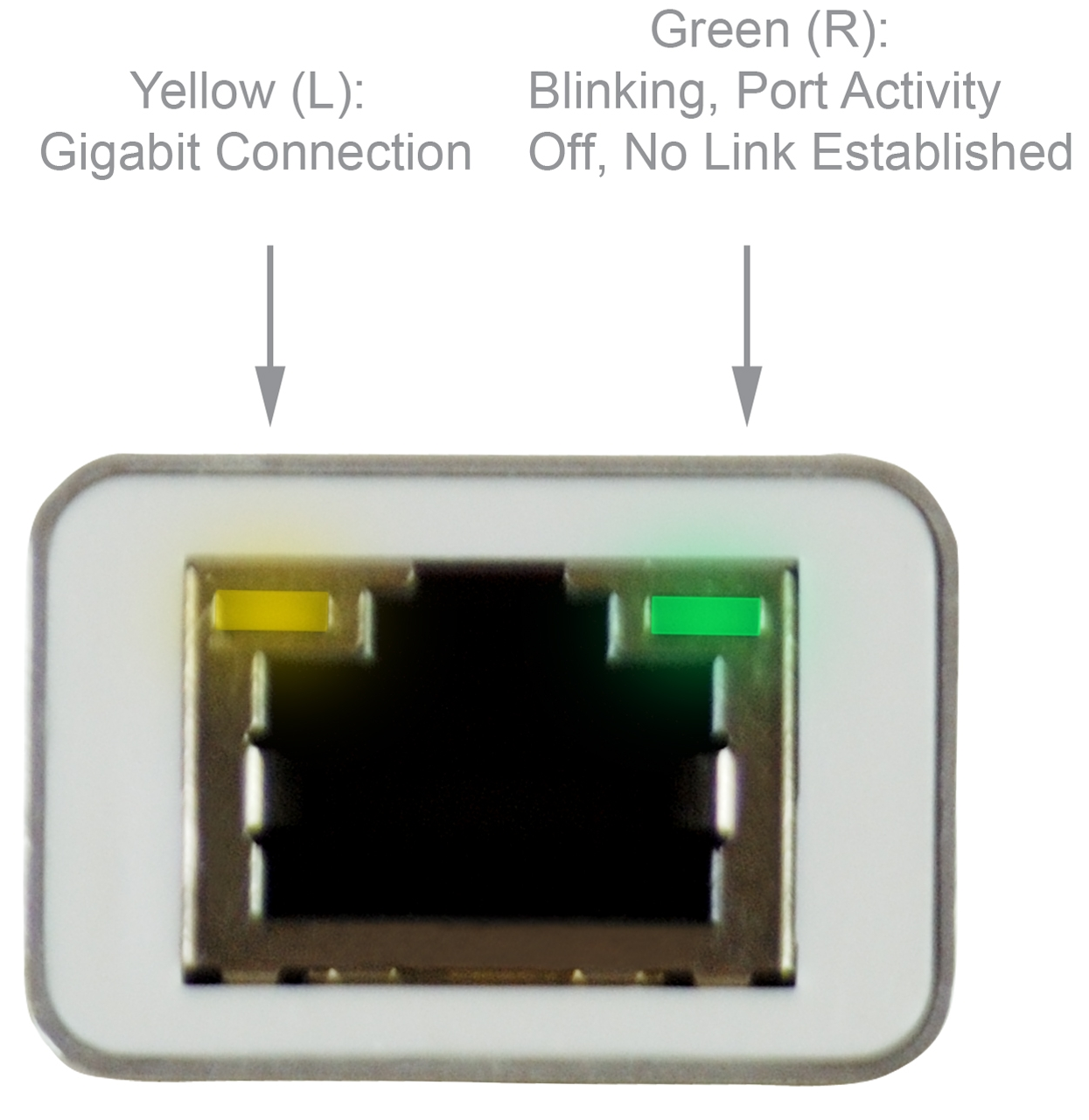
Access your router or switch, and check if the link LED and activity LED is blinking on the port that the camera is connected to.
-
If the Link LEDs are not active, cycle power to the Rayfin camera
-
Make sure your Laptop/PC is plugged directly into the router, on a LAN port (not the WAN port).
-
There could be a cabling or networking issue:
-
Refer to your Rayfin camera datasheet for the correct Ethernet wiring: Rayfin Benthic
-
Follow the steps in the relevant Quick Start Guide for your camera model to ensure everything is connected correctly: Quick Start” Benthic HDE - Ethernet
-
Try another router / switch
-
Try a spare cat5e Ethernet cable
-
-
Check with your IT Network team. Your network’s firewall may be blocking certain IP ports.
See the table on this page: Ethernet Connection
-
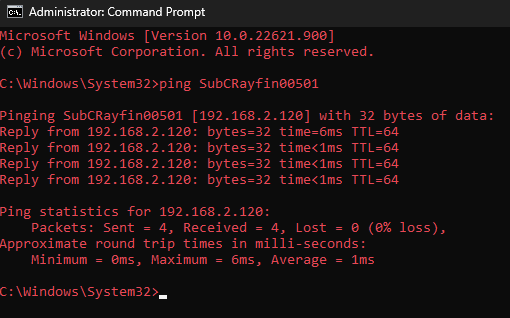
Ping the camera from the command prompt to verify that it is connected to the network
ping SubCRayfin##### or ping {IP address} -t (Note: the -t continuously pings, which can be useful for troubleshooting wiring and other intermittent issues) -
If the camera does reply after pinging it, it may be set to Static IP.
See the steps in Ethernet Connection | Disabling Static IP to switch to DHCP mode.