Edge
To use this Edge Input feature, you must also have a SubC SecureEdge Server installed in your LAN and a SubC DVR+O + Edge Licensed Desktop application install on one of your systems.

Connect a Channel to Edge Stream
If you are already familiar with SubC Streaming through SubC Cloud Stream Servers, think of SubC SecureEdge Server as having your own LAN Stream Server and you do not require Internet to access your local SecureEdge server.

See DVR+O User Manual - Data Security and Streaming and Streaming to SubC Edge
If you are interested in implementing SubC SecureEdge Stream Server, please contact sales@subcimaging.com for information.
See Diagram: Internal Network: SecureEdge
In order to use the Stream Desktop application Edge Input Type, you must first have a SubC SecureEdge Server installed in your LAN and a SubC DVR+O + Edge Licensed Desktop application installed on another system.
SubC DVR+O + Edge System
In the SubC DVR+O + Edge Desktop application, connect to your SubC Secure Edge Server.
Then, configure a SubC DVR+O Channel with video input and stream that Channel to your Secure Edge Server. See Menu → Streaming to SubC EdgeStream Desktop System
In the Stream Desktop application on another system within your LAN, you can then take that SubC DVR+O Channel (that is streaming to the SecureEdge Server) in as Edge Input to your Stream Desktop Channel.
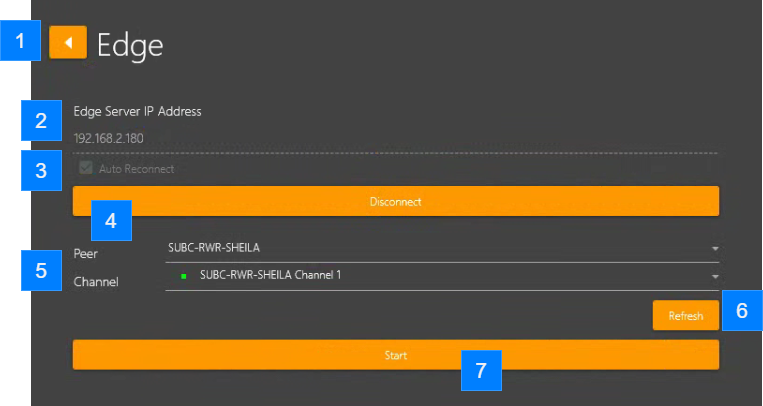
Back Arrow – Returns to the Input selection screen
SecureEdge Server IP Address - Enter the IP Address of your SubC SecureEdge Server
Auto Reconnect - Check this box if you want to automatically reconnect to your SecureEdge Server automatically. In the event of a network comms interruption, once it is restored, your Channel will resume its connection to the input source.
Click Connect to connect to your SecureEdge Server
When the SecureEdge Server is receiving a video Channel from the SubC DVR+O system within your LAN streaming to it, you will see:
Peer: Will list the name(s) of the DVR+O System(s) that are streaming video to the Edge Server.
Click this drop-down field and select a DVR+O System that is streaming video to the SecureEdge Server.
Channel: The Channel of the DVR+O System that is streaming video to the SecureEdge Server will have a green dot indicating that the Channel is actively streaming to the SecureEdge Server.
Click this drop-down field to see Channel(s) on the current Peer that are streaming Channel(s) to the SecureEdge Server.Click Refresh if the Peer is not showing &/or the Channel has a red dot (indicating that the Channel is not active).
If after clicking Refresh, you still do not see the Peer &/or Channel as active, check the SubC DVR+O System that you expect to be streaming video to the SecureEdge Server.Click Start after you have selected Peer and Channel to take that Edge video stream as input to your Stream Channel.
Once the Channel is connected to the Edge Peer & Channel, you will see the video coming into your Stream Channel.
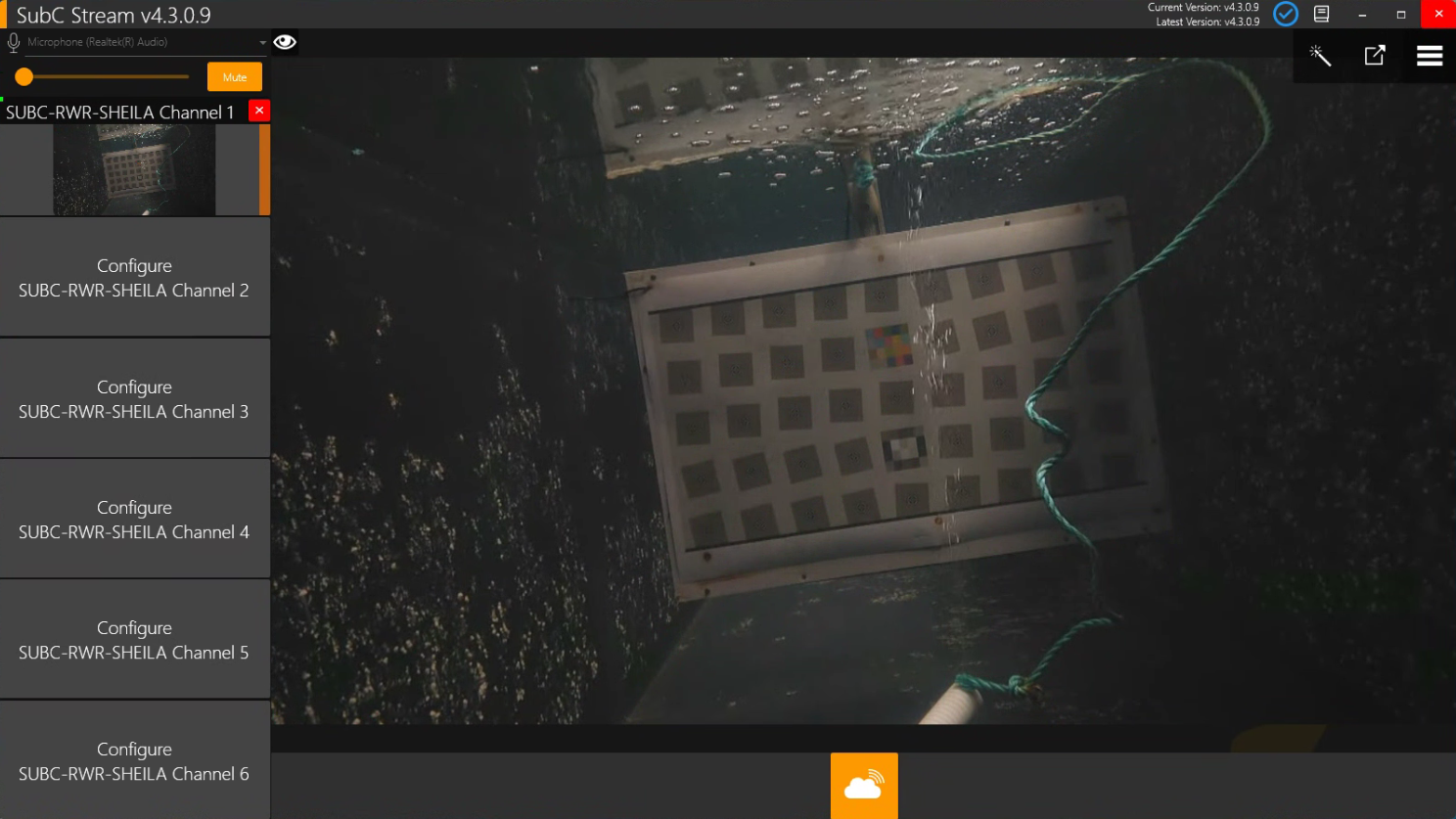
Edge Server Streaming Video + Data
Like SubC Cloud Stream Servers, SubC SecureEdge LAN Stream Servers can also transmit date with video.
When you connect a SubC Stream Channel to an Edge streaming Peer and Channel you can take the Edge streaming video in on any Channel.
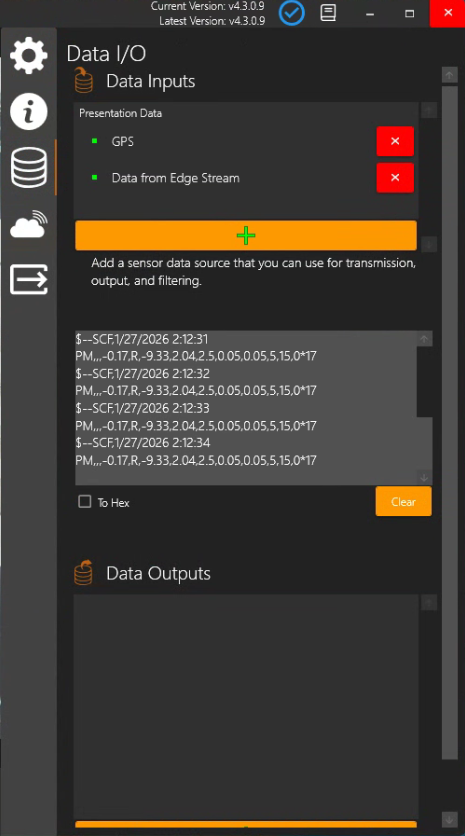
But to also get the data that that is streaming with the Edge video, connect to the Edge streaming Peer and Channel to your SubC Stream Channel 1, plus connect Menu → Data I/O → UDP Broadcast to Port 55443.
Data I/O → UDP Broadcast
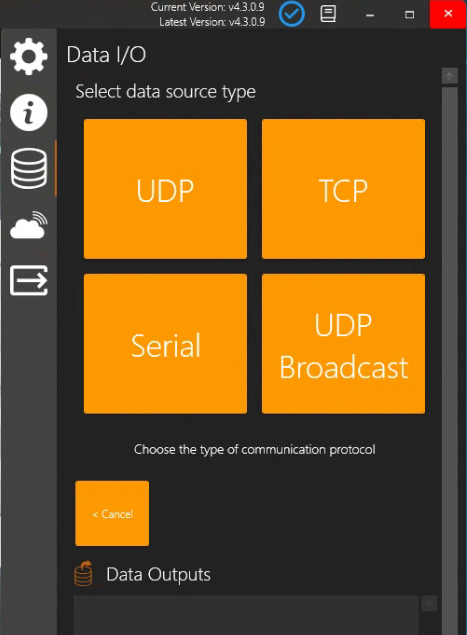
Port 55443
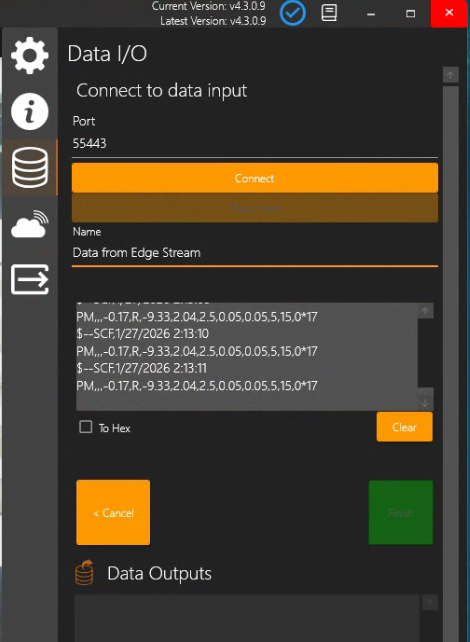
It's a good idea to give this Data connection a Name before you click Connect. Then Click Finish
Data from Edge Stream is now coming in on Channel 1