
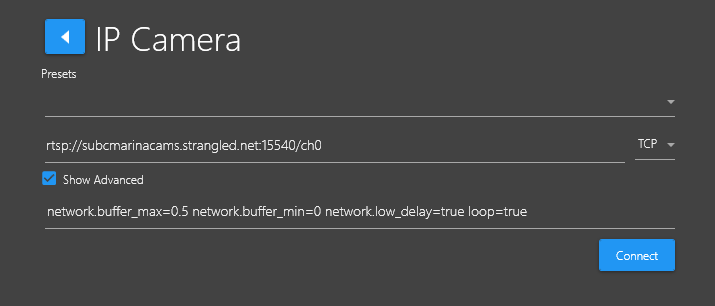
If you see pixilating / artifacts appearing / coinciding with the CPU running high, you can adjust the values in the IP Camera Show Advanced field.
-
To show clearly what to change in Advanced field values:
-
network.buffer_max=0.5 → Changed to 2
-
network.buffer_min=0 → Changed to 1
-
network.low_delay=true → Removed
-
-
Example of Default Advanced field string:
-
Default:
network.buffer_max=0.5 network.buffer_min=0 network.low_delay=true loop=true -
You can change to:
network.buffer_max=2 network.buffer_min=1 loop=true
-
-
Example of Advanced field values (we use to get HikVision cameras to work) full strings before and after below:
-
Before:
network.buffer_max=0.5 network.buffer_min=0 network.low_delay=true loop=true external_process=false experimental.mfcodecs=true experimental.out_video_packets=true experimental.out_audio_packets=true probesize=32 loop=true -
After/Fixed:
network.buffer_max=2 network.buffer_min=1 external_process=false experimental.mfcodecs=true experimental.out_video_packets=true experimental.out_audio_packets=true probesize=32 loop=true
-
You’ll can also do the same on other Stream Desktop application Channels you have connected to other cameras that may be experiencing the same issue.