
Sign in, connect a source, and share a live Presentation
Use this guide to get from your first SubC Streaming Service Web sign-in to a live video Presentation. Your organization must have a SubC Streaming Service subscription, and you need a user account and access to your organization’s Group(s).
|
If you do not have an account in your organization’s Streaming Service Group, ask your manager to contact support@subcimaging.com to request your account (your company email address) to be added to your Group. Once you have a Streaming Service Account, confirm that a SubC Stream enabled desktop PC is activated and online. |
01 Sign in
-
Open the SubC Streaming Service Web app and sign in with your Streaming Service account (your company email address).
-
Enter the numeric verification code sent to your email when prompted.
02 Choose your Group and check the source
-
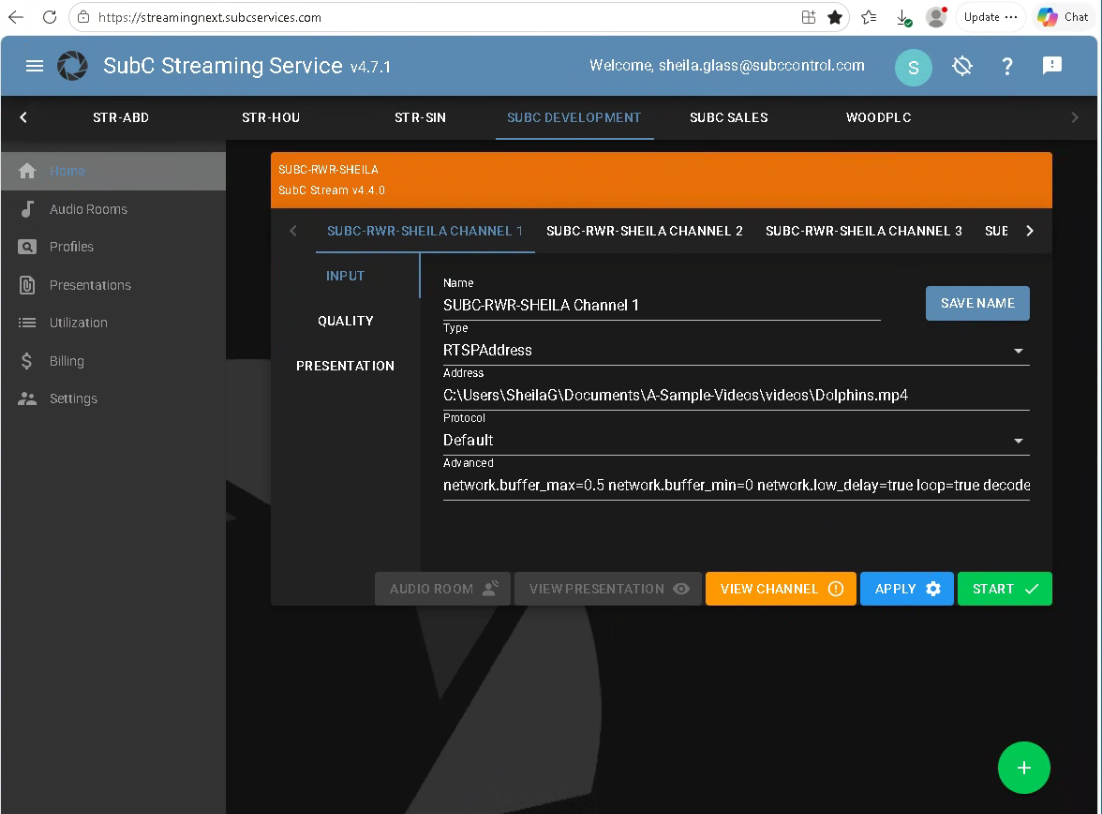
Open Menu → Home (if your organization has more than one Group, select the Group in which you wish to interact).
-
Find your activated source PC. It appears online when the SubC desktop application is open.
-
If no source PC is listed, select the green + button to generate an Activation Code, then have the person at the source PC enter it in the SubC desktop app. Refresh the web page after activation.
-
03 Create a Presentation
-
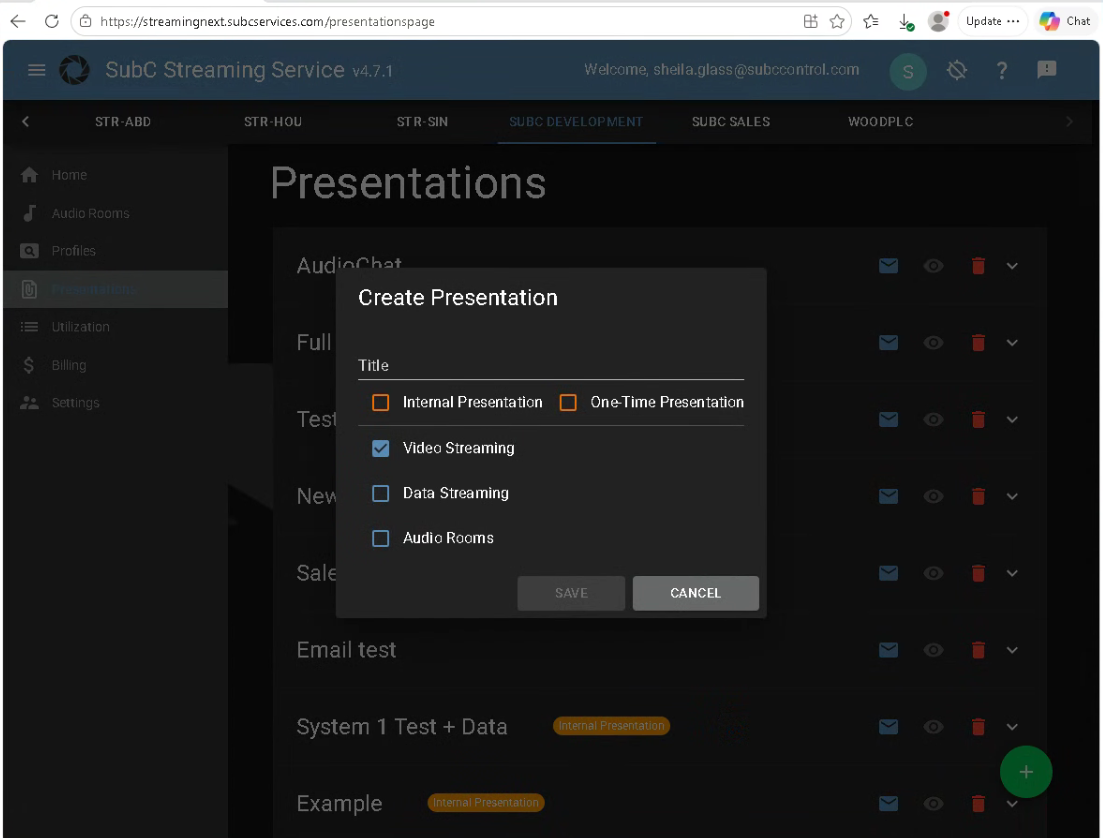
Open Menu → Presentations and select the green + button. Enter a suitable Title.
-
For a Regular Live Project Presentation, keep One-Time Presentation and Internal Presentation unselected.
-
One-Time is for temporary sharing; Internal is for testing and has a test SubC watermark.
-
-
Select the Streaming resources you want to include in your Presentation - Video Streaming, Data Streaming, Audio Rooms, then Save.
-
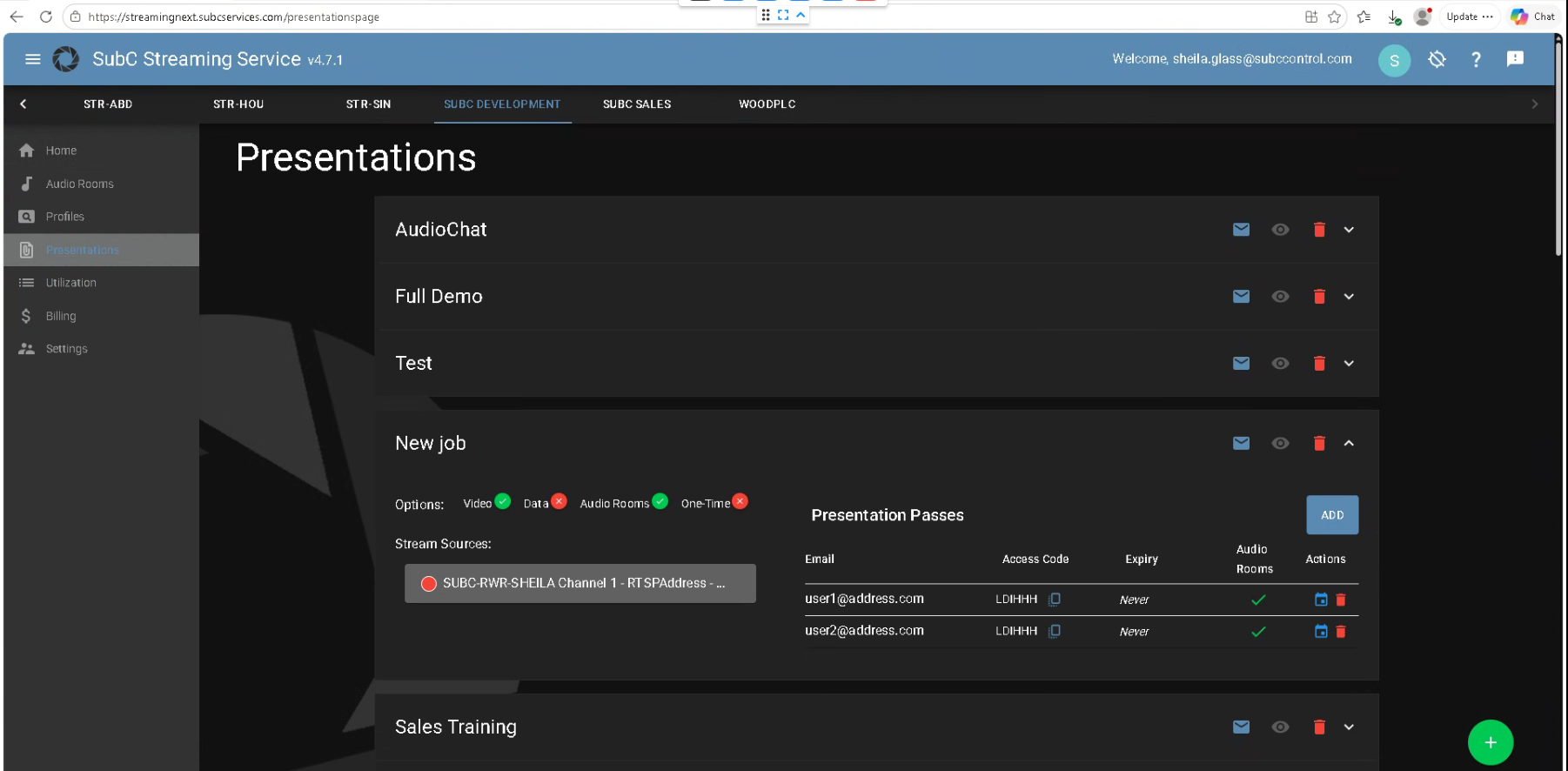
Add email address of viewers you want to invite to view your Presentation.
-
Send invitations to the listed viewers. Each invite includes a Presentation link and access code.
-
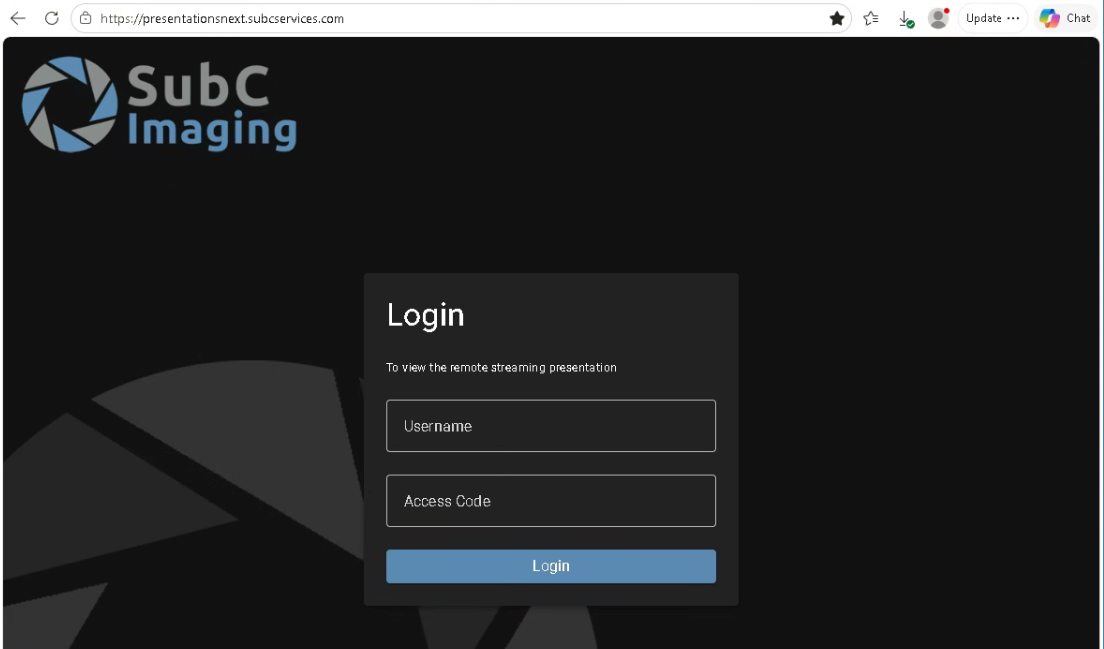
Viewers open the link and sign in with their Username (email address) and Access code.
04 Configure a channel
-
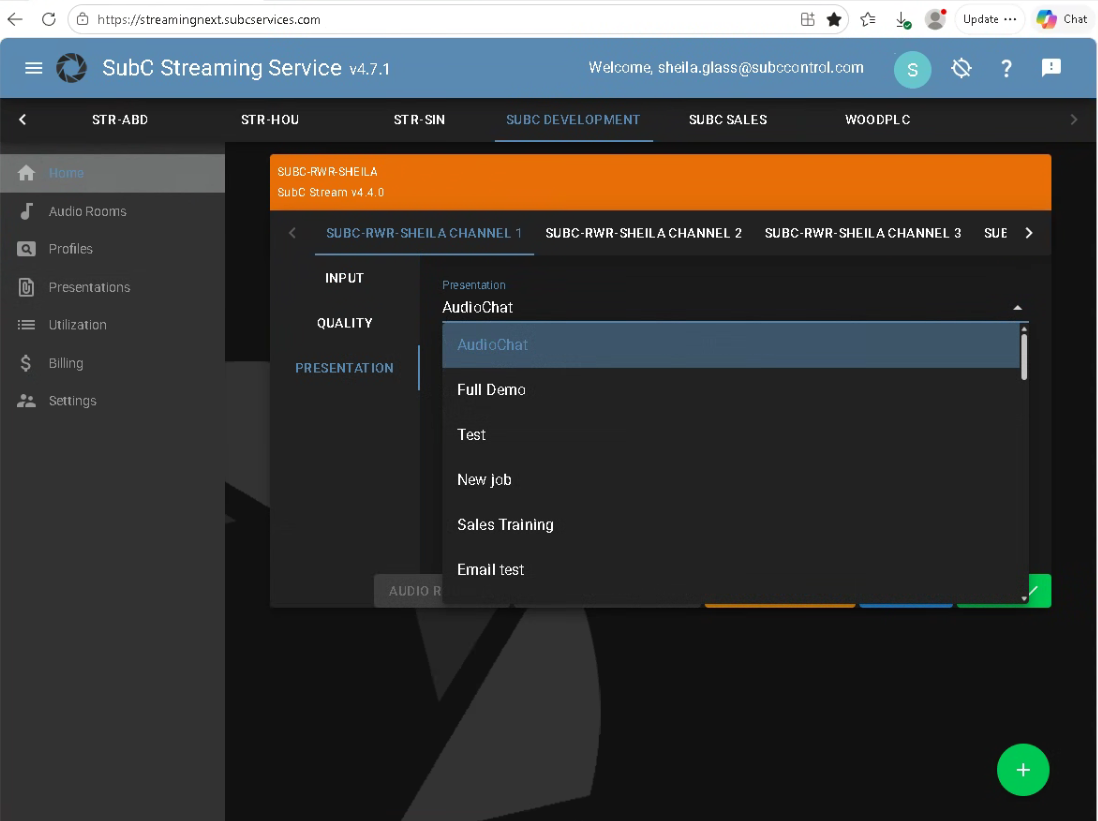
Return to Home and select the source PC, then choose a channel.
-
Select the Presentation you created, the appropriate video input/source and streaming location, then select APPLY.
-
The source PC and channel must be configured and online.
05 Start Streaming
-
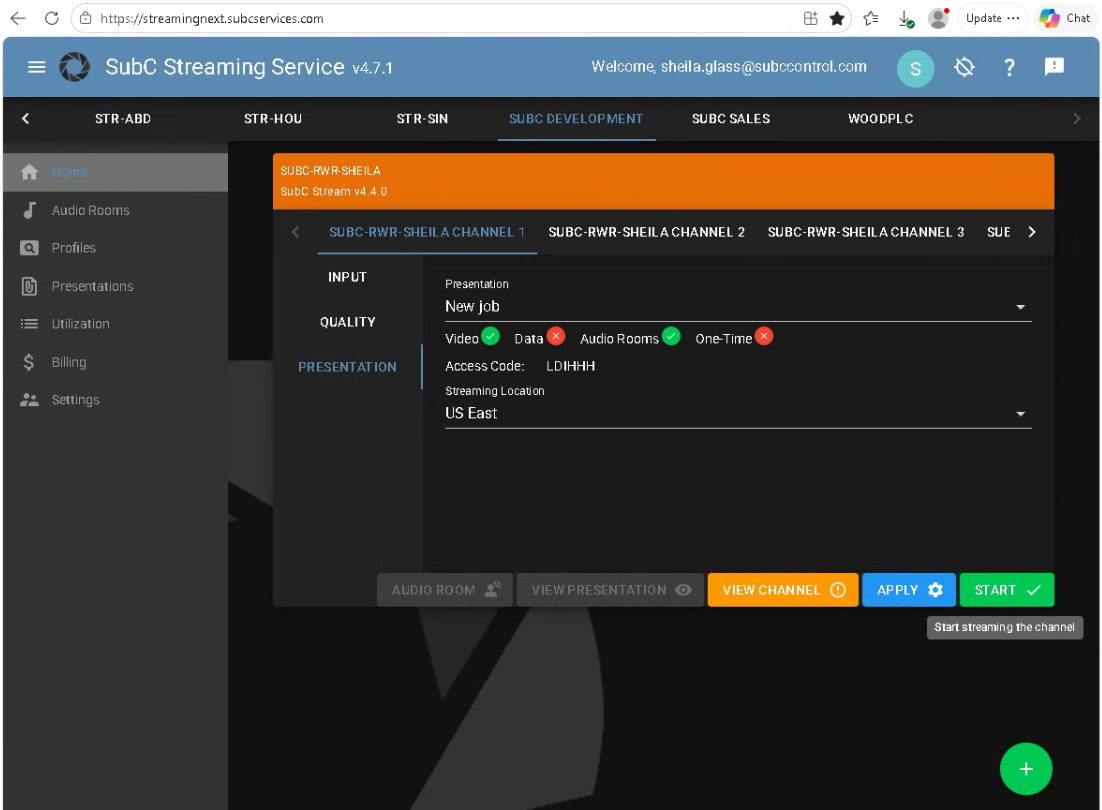
Select START to begin streaming the channel. Confirm its status changes to streaming.
-
The channel must be streaming for Presentation viewers to see video.
Quick status check
On the Group’s Home view, channel indicators show status: grey means not configured, red means configured but not streaming, and green means streaming. If a source or channel is missing, ask your manager to confirm Group access, source activation, and that the SubC desktop app is running.
Detailed references Web Overview | Home and Groups | Presentations and viewer access | Full Streaming Service web User Manual