
Loading in Progress
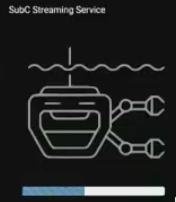
In the SubC Streaming Service Web app UI, we have added a new Loading in Progress graphic to let users see the web application is loading. This is especially useful for users on slower Networks as it reassures that the web application is loading.
Changes to Active System Cards
Click System Card to open/close the Channel Configuration UI
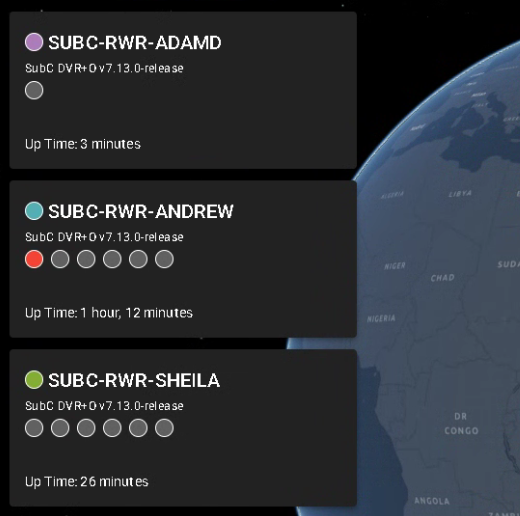
In the SubC Streaming Service Web app UI, we have removed the gear wheel icon from the System Cards that display DVR+O Desktop application systems that are currently active. Now, just click on the desired System Card to open the Channel Configuration UI.
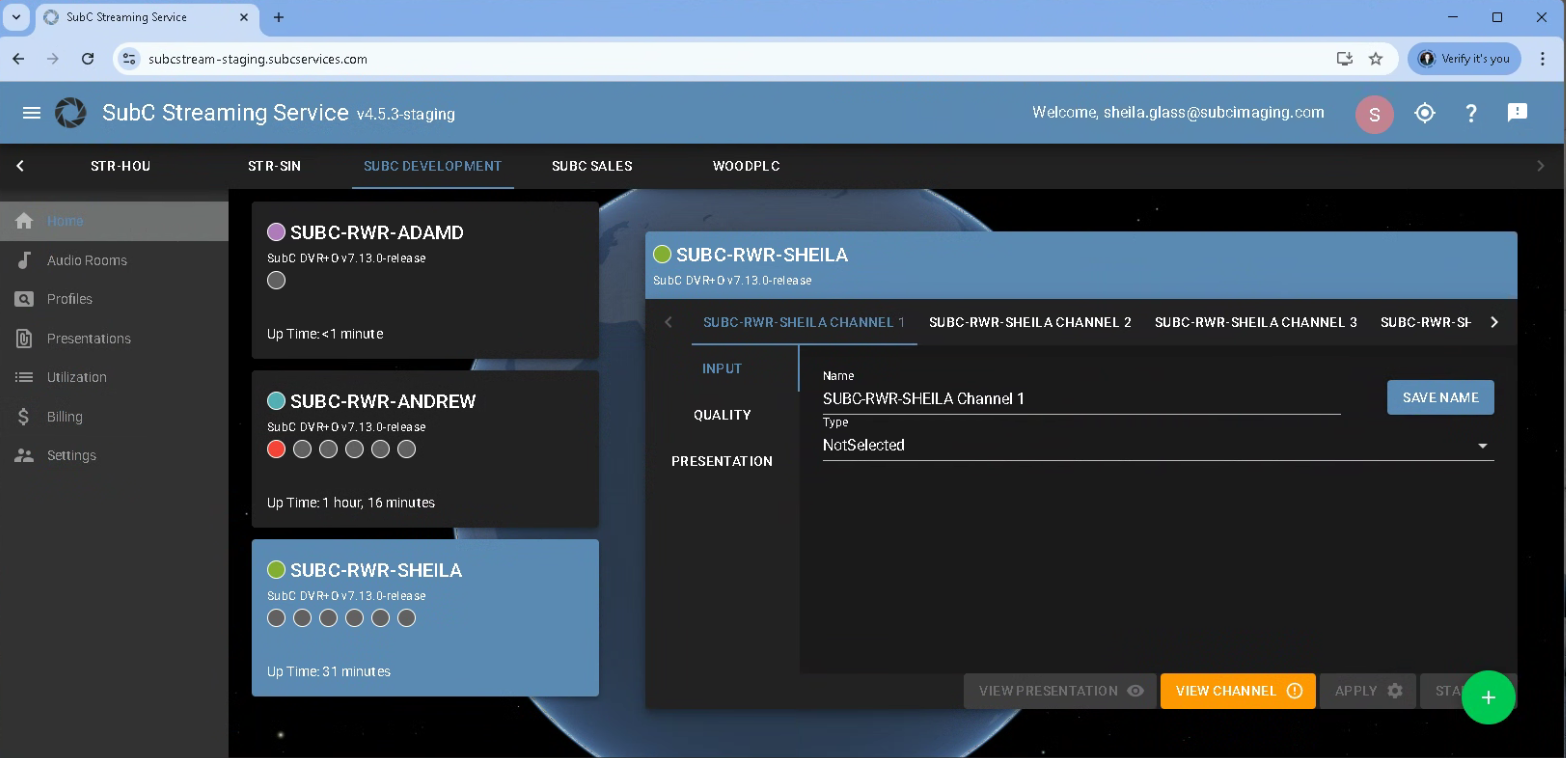
Click the System Card again to close the Channel Configuration UI.
Channel Status Indicators
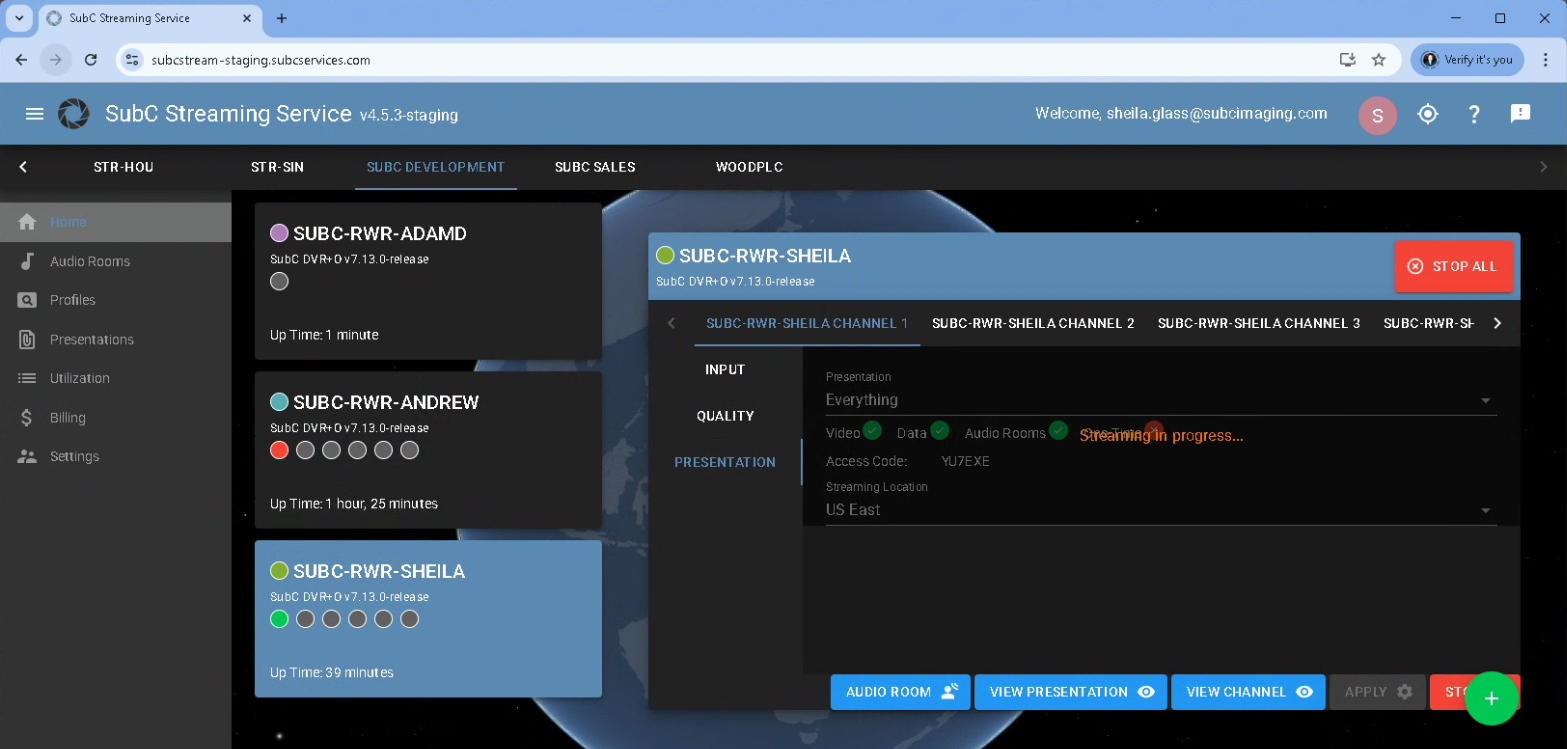
We’ve included status indicator “dots” in a row on the System Card that correspond to each Channel.
-
Grey = Channel in not configured
-
Red = Channel is configured, but not streaming
-
Green = Channel is streaming
Navigate to Vessel Pin
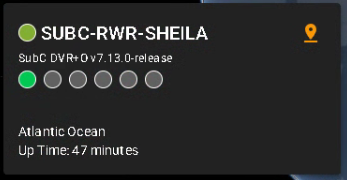
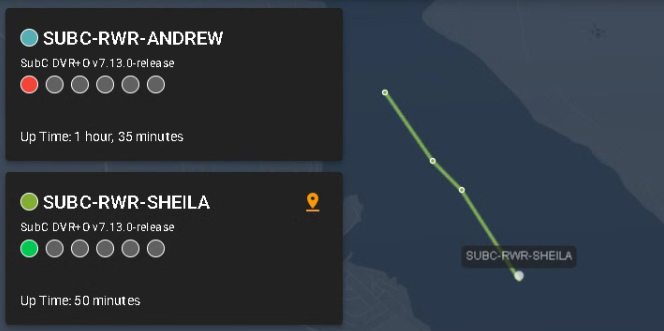
When you also have Data I/O configured with incoming GPS data, the “Navigate to vessel pin” appears on the System Card.
Click on that Pin to zoom in to that System location on the globe.
Send Us Feedback

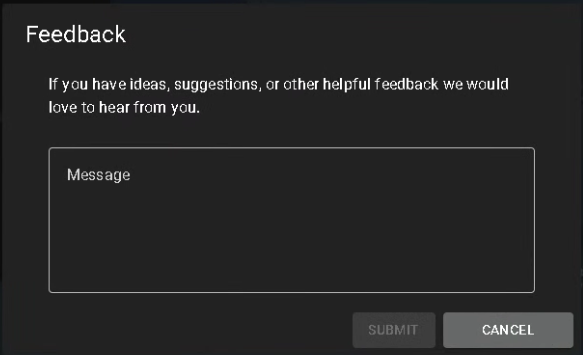
Click the new “Send us feedback” button (top, right of SubC Streaming Service Web app UI) to open the Feedback UI.
“If you have ideas, suggestions, or other helpful feedback, we would love to hear from you”
Type your feedback in the Message block and click SUBMIT button. Your Feedback will be received by SubC Support Team.
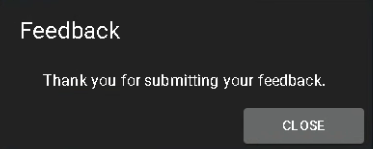
A confirming “Thank you for submitting your feedback.” message will appear. Click CLOSE.
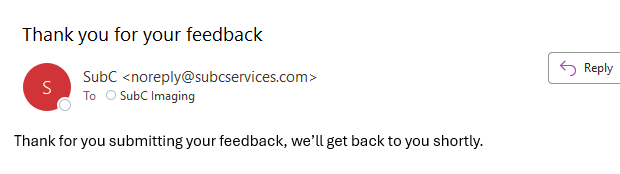
You will also receive a confirmation email in the Inbox of the email address you used to login to the SubC Streaming Service Web app.
New User Manual Access Button

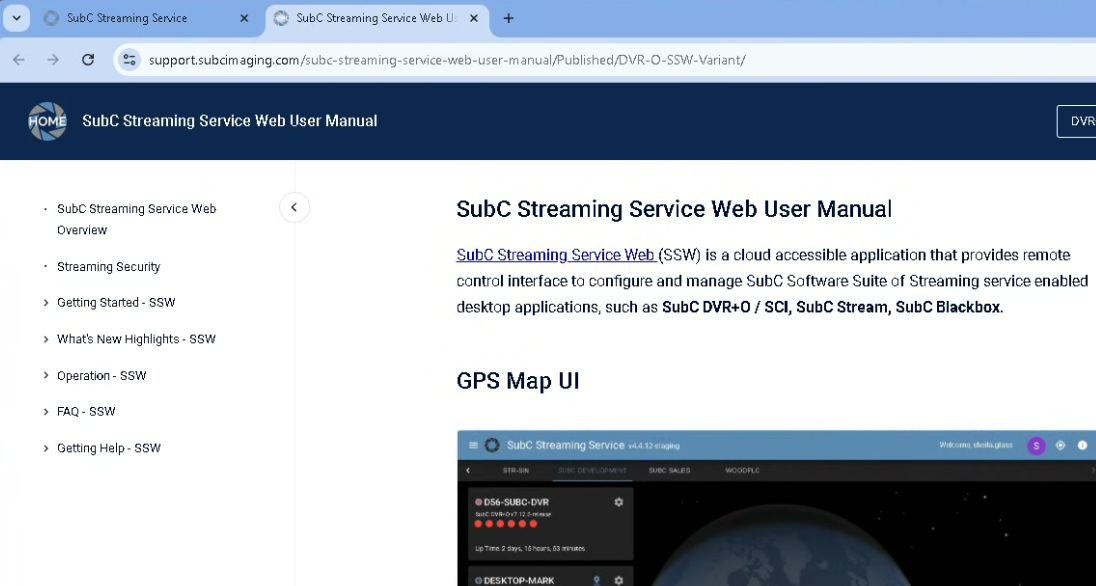
We have replaced the “Book” with “?” button (top, right of the SubC Streaming Service Web app UI).
Click “?” to open the SubC Streaming Service Web User Manual in a new browser tab.