
Presentation & Audio Room Enhancements
New Presentation Administrative Layout
We’ve changed the Presentation layout and added informative fields and new features.
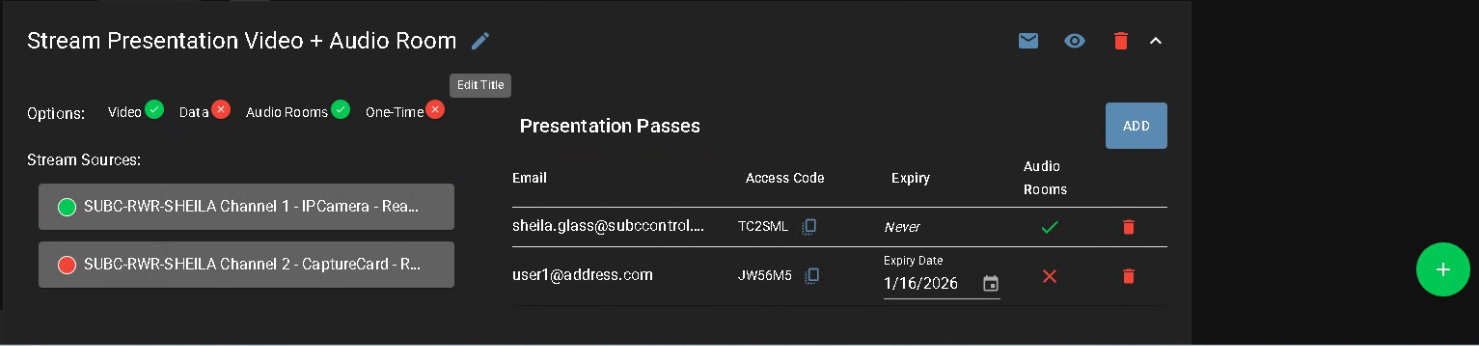

Edit Title: You can now change the name of the Presentation. Hold the cursor over the current title to reveal the Edit Title button.
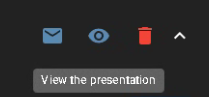
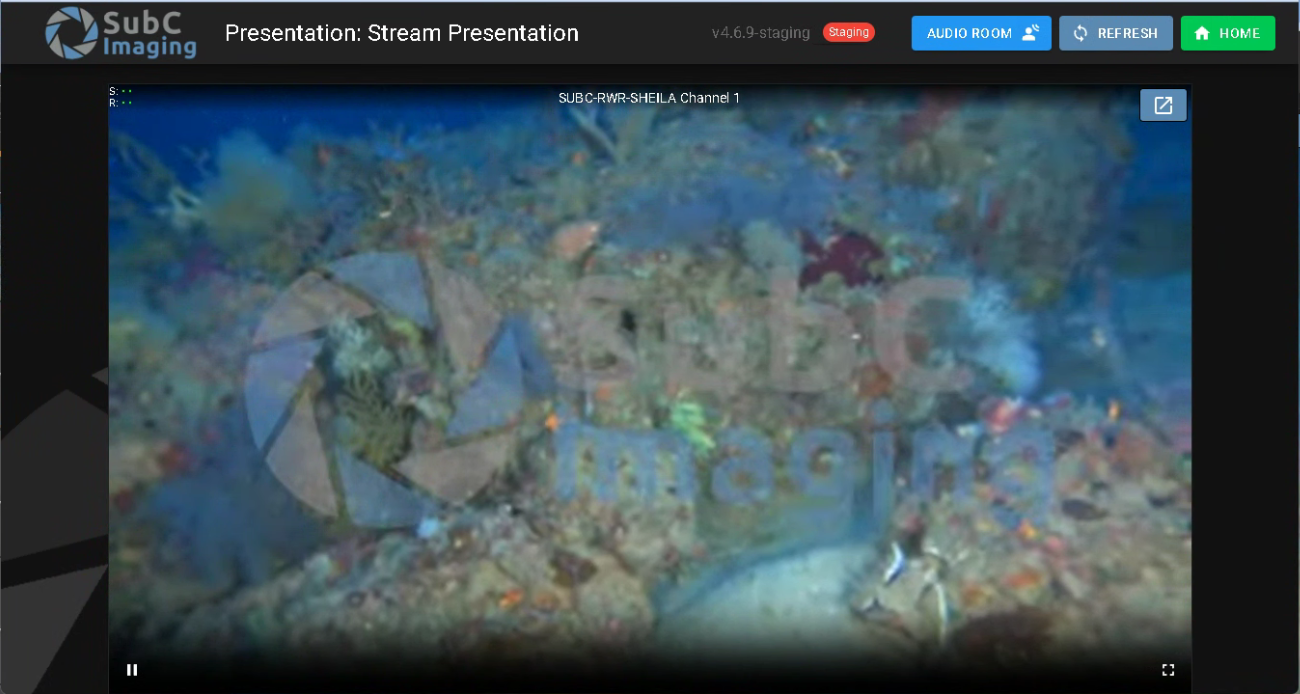
View the Presentation: You can now conveniently view the streaming Presentation by clicking the Eye button (to the right of the Email Invitations button).
As you are logged in to SubC Streaming Service Web app UI as a Remote Ops Admin, you are not prompted to supply Login and Access Code credentials.

Options: Video, Data, Audio Rooms, and One-Time features are now listed across the top, left and have a green checkmark (included) and a red x (excluded) to indicate which features were selected to include when the Presentation was created.
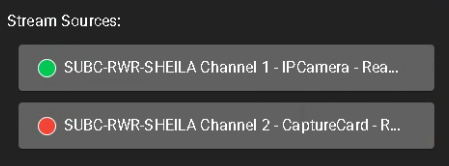
Stream Sources: Shows you which Stream Desktop application systems and Channels are currently pointed to this Presentation - green dot = streaming; red dot = not streaming
Stream Sources are listed identifying the source Stream Desktop application Hostname, Channel Number and Input Type.
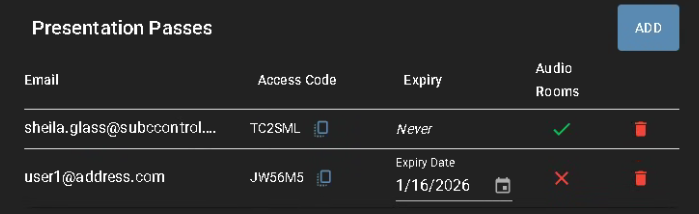
Presentation Passes: We’ve added enhanced security and flexibility in how you can invite participants to view your Presentations and grant or restrict access to Audio Rooms. See the next section below for more details about these new features.
New Presentation Passes Access Codes & Audio Room Access Control
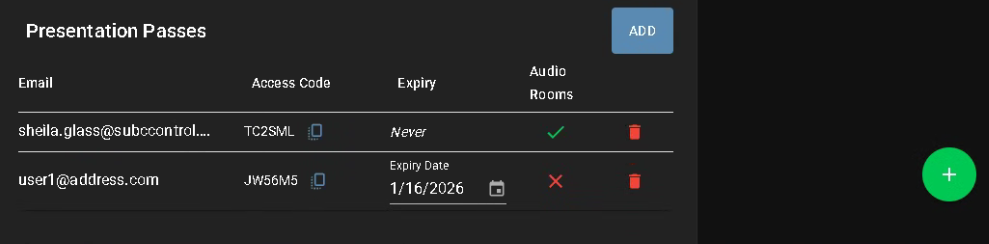

Green + Button - Create New Presentation: As your team’s Remote Ops Admin, when you create a new SubC Presentation, your Streaming Service Login ID (your email address) will automatically be added as a participant with a unique Access Code and will not expire.


ADD Button - Add Presentation Pass: You can now add individual, or group participant Presentation Passes Access Codes. An individual will receive a unique Access Code and groups will receive a common Access Code.
You can also control which Presentation participants have access to Audio Rooms. The Audio Room access button will only appear on the Presentation Viewer UI if the Presentation participant (individual or group) has been granted access to Audio Room.
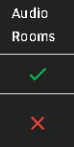
green checkmark = included and a red x = excluded
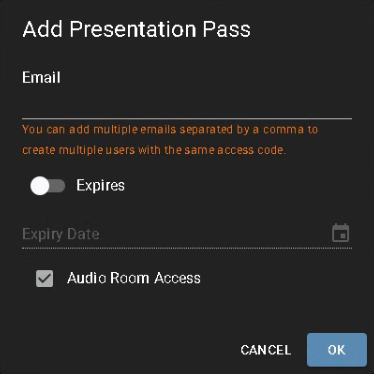
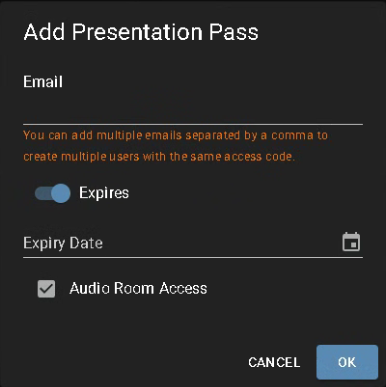
Click the ADD button to add more participants to the Presentation. The Add Presentation Pass UI, shown here on the left, will appear.
You can add the email address of Presentation participants individually and they will be given a unique Access Code.
You can add multiple emails separated by a comma to create a group of multiple participants who will each be given the same common Access Code.
When the Expires selection button is in the left position, access to the Presentation will not expire (the Expiry Date field is inactive) and Expiry will appear as Never under the Presentations Passes list.
When the Expires selection button is in the right position, the Expiry Date field is active, and you can enter an expiration date or select an expiration date by clicking the Calendar button.
To allow Presentation participant to have access to the Audio Room (when Audio Room is included in Presentation features), select the Audio Room Access checkbox.
When the Audio Room Access checkbox is not selected, the Presentation participant(s) will have no access to the Audio Room.
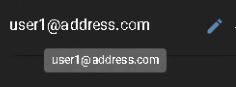
Edit Email: Hold the cursor over a participants Email Address to reveal the Edit Email button (pencil icon) and click it to open the email field to edit.
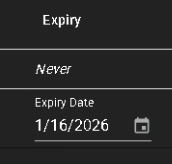
Expiry: Status is set to Never (access will not expire) or Expiry Date selected (access will expire on the specified date).
If you want to change a participants Expiry Date, click on the Calendar button to open and select a new Expiry Date.
-
If the Expiry field is set to Never, you cannot change it to a specific Expiry Date.
-
If the Expiry field is set to an Expiry Date, you cannot change it to Never expire.
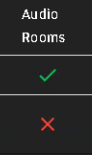
Audio Rooms Access:
-
A green checkmark indicates the participant has access to this Presentation’s Audio Room
-
A red X indicates the participant has no access to this Presentation’s Audio Room.

Remove a participant from accessing the Presentation by clicking the red trashcan on the far right of the participant record.
Note: If the participant is currently logged in to the Presentation, clicking the Remove button will not kick them out. However, once they logout of the Presentation, they will not be able to login again.
Presentation Viewer UI
Loading in Progress

In the SubC Presentation Viewer UI, we have added a new Loading in Progress graphic to let users see the application is loading. This is especially useful for users on slower Networks as it reassures that the Presentation Viewer application is loading.
Presentation Viewer Examples
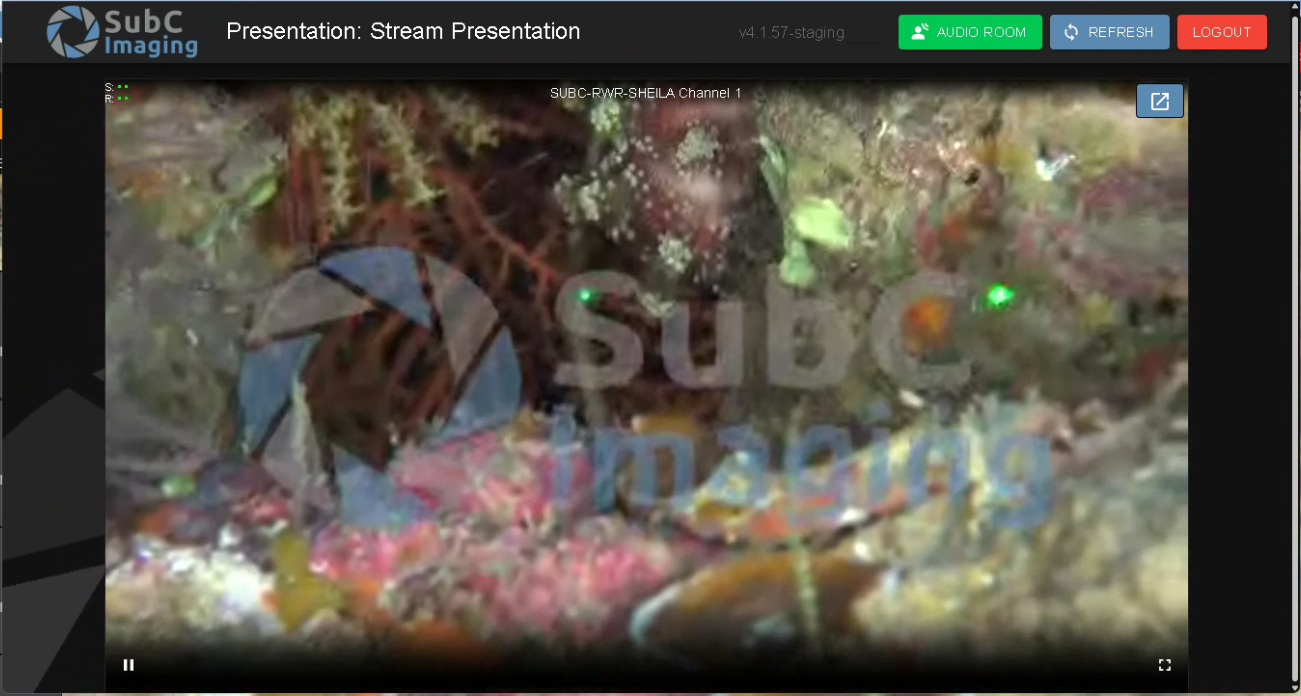
Example: Logged into Presentation as Participant with access to Audio Room.
The Audio Room access button is included.
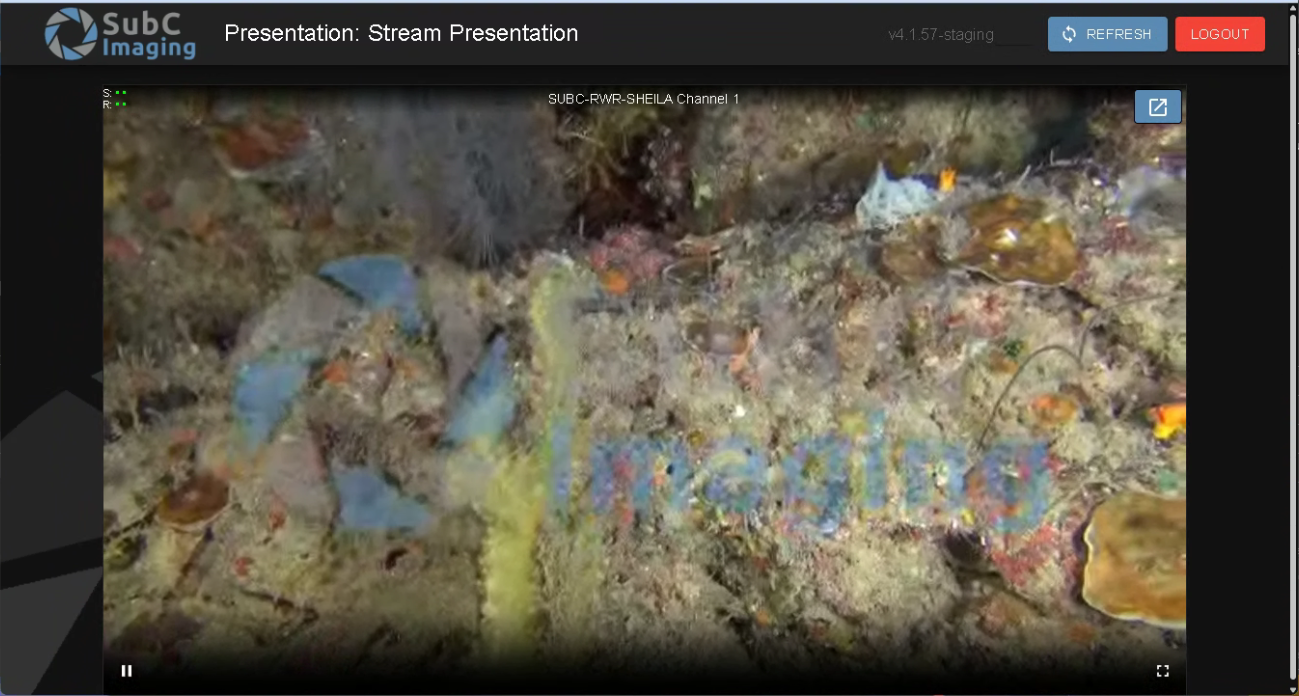
Example: Logged into Presentation as Participant with no access to Audio Room.
The Audio Room access button is not included.