Rayfin Camera Input

Select Rayfin as the Channel Input type.
The SubC Software will automatically detect and display Rayfin cameras that you have connected to your Network allowing you to conveniently select a Rayfin camera from the list.
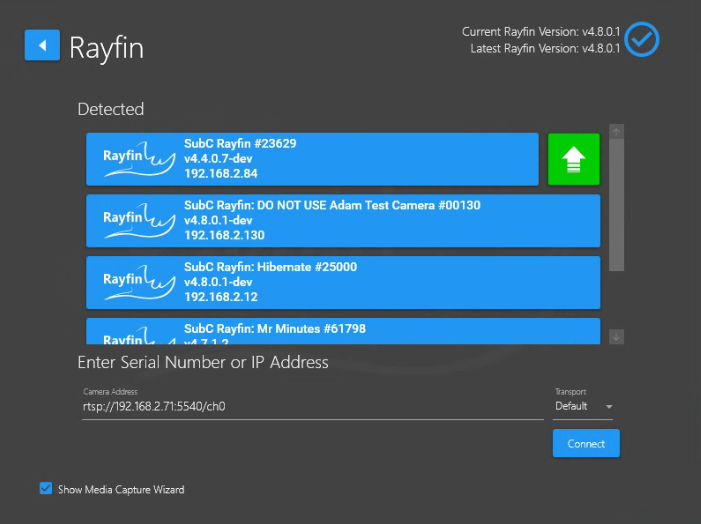
The green arrow displayed next to the Rayfin Camera shown in the image above indicates that there is a newer version of Rayfin ROM & Firmware available for this camera. See Upgrade Rayfin Camera ROM & Firmware for details on how to run this upgrade.
If your Rayfin camera is v3, do not use this green arrow method to upgrade to v4. See FAQ → CLI-How to Upgrade Rayfin Camera from v3 to v4 for instructions.
Do not select the same Rayfin Camera for more than one Channel, as this will result in a camera conflict error when recording and taking stills/frame grabs.
Alternatively, you can enter the Rayfin camera Serial Number or IP Address
-
Camera Address - Enter the Rayfin Serial Number (i.e. 00126 ) or its IP Address
-
Framerate - Select Default or [60 | 59.94 | 50 | 30 | 29.97 | 25 ] from this drop-down field
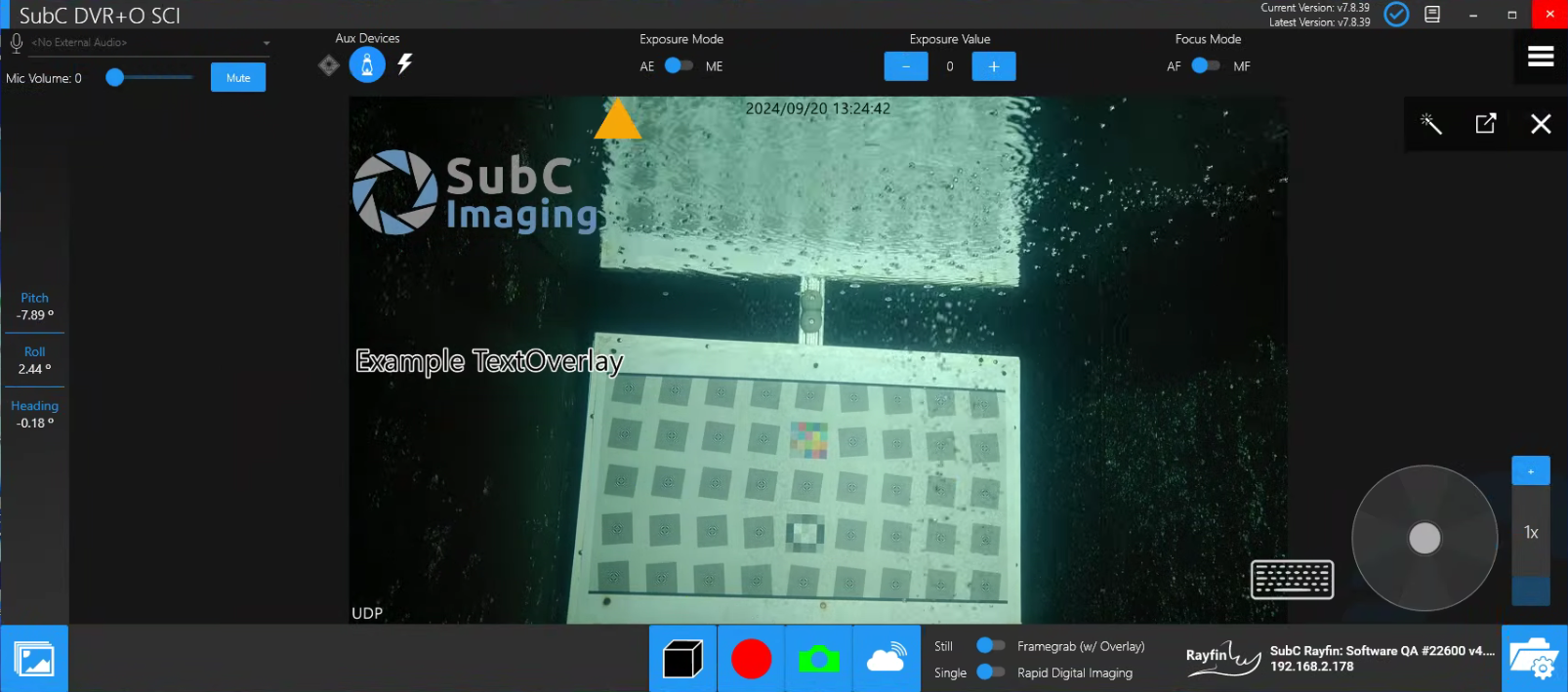
The view of the Rayfin will be presented in the center Main View.
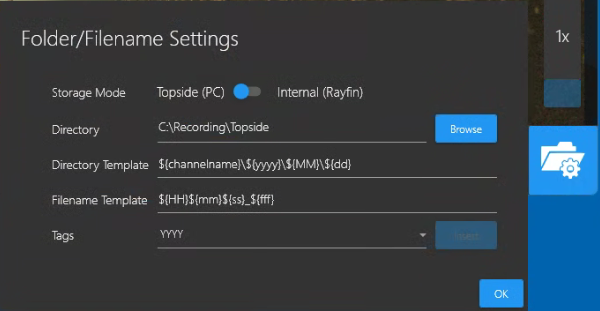
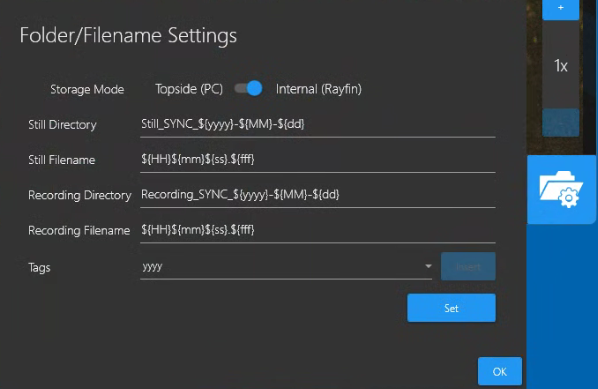
You can also select Folder Filename Settings to specify where you prefer to save your recorded videos and stills. See Record & Framegrab for more details.
Storage Mode: Topside (PC)
Storage Mode: Internal (Rayfin)
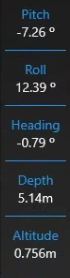
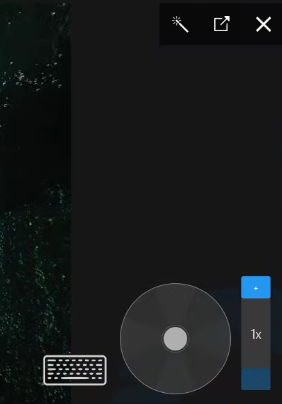
Rayfin Camera Controls appear at the top and along the right & left sides of the SubC Software UI. See Rayfin Camera Controls for more details.