
In this section we review each of the SubC Channel Input types and describe each of the features and controls that appear in the UI once a Channel is configured.
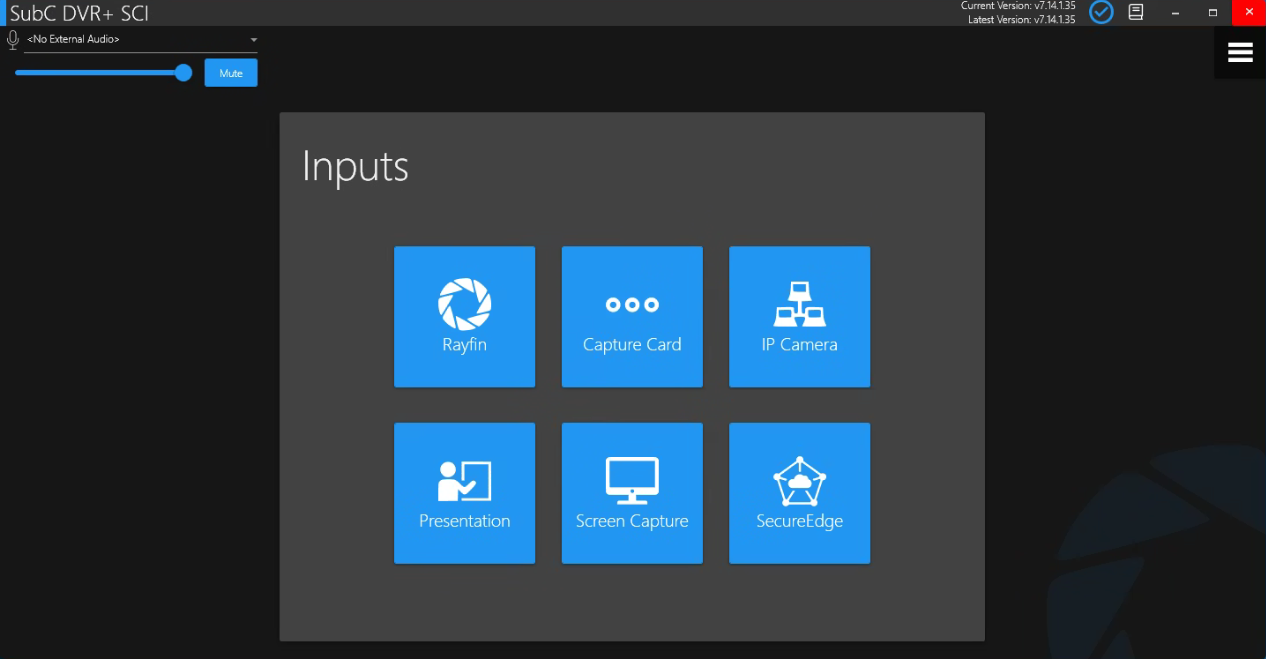
Choose an Input type and configure.
Below, is an overview of each of these Inputs.
Rayfin

|
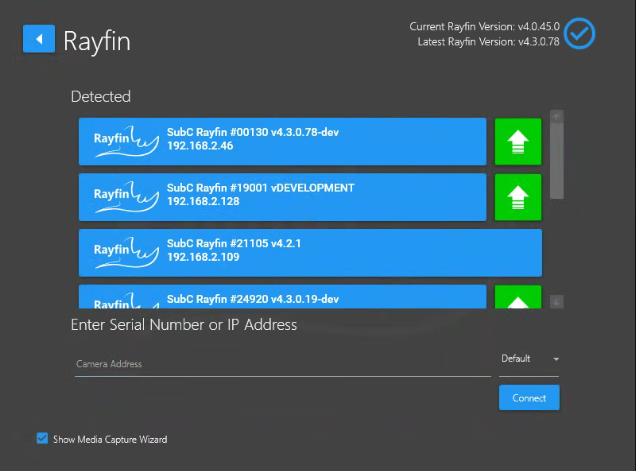
With SubC Rayfin Cameras connected to your Network, the DVR+ / SCI will automatically detect and list the Rayfin Cameras. |
Capture Card

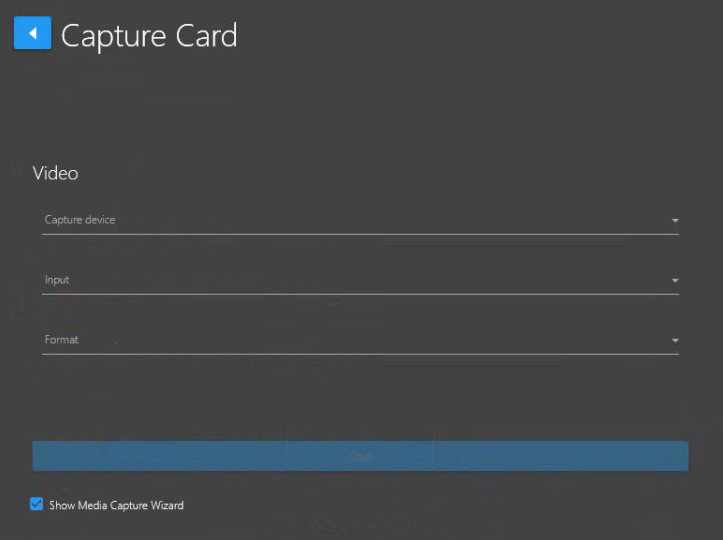
The Capture Card Input allows you to configure a Capture Card (a physical card internal or externally connected to your computer) as input to the Channel.
IP Camera

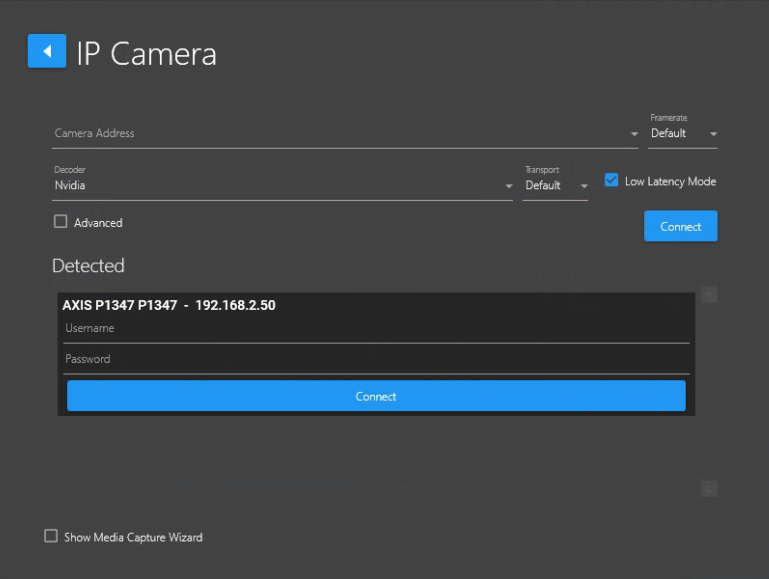
The IP Camera Input allows you to connect to other IP Cameras that you may have connected to your network.
Put the RTSP string of the IP camera in the Camera Address field. Example Syntax:
-
rtsp://yourcamera.domain.com:port/ch0
-
rtsp://user:pword@IPAddress/onvif-media/media.amp?
Or select an IP Camera from the Detected list, which will be displayed if you have ONVIF protocol cameras attached to your LAN.
Presentation
A SubC Streaming Service subscription is required to enable the Presentation Stream and One-Time Stream features.
Presentations are created in the SubC Streaming Service web application and assigned to a Channel. These Presentations are then accessible in SubC Presentations viewer web application. Also, you can take an active Presentation as video input to a Channel using the Input type Presentation.

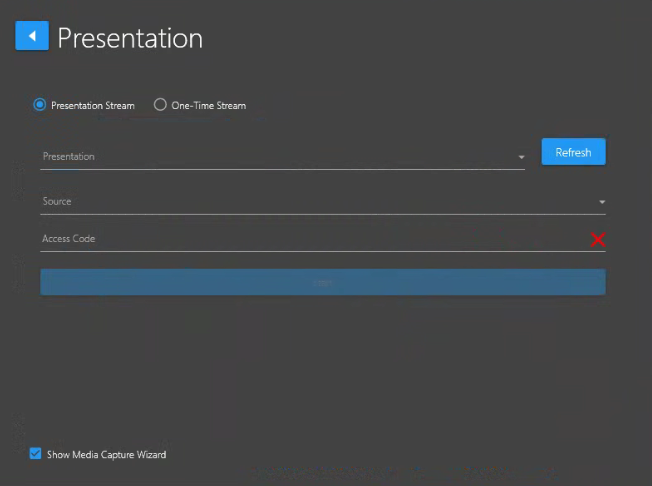
The Presentation Input option allows you to assign an active SubC Presentation or One-Time Stream as Input on a Channel.
Screen Capture

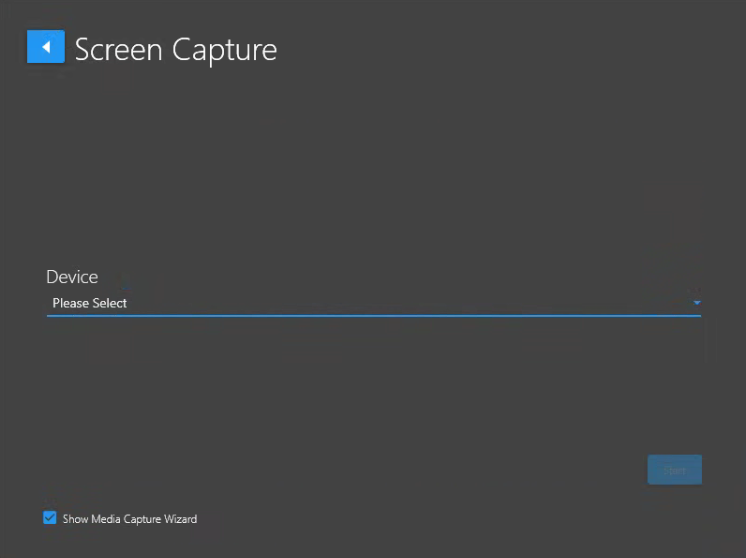
The Screen Capture Input provides the option to select Screen Capture (the full computer monitor display) or a Window Capture (specific window opened on the computer - window must not be minimized) as input to a Channel.
SecureEdge

|
You must already have a SubC SecureEdge Server installed on your LAN. Enter a SecureEdge Server IP Address 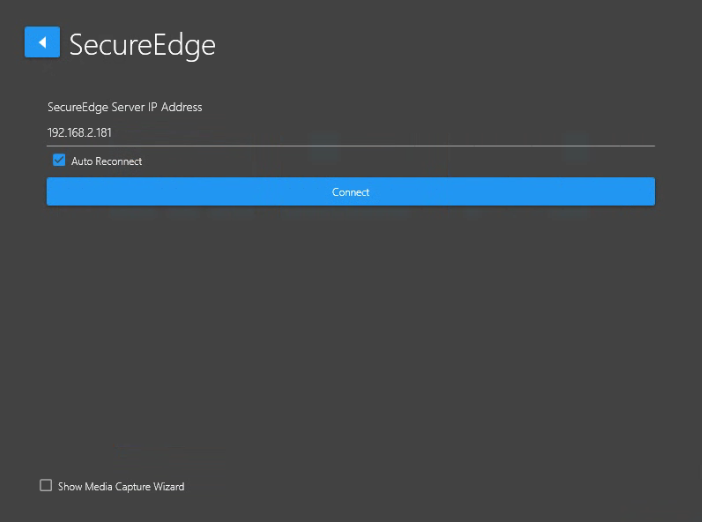
Once connected, select Peer & Channel from the dropdown field menus. Click Refresh if you do not see the Peer / Channel you expect to see. 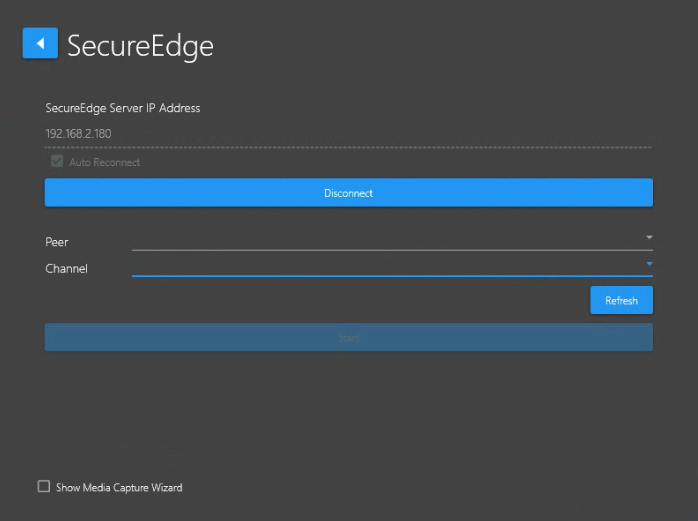
|
Real-time Image Enhancement

When a Channel is configured with an Input type, the Real-time Image Enhancement “wand” toggle button will appear at the top, right of the DVR+O / SCI UI

Real-time Image Enhancement is a feature that will help operators get the job done quickly and efficiently by allowing them to clearly see the videos and stills they're capturing in real-time.
The Image Enhancement feature is ideal for water conditions with poor visibility as it helps bring out details in the enhanced video that are normally obscured.
Image Enhancement processes live frames so the framerate is processor-dependent.