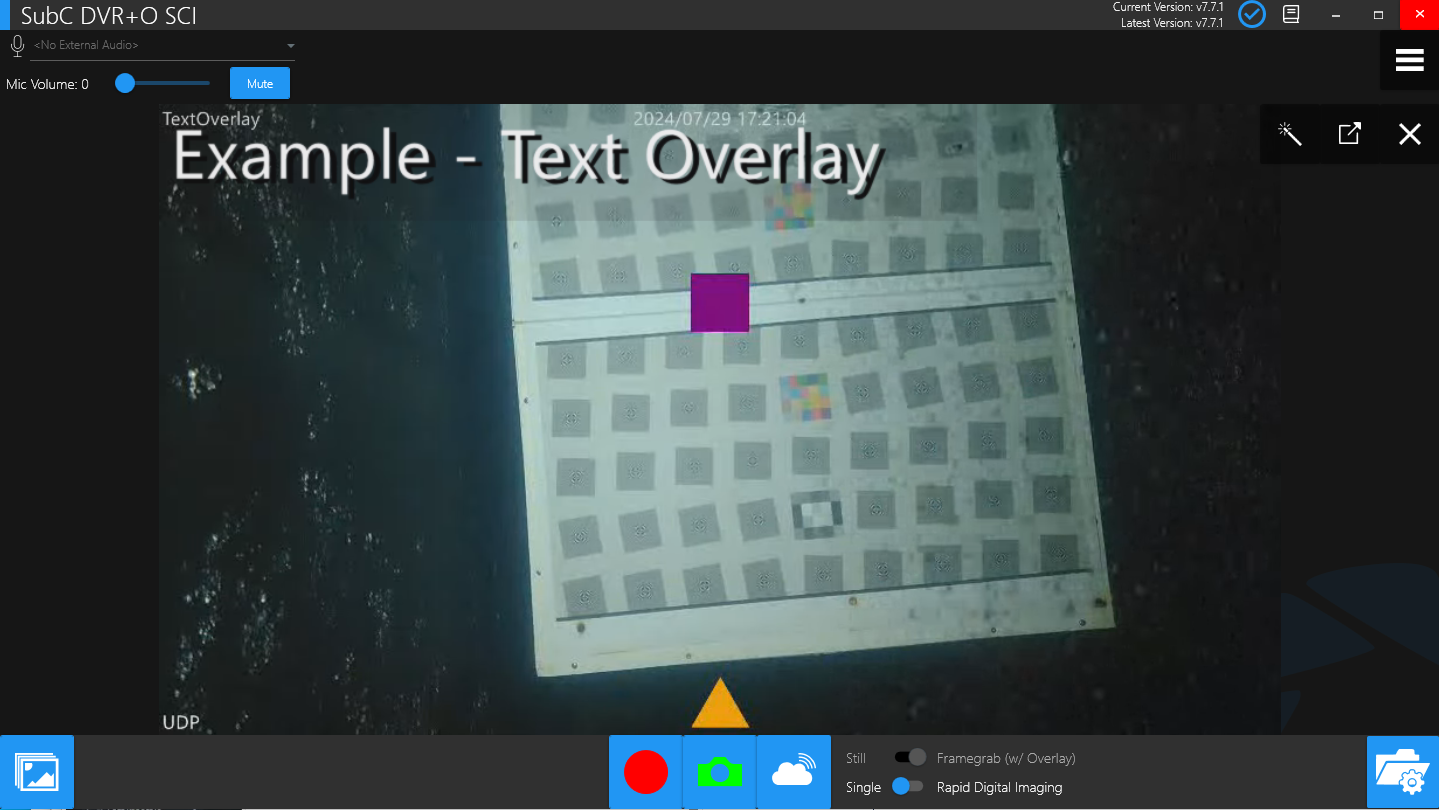
A subscription to SubC Streaming Service is required for this One-Time Stream feature.
One-Time Stream is a convenient way to quickly stream & share a video.
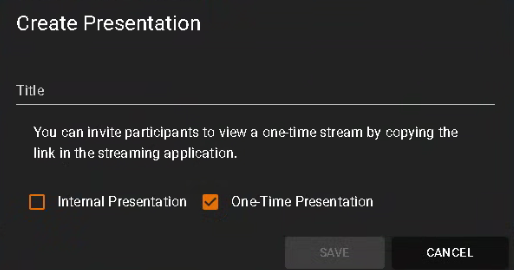
Login to the Streaming Services web app and create a Presentation with One-Time Stream option.
Click the Green + circle to create a new Presentation

-
Select One-Time Presentation
-
Give the Presentation a meaningful Title (It's a good idea to include “one-time-stream” or “OTS” in the title to make it easy to identify).
In either the SubC Softwrae desktop application or the Streaming Service Web application, configure the Channel that you want to Stream with the video input.
Using the Streaming Service Web application UI, Select your One-Time Stream Presentation for the Channel
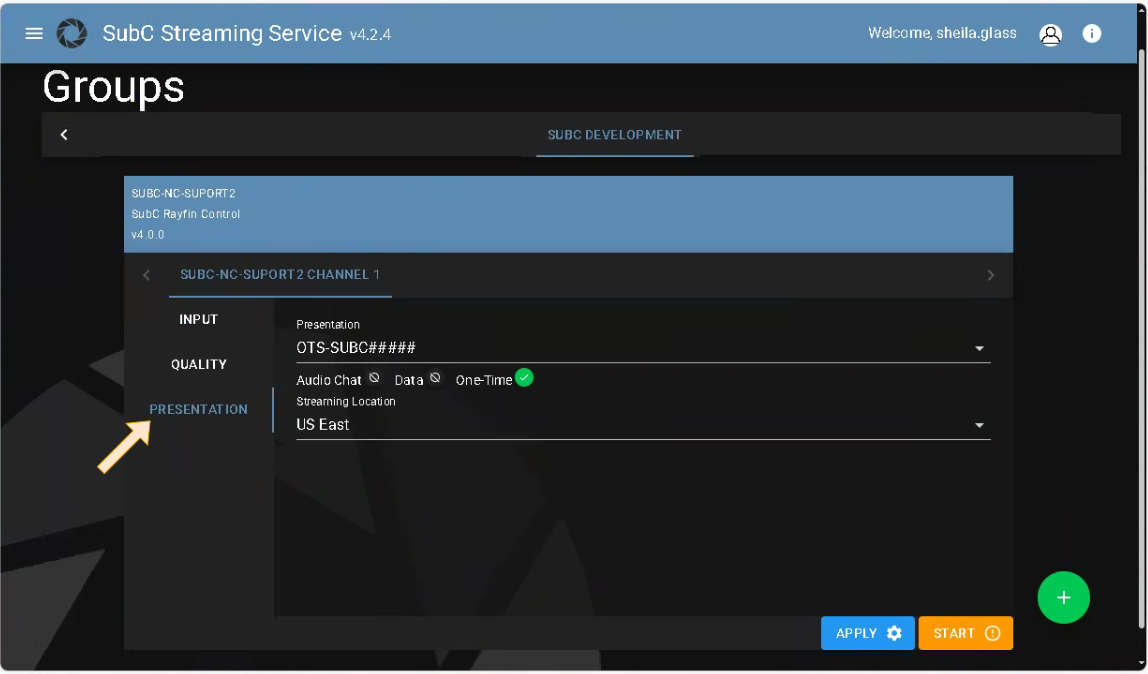

Click Stream button to start Streaming
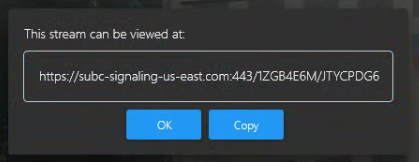

A link to connect to this One-time stream will appear. Copy this URL and share it with those you want to view the One-time stream, then click OK.
Note: This being a one-time stream, this link will expire once the Channel that is configured with this one-time stream stops streaming.
Notice the Stream button also changes to indicate that Streaming is active.
View One-Time Stream Presentation in Browser
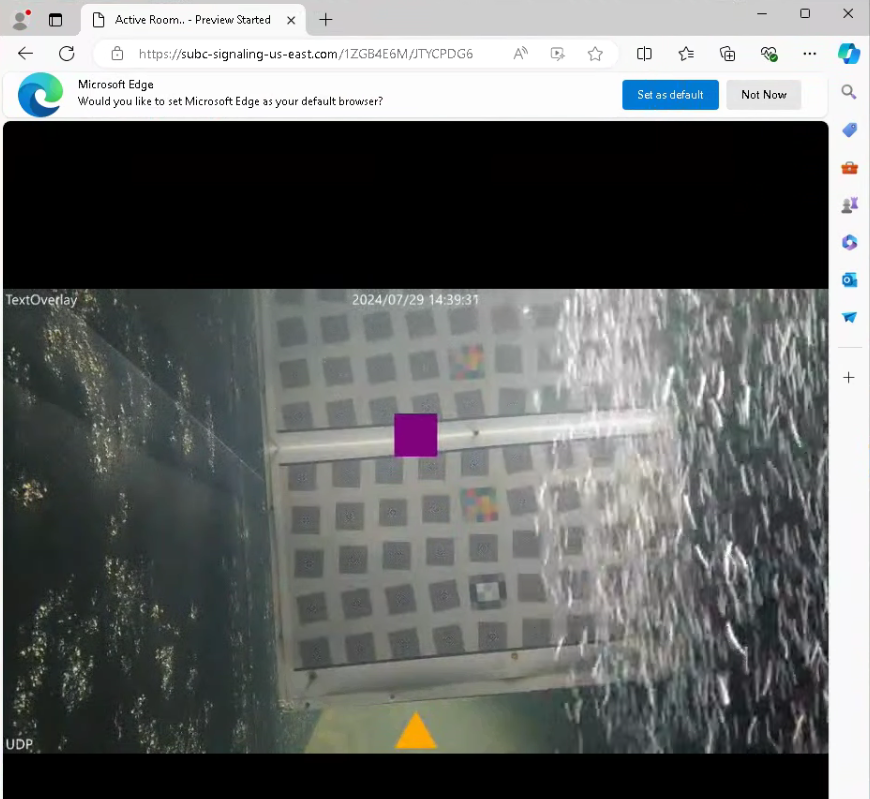
Share the One-Time Stream link with those you wish to view and direct them to paste the link into a web browser.
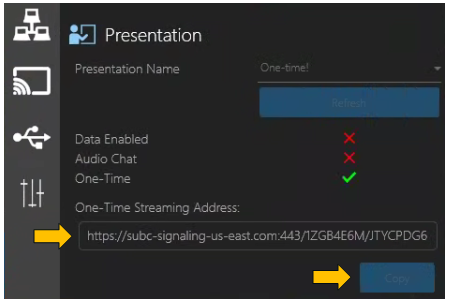
If you need to copy the link again, you can do so by clicking to Copy button here in Menu → Streaming → Presentation under “One-Time Streaming Address:”
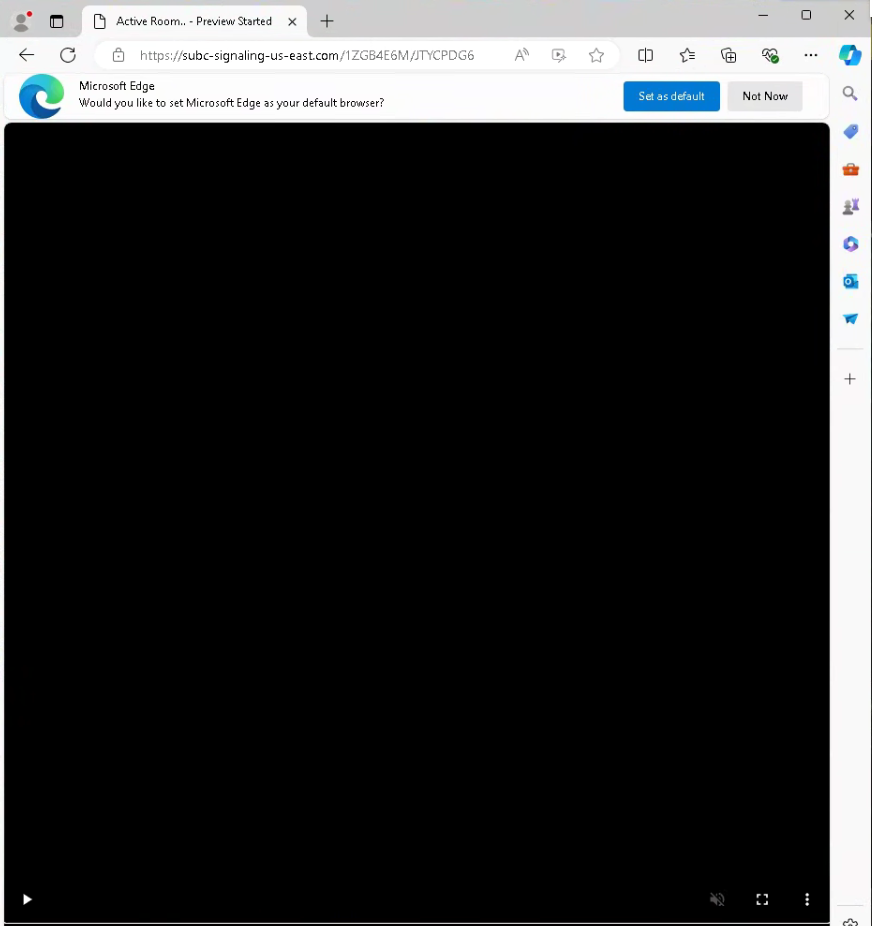
When you stop Streaming the Channel, the previous One-time Stream URL will expire, and the presentation video will close.
Anyone still connected to that presentation browser will no longer see video, just a black screen. They can close this browser.
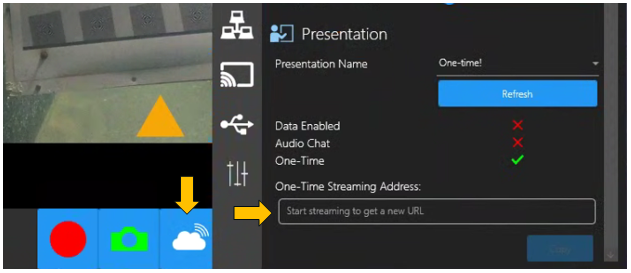
If you wish to start the One-Time Stream again, as indicated “Start streaming to get a new URL”
Click the Start Stream button and a new URL will appear in this One-Time Streaming Address field.
Copy & share this new URL again with others to view the Presentation.
One-Time Stream as Channel Input
Similar to regular SubC Presentations, you can also take in a One-Time Stream (typically streamed from another SubC application host computer) as Channel Input.
Configure a Channel with Input → Presentation
You need to be signed in to the SubC Streaming Service for the One-Time Stream section to appear in the Presentation Input configuration UI.
Select One-Time Stream
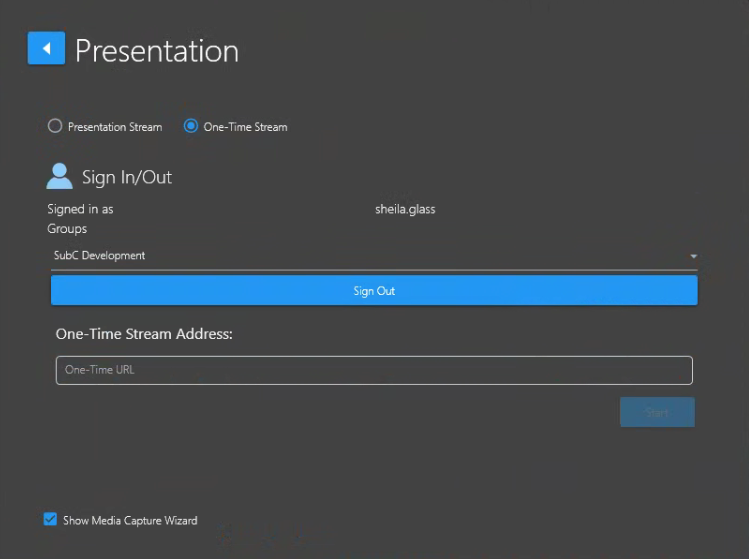
Paste the One-Time URL into the One-Time Stream Address field and click Start.
In the Example below, SCI Channel is configured with One-Time Stream as input.