
If your Rayfin camera is running v3, see these instructions to upgrade from v3 to v4.
If your Rayfin camera is a Hibernate / Autonomous model, be sure to set the Hibernate Wake Switch to Off Pos (II) before proceeding to upgrade the ROM & Firmware.
Upgrading from V4 ROM & Firmware to Newer Version
-
To ensure you have access to the latest ROM & Firmware, download the latest version of DVR+O / SCI desktop application: https://getdvr7.subcservices.com/ and install.
-
Open DVR+O / SCI desktop application
-
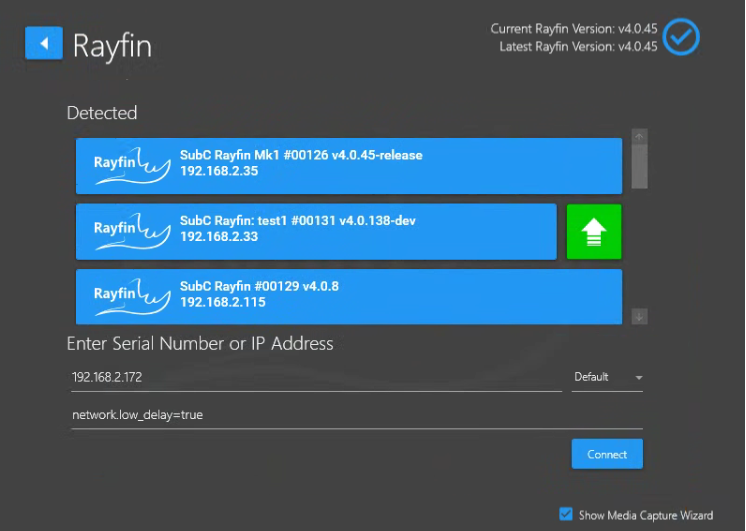
If you see a green arrow displayed next to the Rayfin camera (as shown in example image below) this indicates that there is a newer version of Rayfin ROM & Firmware available for this camera.

-
If you see the blue download arrow, click it to first download the Latest Rayfin Version, then proceed to the next step - Click the green arrow to update the Rayfin Camera.

-
If you see a blue circle with checkmark, it means you already have the current Rayfin version download. Proceed to the next step - Click the green arrow to update the Rayfin Camera.

Next step: Click the green arrow next to the Rayfin camera you wish to update.
The green arrow will change to a spinning loader image as the updater file loads on the Rayfin camera and installs. This process can take up to ~ 5 minutes as the Rayfin version updates and the Rayfin camera reboots.
When complete, you’ll see the Rayfin camera reappear in the list.

If you do not see the Rayfin Camera reappear in the list after ~ 5 minutes, there may be an issue with the camera. Below are a few troubleshooting tips to try:
-
Open the Windows command (cmd) window
-
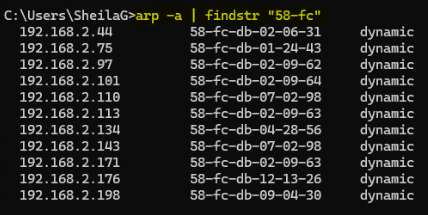
Enter command: arp -a | findstr “58-fc”
(All Rayfin cameras MAC address start with “58-fc”
Example:
-
Enter command: ping [camera’s IP]. Example:
C:\Users\SubC>ping 192.168.2.126
Pinging 192.168.2.126 with 32 bytes of data:
Reply from 192.168.2.126: bytes=32 time=1ms TTL=64
Reply from 192.168.2.126: bytes=32 time<1ms TTL=64
Reply from 192.168.2.126: bytes=32 time<1ms TTL=64
Reply from 192.168.2.126: bytes=32 time<1ms TTL=64
Ping statistics for 192.168.2.126:
Packets: Sent = 4, Received = 4, Lost = 0 (0% loss),
Approximate round trip times in milli-seconds:
Minimum = 0ms, Maximum = 1ms, Average = 0ms
-
-
If the ping command is successful (Lost = 0), but the camera is still not auto detected by the DVR+O / SCI UI, restart the camera (turn off & on).
-
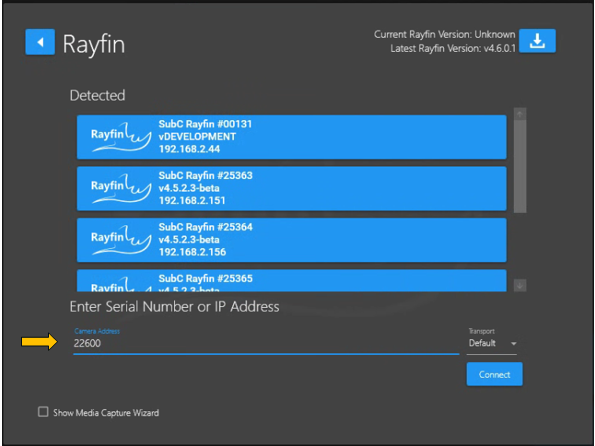
If the camera is still not detected, try to connect a Channel to it using the Rayfin camera’s Serial number or the IP
If none of the above resolves the issue, please contact SubC Support. See Getting Help