

Select Menu → Channel Info
Channel Info displays content based on the Channel Input Type. Each Input Type’s Channel Info details are described below.
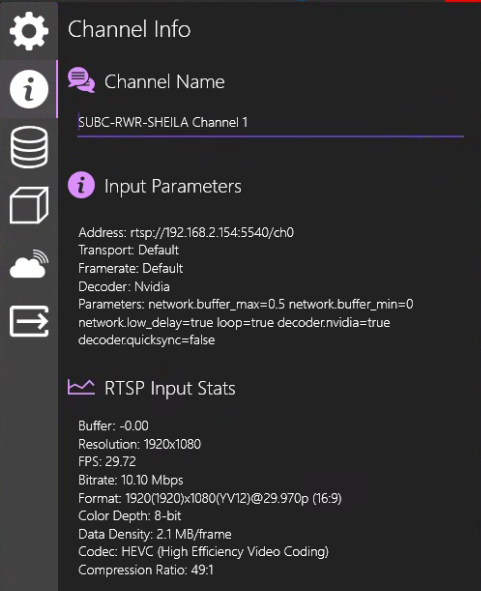
When Input is Capture Card
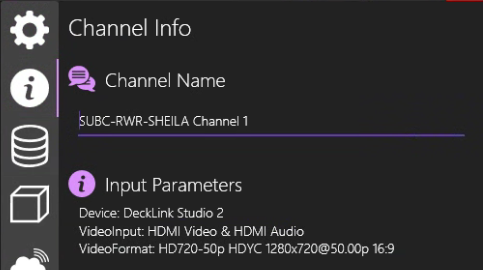
Channel Name
-
The name of the current Channel appears in this field.
-
Default is SubC Product system’s Hostname-Channel #, however you can edit this field to change the Channel name
Input Parameters
-
Device: Displays the brand name of the Capture Card
-
VideoInput: Displays the selected video input.
-
VideoFormat: Displays the selected video format.
When Input is IP Camera
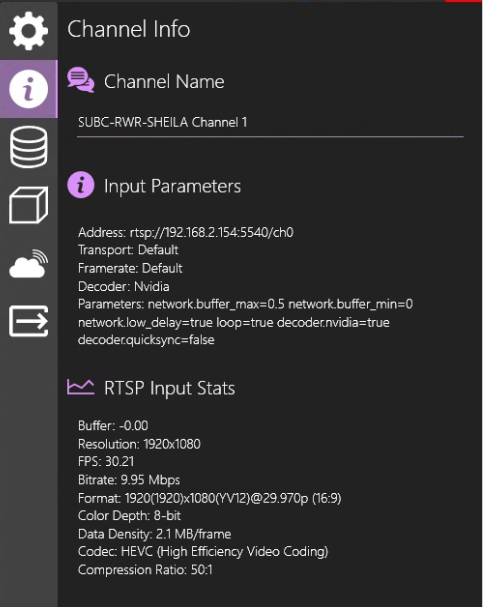
Channel Name
-
The name of the current Channel appears in this field.
-
Default is SubC Product system’s Hostname-Channel #, however you can edit this field to change the Channel name
Input Parameters
-
Address: Displays the address of the Input
-
This can be an RTSP address to an IP camera or a path to a video recording .mp4 file
-
-
Transport: Displays the selected transport protocol.
-
Framerate: Displays the selected frame rate
-
Decoder: Displays the selected decoder.
-
Parameters: Displays the advanced parameter settings.
RTSP Input Stats
-
Buffer: Displays seconds of video preloaded
-
Resolution: Displays the video resolution
-
FPS: Displays Frames per second
-
Bitrate: Displays the amount of data processed or transmitted per second
-
Format: Displays the video format
-
Color Depth: Displays the bits per component
-
Data Density: Displays the amount if data that is being transmitted per frame.
-
Compression Ratio: Displays how much the video is compressed while retaining visual quality.
When Input is Presentation → Presentation
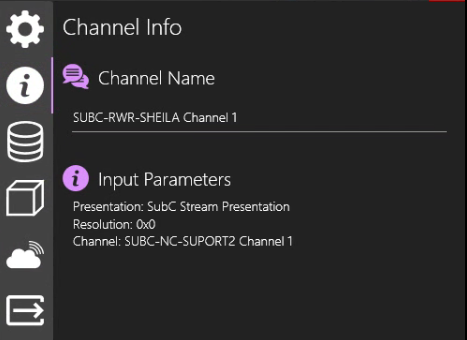
Channel Name
-
The name of the current Channel appears in this field.
-
Default is SubC Product system’s Hostname-Channel #, however you can edit this field to change the Channel name
Input Parameters
-
Presentation: Displays the name of the selected Presentation
-
Resolution: Displays the video resolution
-
Channel: Displays the name of the Presentation’s source Streaming Channel.
When Input is Presentation → One-Time Stream
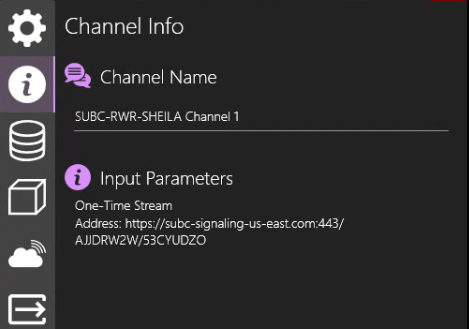
Channel Name
-
The name of the current Channel appears in this field.
-
Default is SubC Product system’s Hostname-Channel #, however you can edit this field to change the Channel name
Input Parameters
-
One-Time Stream Address: Displays the link address for the One-Time Stream video.
When Channel input is Screen / Window Capture
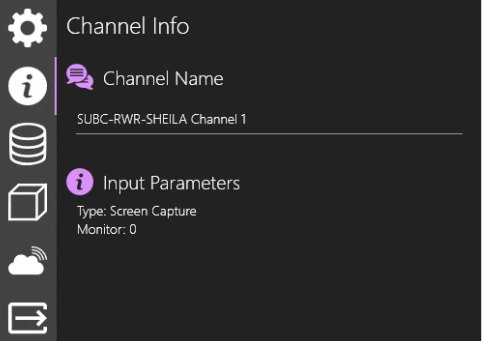
Screen Capture
Window Capture
Channel Name
-
The name of the current Channel appears in this field.
-
Default is SubC Product system’s Hostname-Channel #, however you can edit this field to change the Channel name
Input Parameters
-
Screen Capture
-
Type: Displays the Capture type that has been selected.
-
Monitor: Displays the identification number of the monitor that is the source of the current Screen Capture input
(You may have multiple monitors connected to the system).
-
-
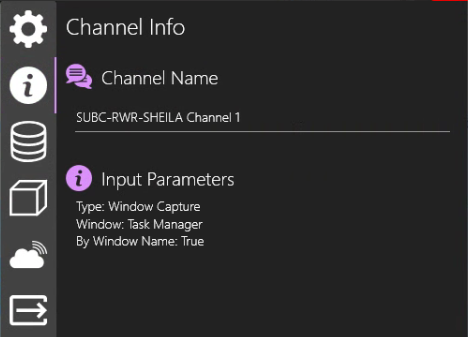
Window Capture
-
Type: Displays the Capture type that has been selected.
-
Window: Displays the name of the Window
-
By Window Name: True
-