
Use this Quick Start guide to install SubC Stream Desktop application, activate your PC with your Streaming Service Group, connect one video source to a Channel, and start streaming.
You will need a Windows PC with Internet access, access to the source video, and an Activation Code from your organization’s SubC Streaming Service Group.
01 Install Stream Desktop
-
Download the latest SubC Stream Desktop installer.
-
In Windows File Explorer Downloads folder, run the Stream Desktop app installer. Accept the License agreement, allow .NET to install if prompted, then finish setup and open Stream Desktop.
02 Activate this PC
-
To obtain an Activation code, sign in at SubC Streaming Service Web app with your Streaming Service Member Account (your email address i.e. john.smith@company.com);
-
Choose Menu → Groups, select the group, click the green + button, then copy the Activation code.
-
-
On first Stream Desktop app launch, paste the Activation Code into the activation field and select OK.
03 Connect a video source
-
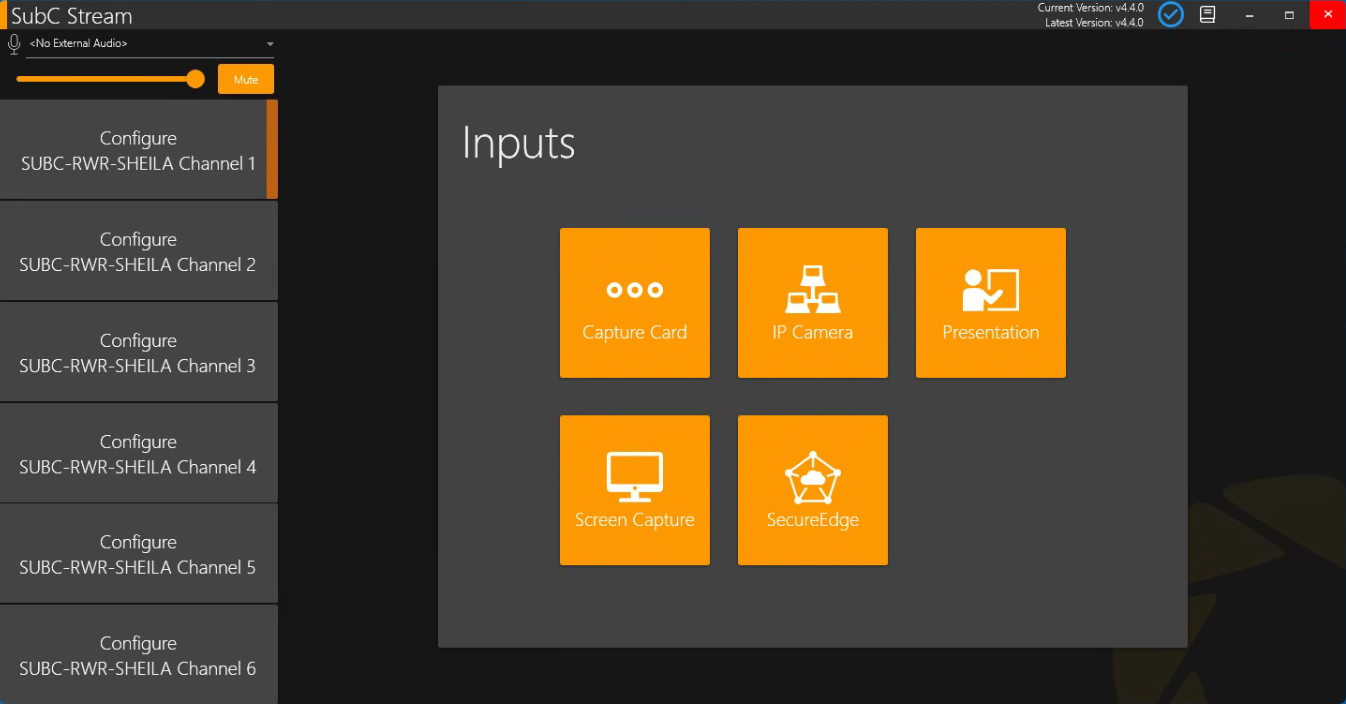
In the Stream Desktop app, select a channel on the left, then choose an input type.
-
For a camera, choose IP Camera and select a detected camera or enter its RTSP address; for an external HDMI source, choose Capture Card; to share your computer display, choose Screen Capture. Follow the on-screen fields and connect/start the input.
-
A green status indicator and moving video in the preview & main video view confirms the input is active.
Add narration if needed
Before configuring the channel, choose a microphone from the microphone list at the upper left. Adjust its volume or mute it. The selected microphone applies to enabled channels.
04 Start streaming
When the video preview is working, select Start Streaming. The button changes to show streaming is active.
Start Streaming

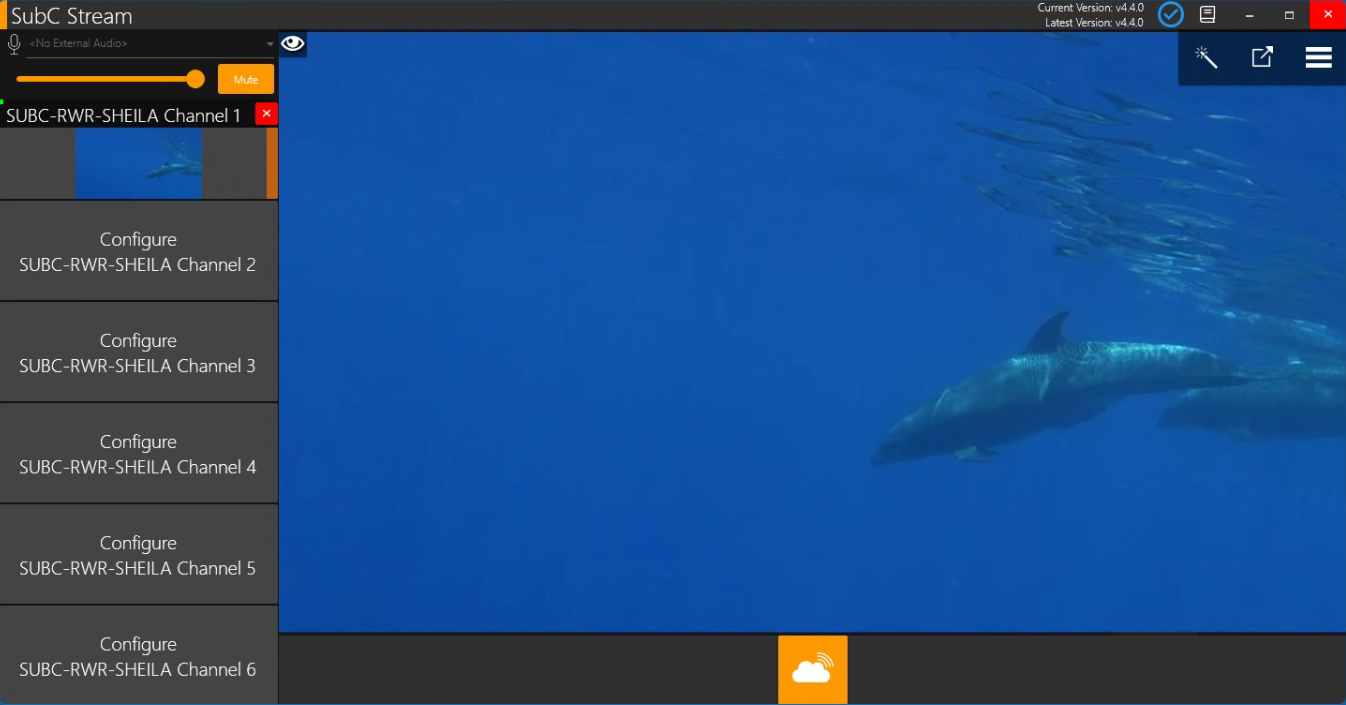
Streaming is Active

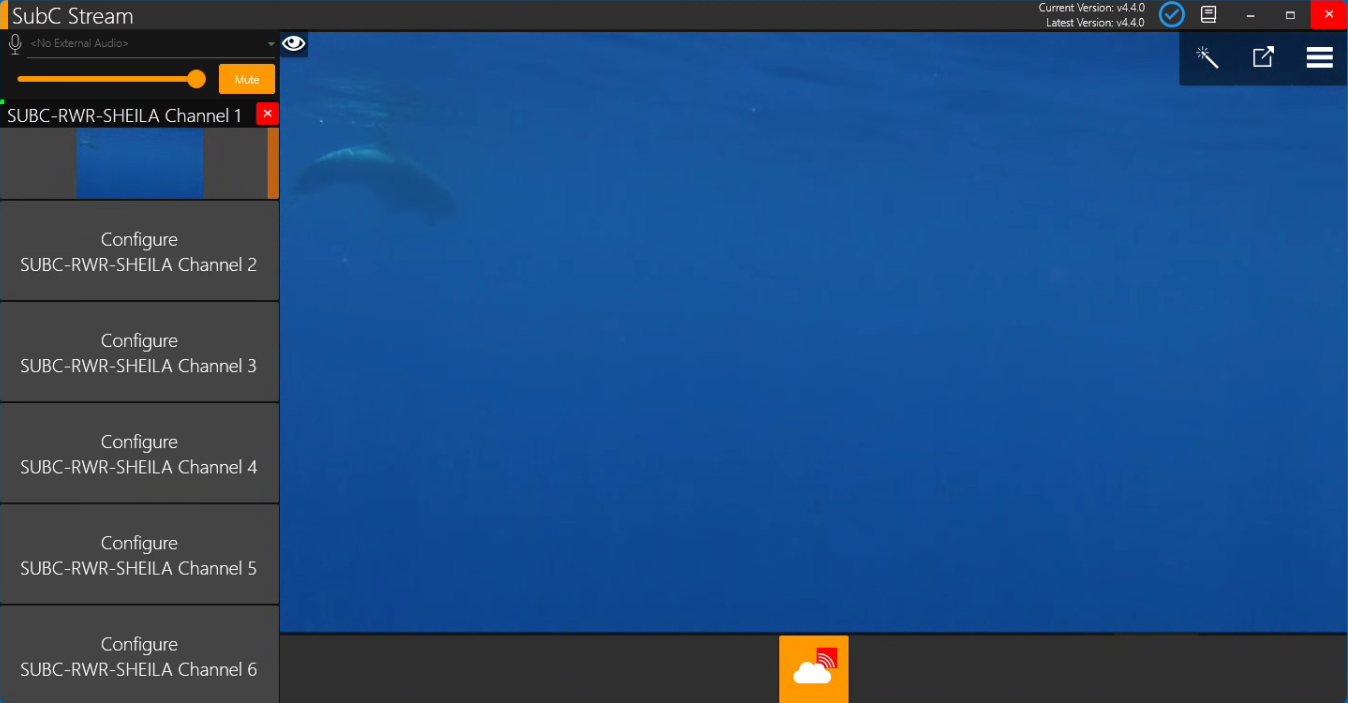
To Stop Streaming, select the same button again.
Where to view and get help
Use the SubC Streaming Service Web app or the SubC Presentation Viewer with participant email and Presentation Access Code to view the live stream.
If the channel will not connect or stream, check that the camera/source is online and ask your IT team or administrator whether network access to SubC services is available.
Detailed references Setup and activation | Operation and input types | Starting an input | System requirements | Network requirements | Getting help