
Download SubC ReviewStudio: https://getreviewstudio.subcservices.com
Open Download Folder and run the SubCReviewStudio [version].exe installer.
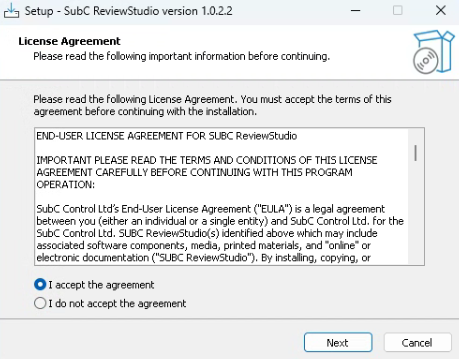
License Agreement
Select I accept the agreement
Click Next
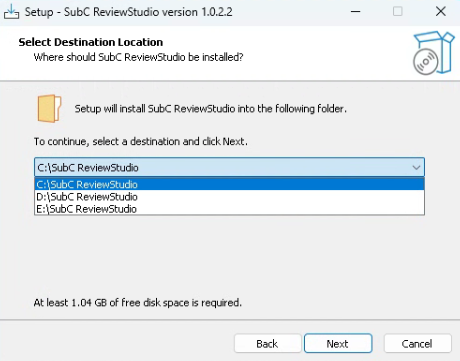
Select Destination Location
If you have multiple Drives on your system, you can select the default C: drive or another Drive as the SubC ReviewStudio destination.
The “SubC ReviewStudio” folder path name cannot be changed.
Click Next
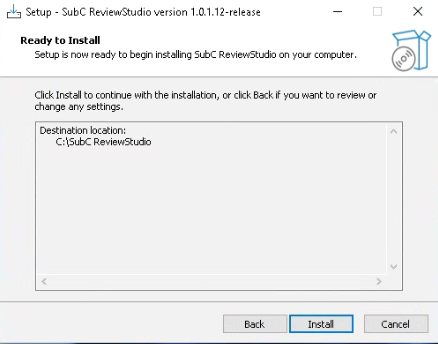
Ready to Install
Click Install
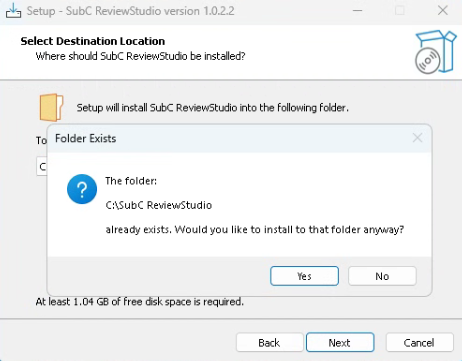
Folder Exists
If ReviewStudio has previously been installed on the selected system drive, you will get this prompt asking if you want to proceed installation in this folder.
It is recommended that you click Yes to insure you have a single copy of the most current version installed on the system.
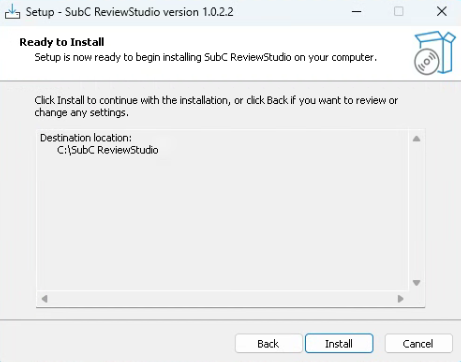
Ready to Install
Click Install
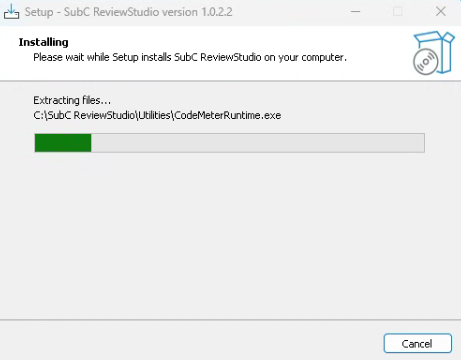
Installing
Installing
Please wait while Setup installs SubC ReviewStudio on your computer.
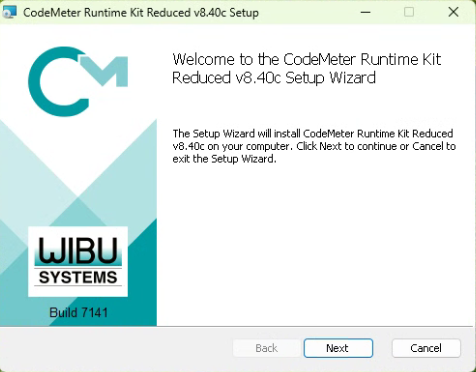
CodeMeter Runtime Kit: The first time and occasionally on subsequent SubC application updates, you may be prompted to run the WIBI CodeMeter Runtime Kit Setup. This pertains to the SubC application License. Click Next and complete this installation as well.
Shared License Scenario
If you are installing ReviewStudio on a system that already has DVR+ installed and has a valid DVR+ License, you do not need an additional specific ReviewStudio License - the ReviewStudio will run on a system that has a valid DVR+ License.
Note: In this shared license scenario, you can only run either DVR+ or ReviewStudio, not both applications at the same time.
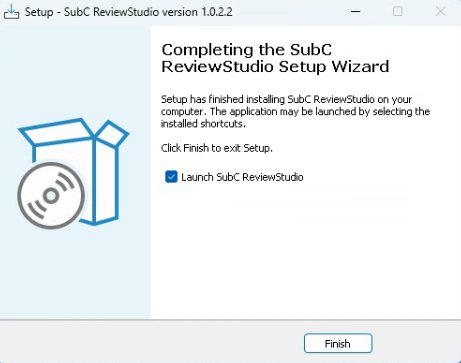
Completing Installation
When the installation is complete, you can select/unselect the Launch SubC ReviewStudio and click Finish.
ReviewStudio Standalone System Scenario
License Required: If you do not have the SubC ReviewStudio License imported to the system yet, the ReviewStudio application will not open. You will see a “Wibu” message indicating “License not found”.
To obtain a ReviewStudio License for a standalone system, contact your SubC Account Manager directly or sales@subcimaging.com
See more License support tips below.
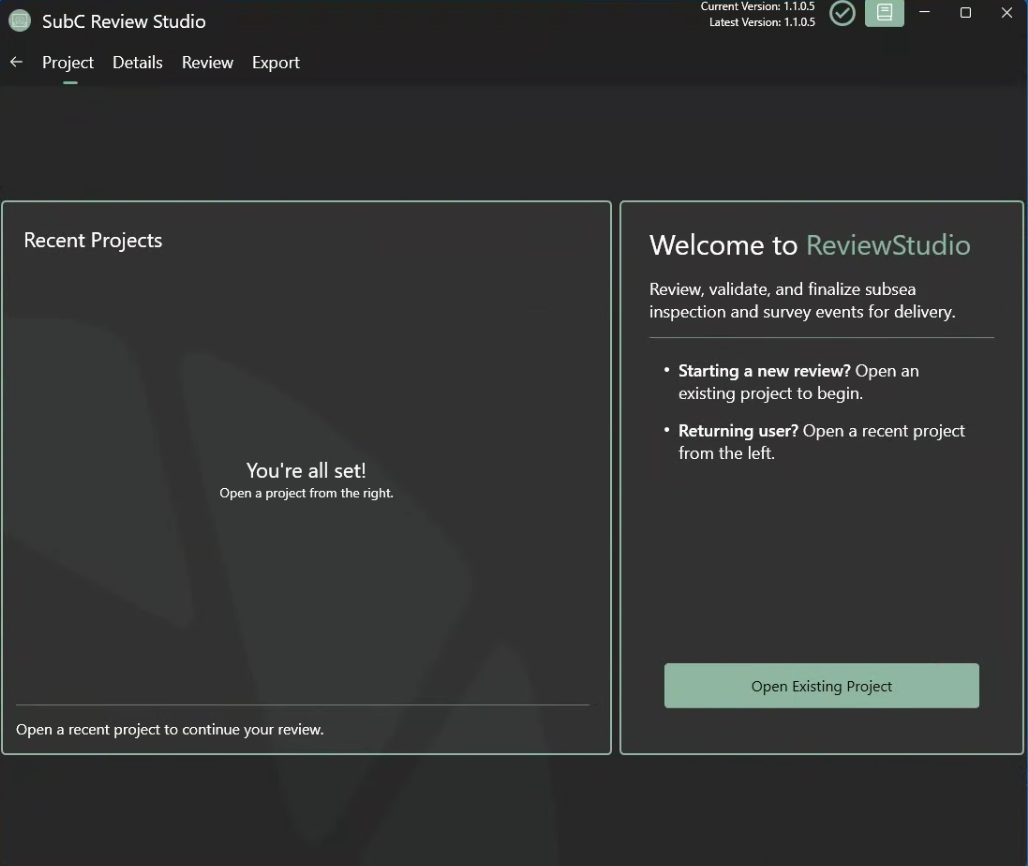
Click on the SubC ReviewStudio desktop icon to open.

|
|
SubC ReviewStudio License
If you get a WIBU License error, confirm the following:
-
If you do not have a license for this application, contact sales@subcimaging.com
-
If you have a license for this application, but you still get a WIBU License error:
-
Confirm that another instance of this application is not already running.
-
If your license in on a portable USB Dongle, make sure it is plugged into the system properly.
-
If you have a dedicated Virtual License for this application on your system, but you still get a WIBU License error, email support@subcimaging.com and include a screenshot of your SubC License app → Containers tab details.
-