See Onboarding Training Video for DVR+O SCI v7.13
Loading in Progress
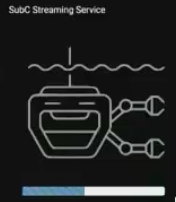
In the SubC Streaming Service Web app UI, we have added a new Loading in Progress graphic to let users see the web application is loading. This is especially useful for users on slower Networks as it reassures that the web application is loading.
Changes to Active System Cards
Click System Card to open/close the Channel Configuration UI
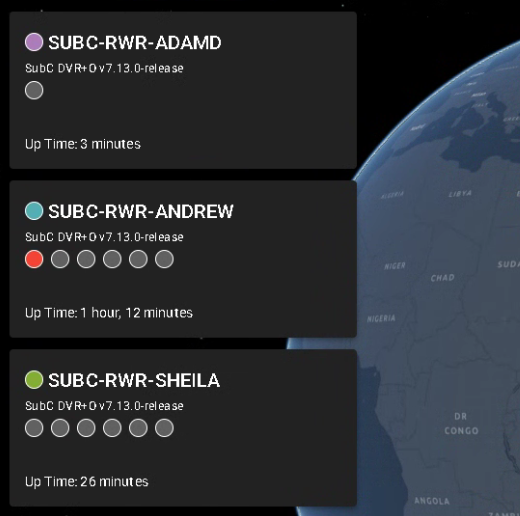
In the SubC Streaming Service Web app UI, we have removed the gear wheel icon from the System Cards that display DVR+O Desktop application systems that are currently active. Now, just click on the desired System Card to open the Channel Configuration UI.
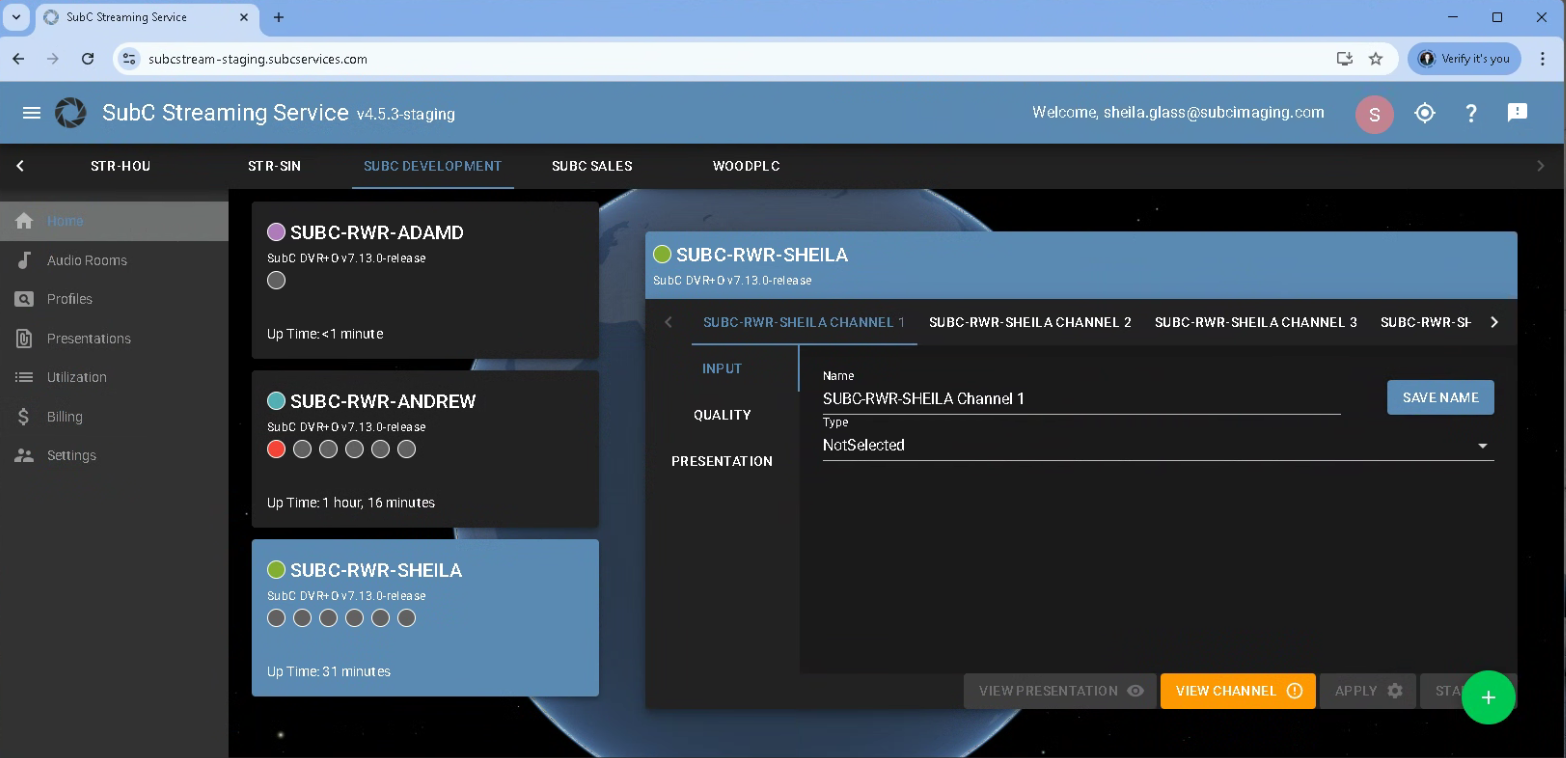
Click the System Card again to close the Channel Configuration UI.
Channel Status Indicators
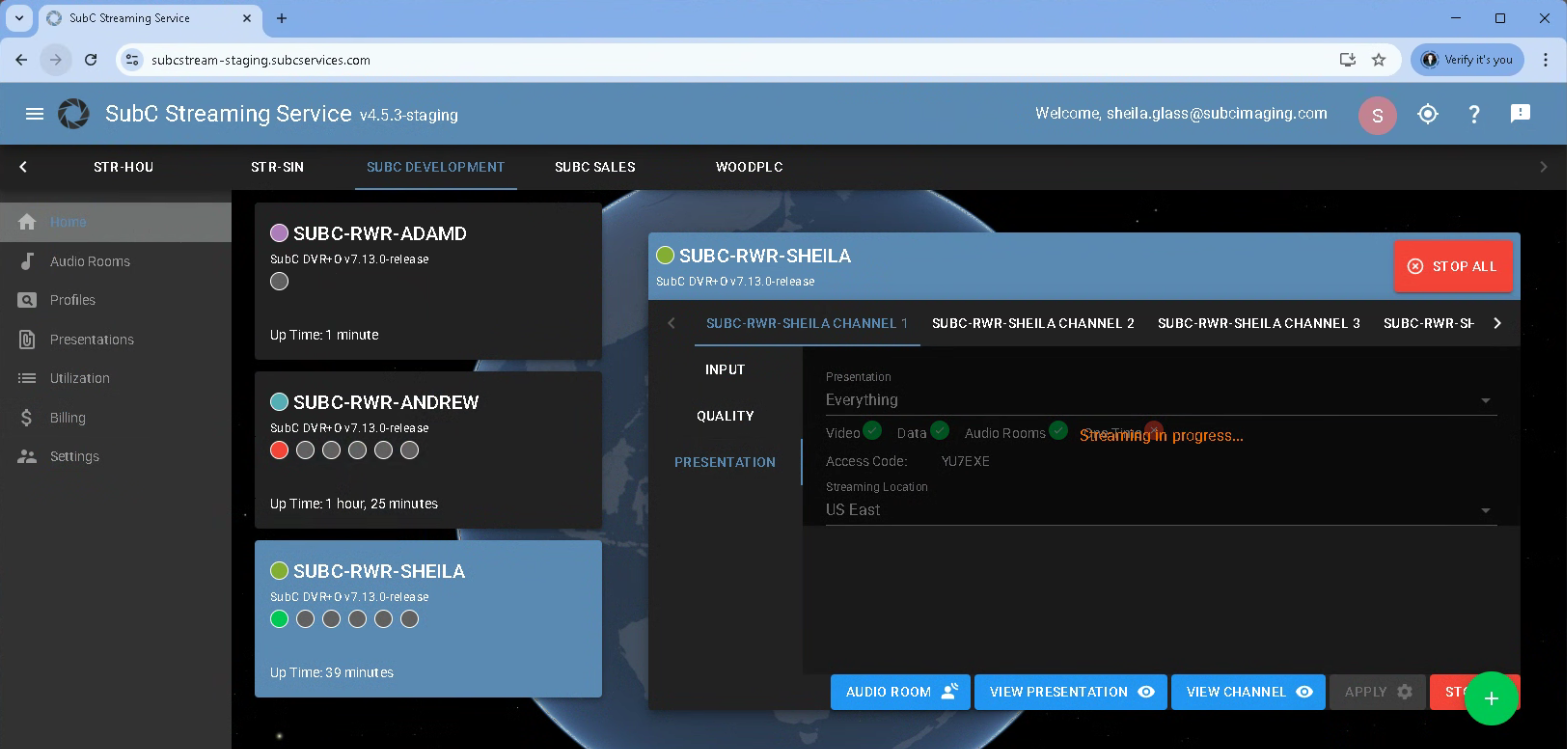
We’ve included status indicator “dots” in a row on the System Card that correspond to each Channel.
-
Grey = Channel in not configured
-
Red = Channel is configured, but not streaming
-
Green = Channel is streaming
Navigate to Vessel Pin
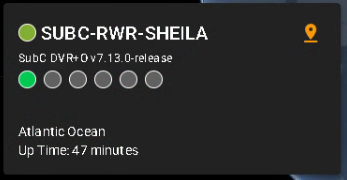
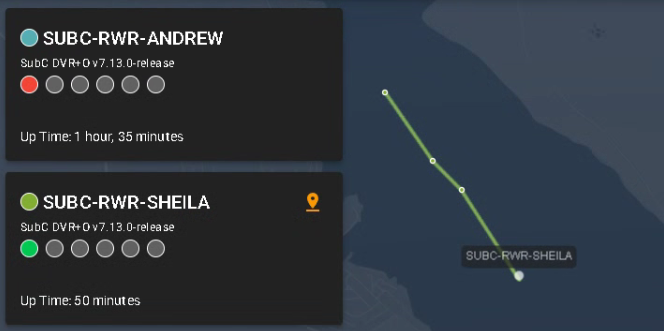
When you also have Data I/O configured with incoming GPS data, the “Navigate to vessel pin” appears on the System Card.
Click on that Pin to zoom in to that System location on the globe.
Send Us Feedback

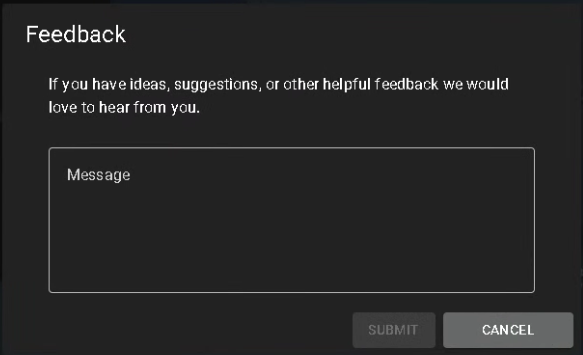
Click the new “Send us feedback” button (top, right of SubC Streaming Service Web app UI) to open the Feedback UI.
“If you have ideas, suggestions, or other helpful feedback, we would love to hear from you”
Type your feedback in the Message block and click SUBMIT button. Your Feedback will be received by SubC Support Team.
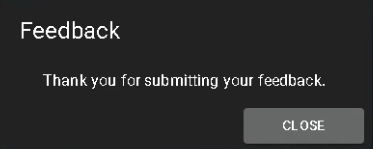
A confirming “Thank you for submitting your feedback.” message will appear. Click CLOSE.
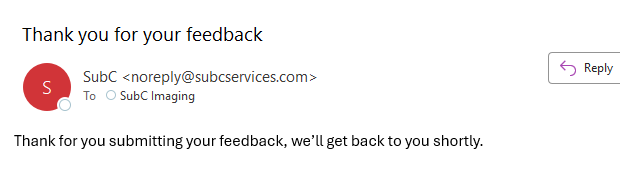
You will also receive a confirmation email in the Inbox of the email address you used to login to the SubC Streaming Service Web app.
New User Manual Access Button

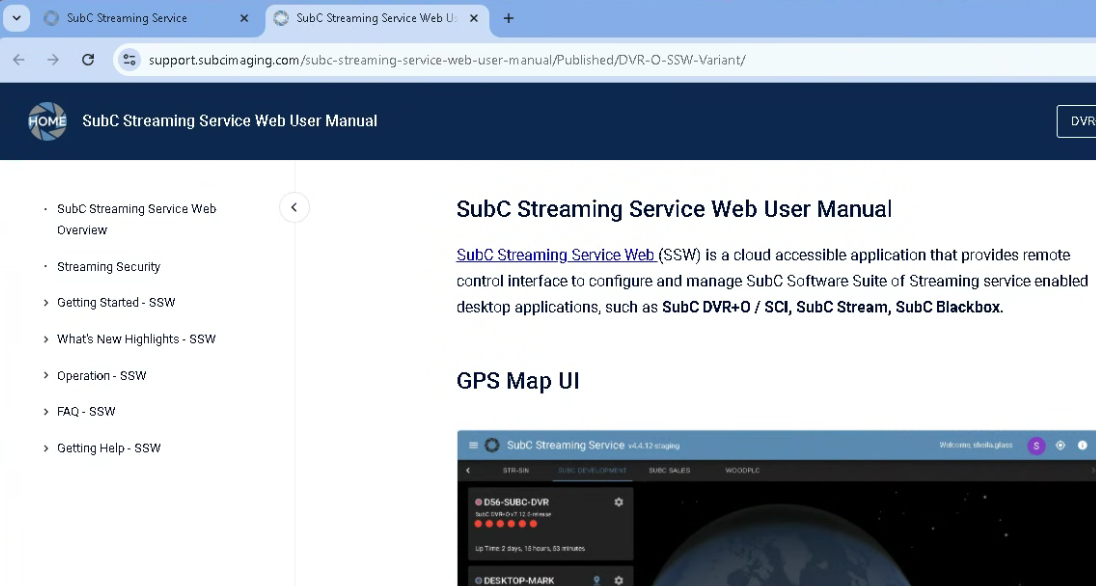
We have replaced the “Book” with “?” button (top, right of the SubC Streaming Service Web app UI).
Click “?” to open the SubC Streaming Service Web User Manual in a new browser tab.
STR MultiSense +TTL
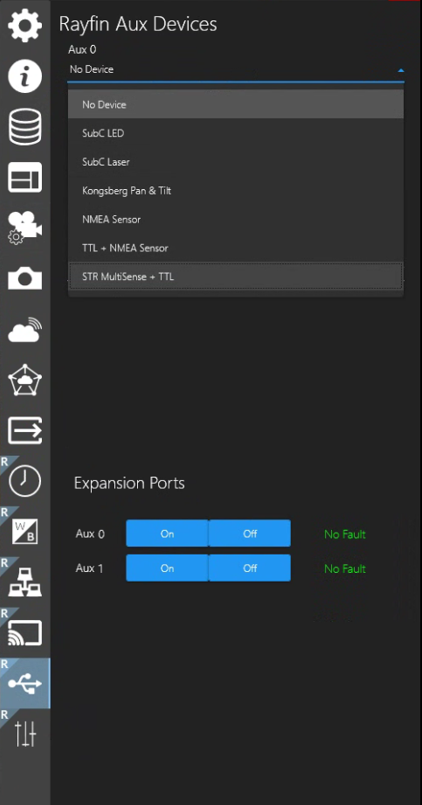
In the DVR+O Desktop app UI, we’ve added “STR MultiSense +TTL” option in the Menu → Rayfin AUX Devices → Aux device selection drop-down list.
The STR MultiSense device is a product produced by STR Subsea.
When a STR MultiSense device is paired with SubC Rayfin camera, it supplies GPS, Heading, Depth, Altitude and other NMEA data to the Rayfin.
STR MultiSense data replaces the data that Rayfin cameras natively carry. And just as with the Rayfin data, STR MultiSense data is delivered to the DVR+O Channels when connected to a Rayfin, STR MultiSense enabled, camera which you can access through the DVR+O Menu → Data I/O and Menu → Overlays → Data.
New API Commands - Still + EXIF
We’ve added new “Still” API calls for Rayfin camera that instructs the Rayfin to take a picture and supplies it with the EXIF data to embed into the image.
Inclusion of this EXIF data in the image file is especially useful for AUV (Autonomous Underwater Vehicle) operators as it saves on postproduction work.
|
API Command |
Description |
|---|---|
|
POST api/still/takeandsavewithexif |
Saves image + EXIF data to Rayfin Internal Storage |
|
POST api/still/takeandget |
Saves image + EXIF data to Topside DVR+O Storage When saving to Topside, POST api/still/takeandget returns the image bites which includes the EXIF Data that has been applied to the Rayfin camera. |
See SubC Rayfin v4 API → Still Commands for more details.
Rayfin SW & ROM v4.7 or higher must be installed on the Rayfin camera to enable the new Still Image + EXIF API features.
In order to have GPS/Altitude/Depth data embedded in the image’s EXIF you must include the appropriate EXIF data in DVR+O - Menu → Data I/O.
Nexus Survey Time Source
For those who connect Nexus to SubC DVR+O we have added Nexus Survey Time Source to the Menu → Settings Time Source field options.
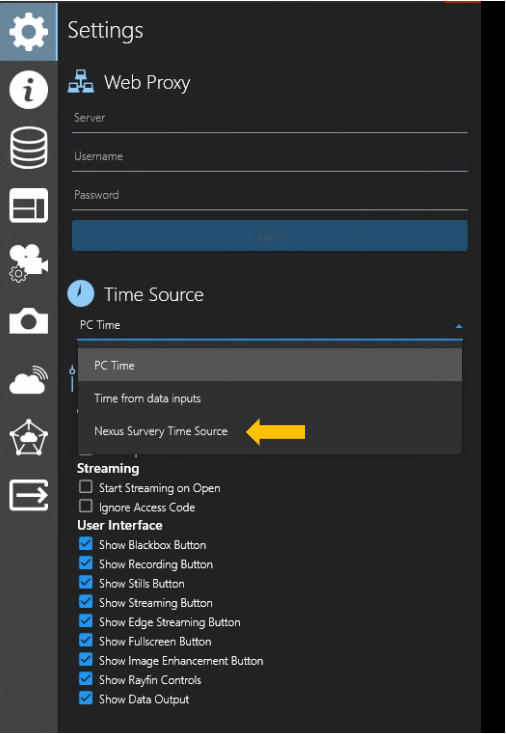
When Nexus connects to DVR+O, the Time Source field will automatically apply Nexus Survey Time Source.
Users do not need to select Nexus Survey Time Source.
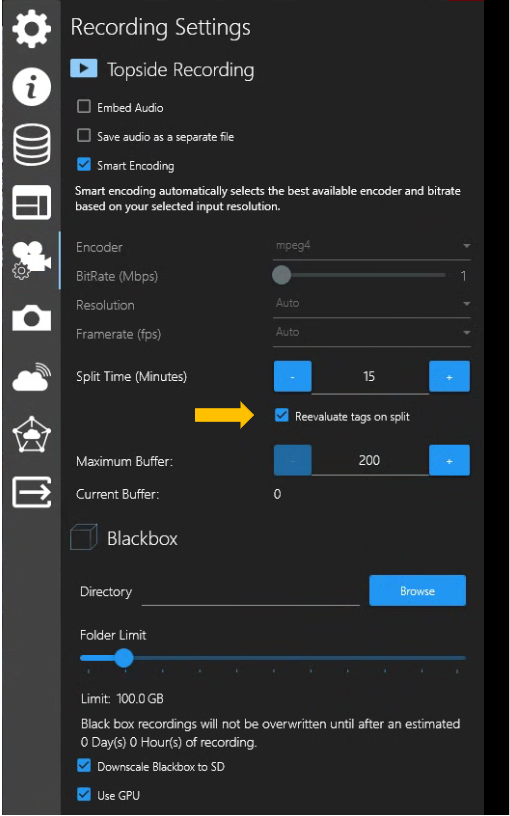
Nexus Survey Time Source ensures that Nexus recording files are properly named when using the DVR+O Recording Settings → Reevaluate tags on split feature