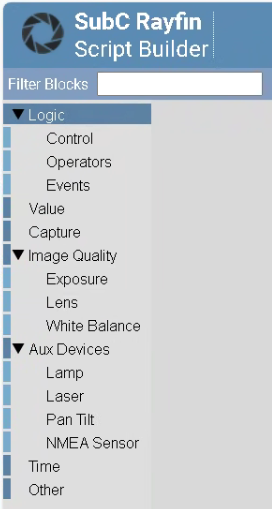
SubC Rayfin Script Builder Blocks are block code objects that script programmers can drag to the Script Builder canvas (center) and snap together to create scripts.
SubC Rayfin Camera
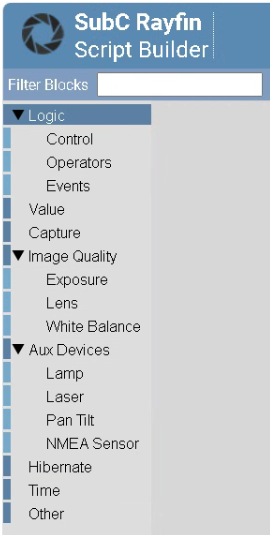
SubC Rayfin + Hibernate Camera
In this section, we will review each Script Builder Block section.
Logic
Logic has 3 sub-menus - Control, Operators and Events
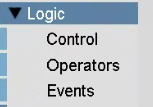
Logic → Control
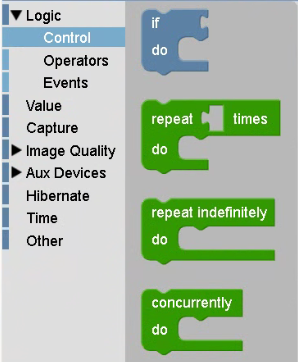
Logic → Control contains block code objects that perform if, repeat and concurrently do functions.
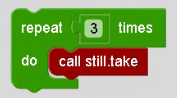
Example: repeat [place Value → Number block here] times do [place Action block here]
Logic → Operators
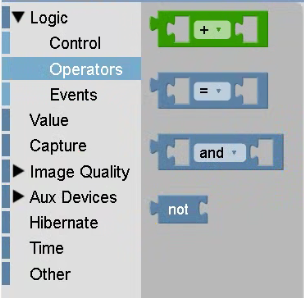
Logic → Operators contains Math operations, Comparision (two numbers or two booleans), Logical operations (and / or) and Logical negation (not).
Example: [place Boolean block here] and [place Boolean block here]

Logic → Events
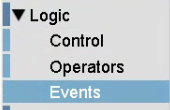
Logic → Events contains Logic, Values, Variables, Events and Methods
Logic → Events → Logic
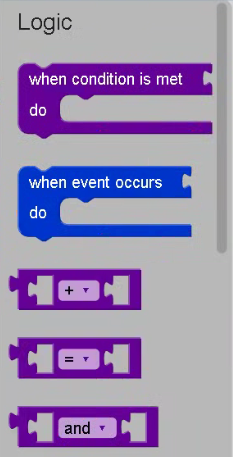
Logic → Events → Logic
Example: When event occurs [place Event block here] do [place Action block here]
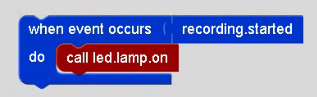
Logic → Events → Values
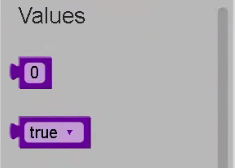
Logic → Events → Values
These are Event Driven variables
Example: Numeric and Boolean variables.
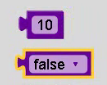
Logic → Events → Variables
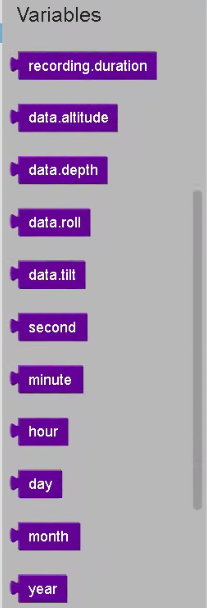
Logic → Events → Variables
These are Event Driven variables, all of which are used with When condition blocks.
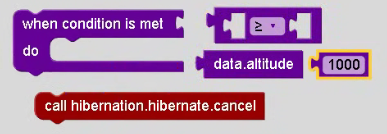
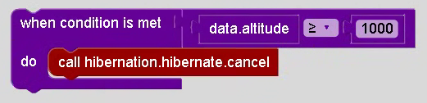
Example: when condition is met [place Logic comparison block [place Event Driven condition variable here] [select comparison symbol] [place Numeric block here]] do [place Action block here]
Disassembled view of the blocks used …
Assembled view of the blocks used …
Logic → Events → Events
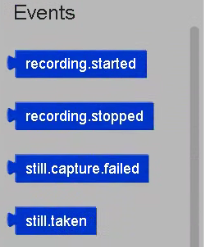
Logic → Events → Events
These are Boolean Event variables, all of which are used with When condition blocks.
Example: when event occurs [place Boolean Event block here] do [place Action block here]
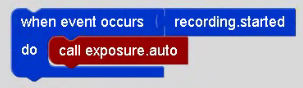
Logic → Events → Actions
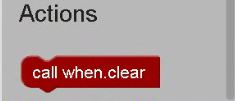
Logic → Events → Actions
This call when.clear (Clears all registered When conditions) is an Action block
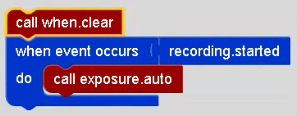
Example: Place call when.clear block to execute before a when event occurs statement.
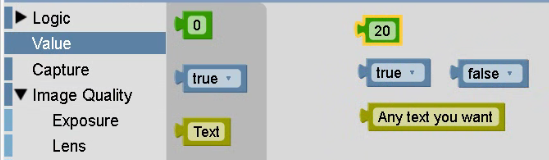
Value
Value - contains Number, Boolean and Text blocks
Capture
Capture → contains function blocks for Recording and Stills
Capture → Recording
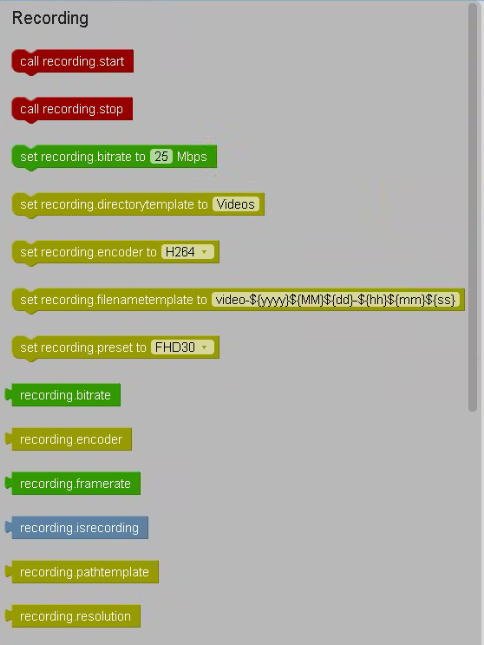
Capture → Recording has block codes pertaining to Recording.
Use the Color Codes Key to as a reminder of each block type function.
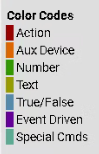
Hold the mouse cursor over each block code to reveal a “tool tip” description.
Capture → Stills
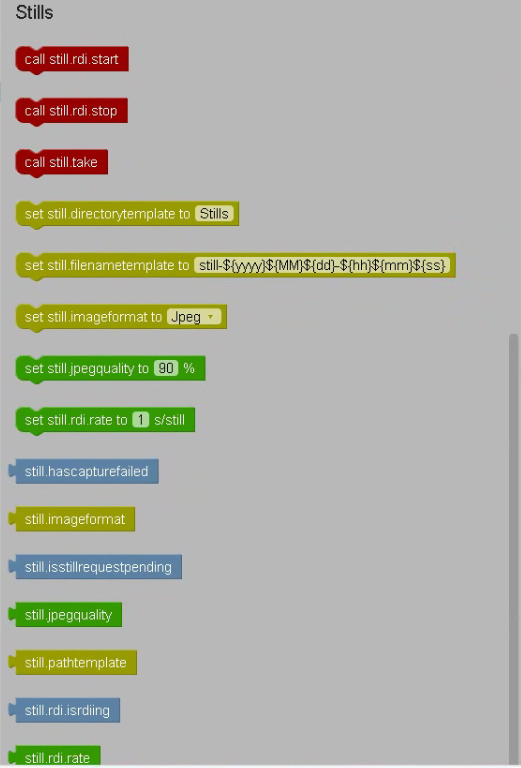
Capture → Stills has block codes pertaining to Stills.
Use the Color Codes Key to as a reminder of each block type function.
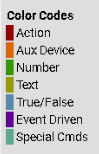
Hold the mouse cursor over each block code to reveal a “tool tip” description.
Image Quality
Image Quality has 3 sub-menus - Exposure, Lens and White Balance
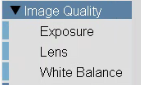
Image Quality → Exposure
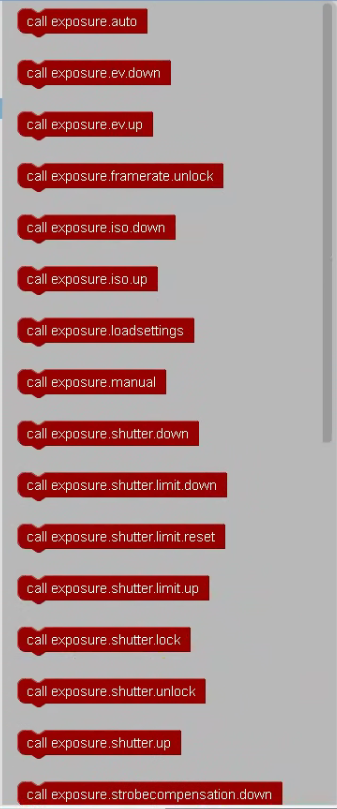
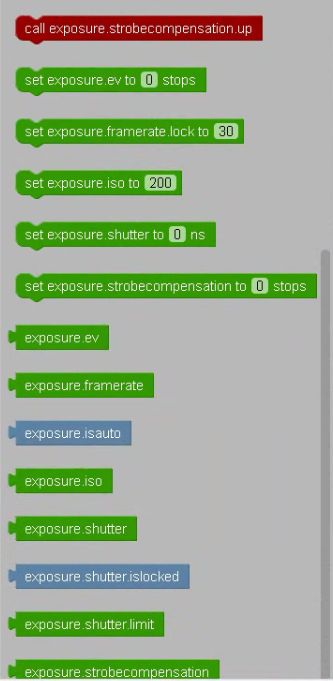
Image Quality → Exposure has several call, set, and exposure block codes.
Use the Color Codes Key to as a reminder of each block type function.
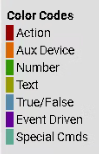
Hold the mouse cursor over each block code to reveal a “tool tip” description.
Image Quality → Lens
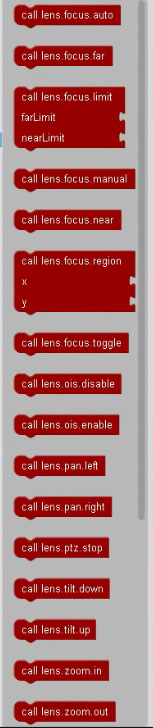
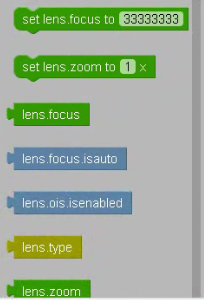
Image Quality → Lens has several call, lens and set block codes.
Use the Color Codes Key to as a reminder of each block type function.
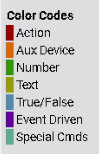
Hold the mouse cursor over each block code to reveal a “tool tip” description.
Image Quality → White Balance
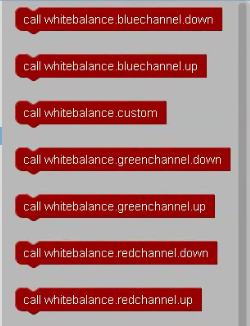
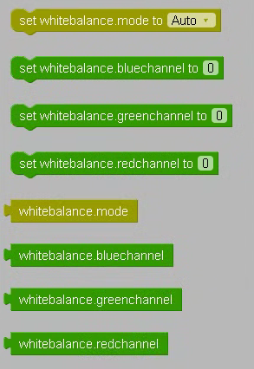
Image Quality → White Balance has several call, set and whitebalance block codes.
Use the Color Codes Key to as a reminder of each block type function.
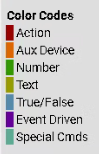
Hold the mouse cursor over each block code to reveal a “tool tip” description.
Aux Devices
Aux Devices has an additional 4 sub-menus - Lamp, Laser, Pan Tilt and NMEA Sensor
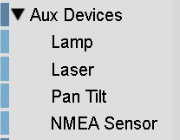
Aux Devices
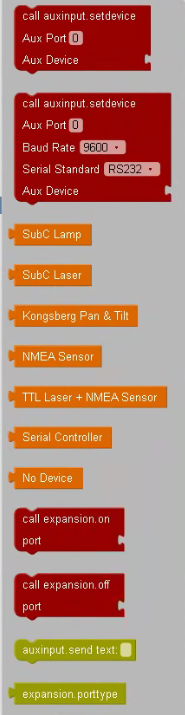
Aux Devices has several call and Aux Device block codes.
Use the Color Codes Key to as a reminder of each block type function.
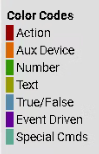
Hold the mouse cursor over each block code to reveal a “tool tip” description.
Aux Devices→ Lamp
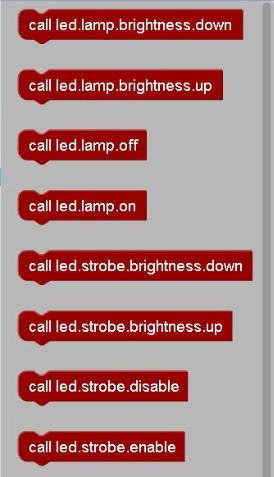
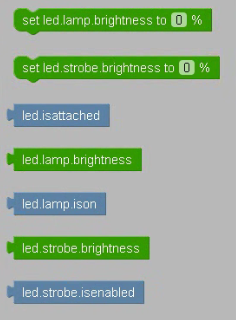
Aux Devices → Lamp has several call, set and led block codes.
Use the Color Codes Key to as a reminder of each block type function.
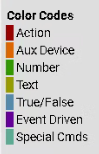
Hold the mouse cursor over each block code to reveal a “tool tip” description.
Aux Devices → Laser
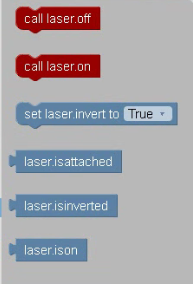
Aux Devices → Laser has call, set and laser block codes.
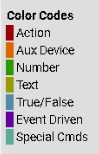
Use the Color Codes Key to as a reminder of each block type function.
Hold the mouse cursor over each block code to reveal a “tool tip” description.
Aux Devices → Pan Tilt
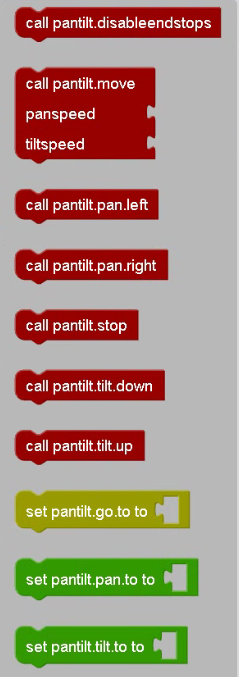
Aux Devices → Pan Tilt has several call and set block codes.
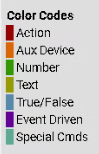
Use the Color Codes Key to as a reminder of each block type function.
Hold the mouse cursor over each block code to reveal a “tool tip” description.
NMEA Sensor
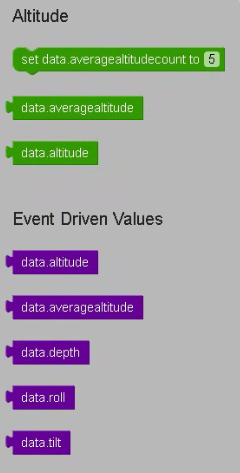
NMEA Sensor has several Altitude and Event Driven Values block codes.
Use the Color Codes Key to as a reminder of each block type function.
Hold the mouse cursor over each block code to reveal a “tool tip” description.
Hibernate
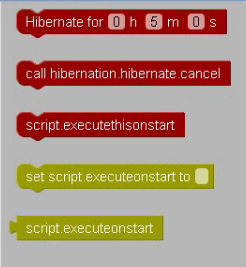
Hibernate has call, set and script block codes.
Use the Color Codes Key to as a reminder of each block type function.
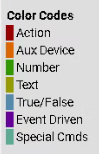
Hold the mouse cursor over each block code to reveal a “tool tip” description.
When using the set script.executeonstart to block in a script, ensure the name specified within the block matches the actual script name.
Time
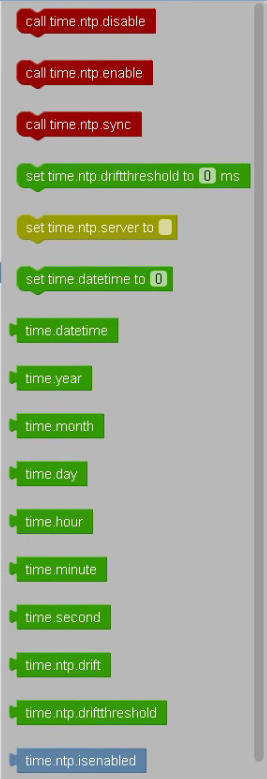
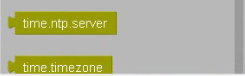
Time has call, set, and time block codes.
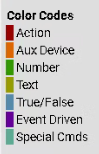
Use the Color Codes Key to as a reminder of each block type function.
Hold the mouse cursor over each block code to reveal a “tool tip” description.
Other
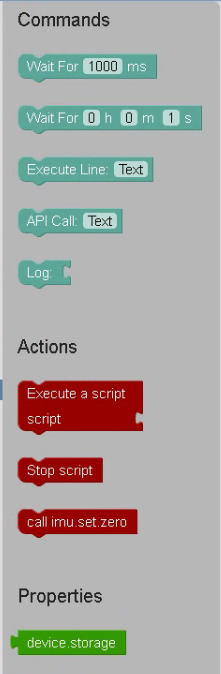
Other has an additional 3 sub-menus - Commands, Actions, and Properties
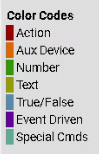
Use the Color Codes Key to as a reminder of each block type function.
Hold the mouse cursor over each block code to reveal a “tool tip” description.