

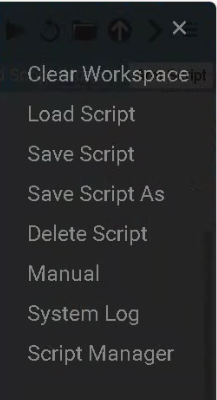
Menu Options
-
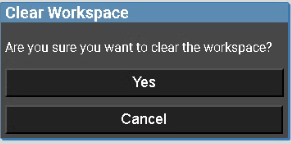
Clear Workspace - to clear the canvas, when finished with your loaded script, click Yes. To close this window without clearing the workspace canvas, click Cancel.
-
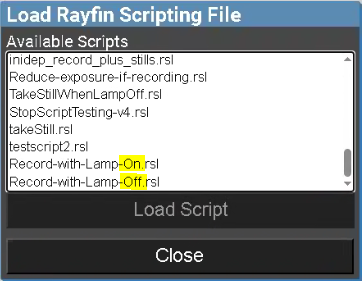
Load Script - to open the Load Rayfin Scripting File window and select a saved script.
Select a script file from the list, then click Load Script.
To exit without selecting a script, click Close.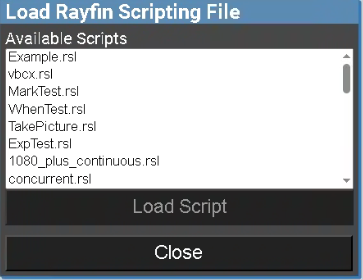
-
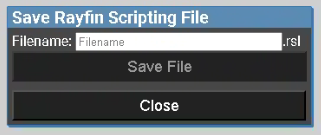
Save Script - the Save Rayfin Scripting File window will appear. Enter a new script Filename and click Save File. Click Close to exit the window to return the script builder canvas.
-
Save Script As - Same as Save Script if you are saving a new script.
If you have a saved script loaded (i.e. “Record-with-Lamp-On”), it will allow you to save the script under another filename, thus, create a new script and keep the original. Example: Changed Record-with-Lamp-On “do” to call.led.lamp.off, save a new Filename “Record-With-Lamp-Off”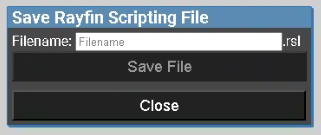
To confirm the new script file has been saved and the original script file remained, open Menu → Load Script and you will see both the original and the new script have been saved.
-
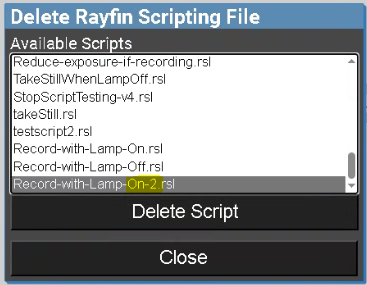
Delete Script - the Delete Rayfin Scripting File window will appear. Select the script you wish to delete from the Available Scripts list. Click Delete Script. Click Close to close this window.
-
Manual - Open the SubC Rayfin Visual Script Builder User Manual PDF file in a new browser window.
-
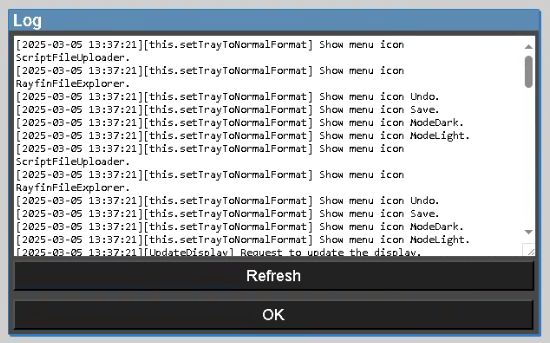
System Log - Opens the Script Builder activity log file.
-
Script Manager - Script Manager will open in a new tab. (Same as the Script Manager icon)

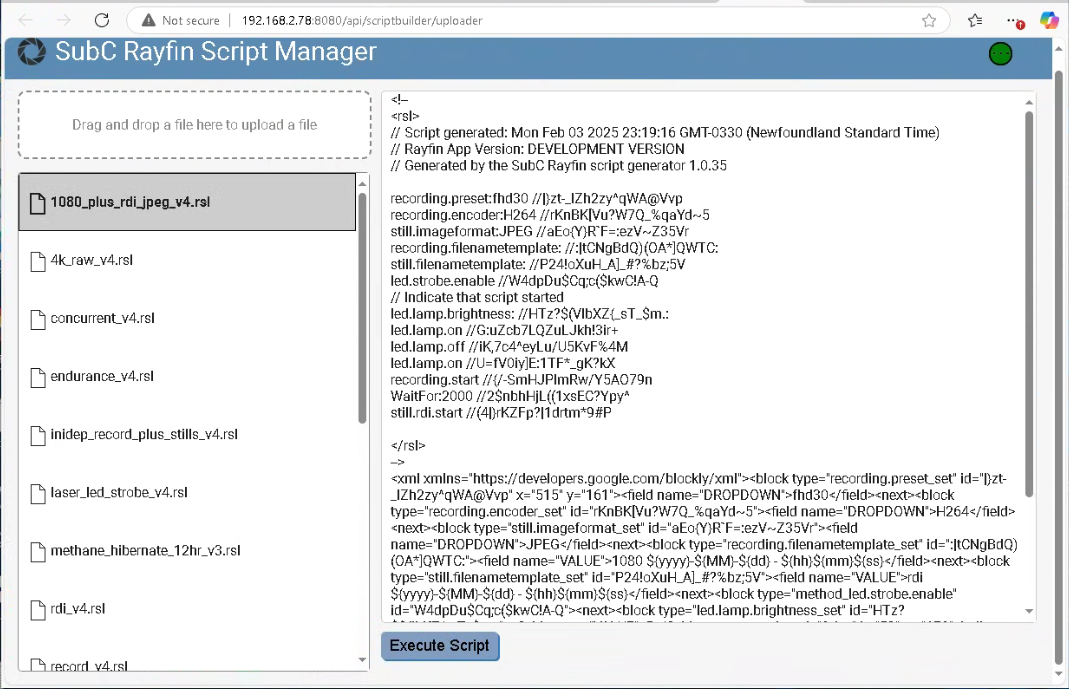
Select a script from the list on the left and its code will appear in the panel on the right.
You can also “Drag and drop a file here to upload a (script) file”.
Click Execute Script button