SubC Drop Camera System Manual

DCS - Exposure & Lighting

Exposure & Lighting

Exposure

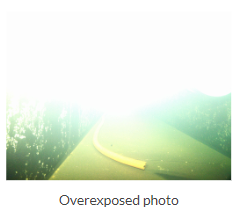
Taking stills using the strobe of an LED can sometimes cause a scene to be overexposed.

image-20241009-163729.png
Manual Exposure Settings

To compensate, instead of turning down the exposure of your preview feed, you can adjust the strobe compensation so that when a picture is taken, the exposure values are temporarily lowered. This will allow you to accurately frame your preview to match the same relative exposure of the photos.

image-20230518-153252.png

Strobe Enable and Compensation

When you turn on the strobe (image-20241009-162721.png ), & enable Auto Exposure, the Strobe Compensation feature will appear.
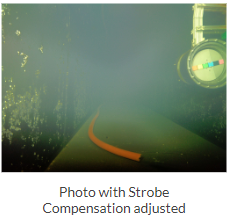

image-20230518-153315.png

Brightness Controls

Click on the lantern icon to turn on/off the LEDs.

image-20241009-163349.png
Lamp On/Off

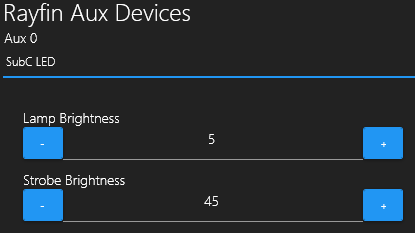
You can adjust the strobe brightness & lamp brightness from 5% to 100%.

You can find the Brightness control in the following menu:

Settings Menu. image-20241009-163903.png

image-20241009-163307.png
LED Brightness Controls

Rayfin Aux Devices. image-20241009-163925.png

Metadata

When the image is taken, its metadata contains the exposure information for ISO and shutter speed.

8tSJVIKlqnOnPKDdrBK5mHVMhbQlkcD11KV2k8uzweUAJfWyMhEf2BwBph7HWH62YU2JMJvIv8Ff_71VdVr8qlCEroLiXkopMCbuzlYXfSMKLj00-QbM-XluNuIwWsmJ1KIJ6ytLEXqXvIHrIJ737nAKwA=s2048