SubC Drop Camera System Manual

DCS - Taking Digital Stills

Taking Digital Stills

Take & View Stills Tutorial

Storage Mode

Toggles between internal Storage mode and Topside

Internal(rayfin)

Topside(PC)

Saves all media to the internal SD Card of the camera.

Media is saved to a selected directory on the PC controlling the camera.

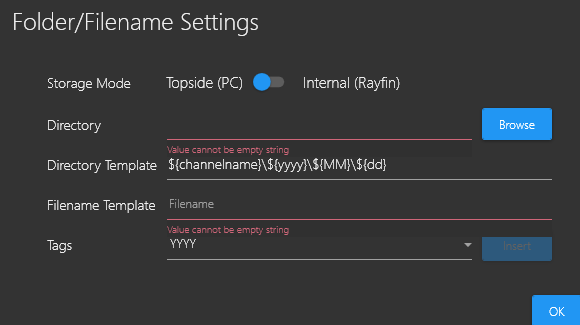
Folder/Filename Settingsimage-20241002-145010.png

image-20260626-161206.png

Directory

Directory Template

Browse to and select a directory where you wish to store your recording and still image files.

The default is ${channelname}\${yyyy}\${MM}\${dd}; however, you can modify this directory template as you wish.

Filename Template

Tags:

The default is ${hh}${mm}${ss}_${fff}; however, you can modify this filename template as you wish

A new ${type} tag allows users to have better control over their directory structure to keep like files together. This can speed up post-processing time to get results more quickly.
You can add/append tags (such as channel name, Year\Month\Day &/or Hour\Minute\Second\Milliseconds) by placing the cursor anywhere you want the tag to appear on the Directory or Filename template paths, then select the desired tag from the Tags field drop-down list.

Black Box

Enable Black Box

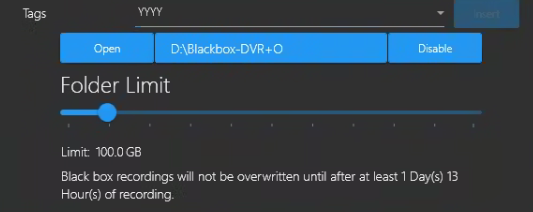
Click this button to open a Windows File Explorer and select a folder in which to store Black Box recording files.

Blackbox Settings: image-20241002-152508.png

image-20241002-151309.png


Open the File/Folder Settings again to adjust your Black Box Folder Limit using the slider button.

Note: The Folder Limit - The Day(s) / Hour(s) values are an estimation and will change depending on how many GBs you allocate to the BlackBox folder Limit.
Example: Limit: 100.0 GB. Black box recordings will not be overwritten until after at least 1 Day(s) 13 hours) of recording.


Digital Stills

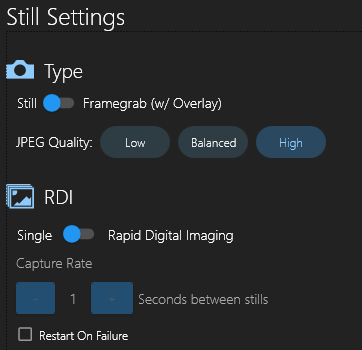
Type: This is a toggle between a digital still & frame grab

Digital Still

Framegrab

Higher overall quality as it is a digital still taken with the sensor. No overlays are present in the still. Includes EXIF data on each still.

This is a frame grab from the camera's live stream. It includes any overlays that are active on the stream.

JPEG Quality

Tags

If set to JPEG, adjust the quality to change the compression. An image at 100% quality has (almost) no loss, and 1% quality is very compressed. SubC suggests setting the compression rate to 95%.

This can be applied to the Name and Directory, depending on which field the cursor is in. 

Stills Settings: image-20241002-145031.png

1153df88-3cd6-4641-8981-a5d82f2406a7.png

RDI Settings

When RDI is on, and you click the Camera with RDI button, Stills will be continuously taken until you stop by clicking the Camera with RDI button again.

Capture Rate

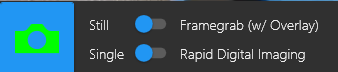
Take Still / Framegrab

Time between stills.


With RDI - Rapid Digital Imaging turned on. Click the Camera icon button to take a Still image or frame grab (while video recording) of the current Channel video. image-20241009-140136.png

0658febf-20df-4cda-82fd-c028e902450e.png


Sensor and Resolution

JPEG Image Size

512GB SSD Stills Amount

Mk2: 4056 x 3040 (12.3MP)

2 - 7 MB

66,000 - 230,000 images

Mk1: 5344 x 4008 (21MP)

4.5 - 18 MB

26,000 - 103,000 images