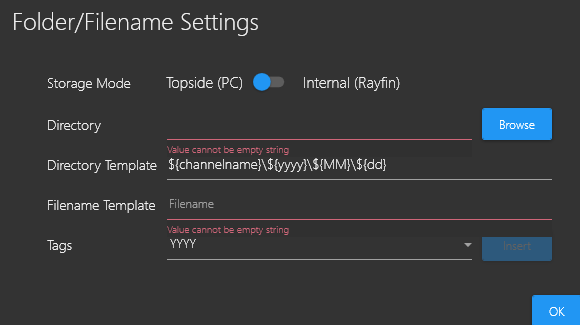
Toggles between internal Storage mode and Topside.
Internal(rayfin) Mode
Topside(PC)
Saves all media to the internal SD Card of the camera.
Media is saved to a selected directory on the PC controlling the camera.
Directory
Browse to and select a directory where you wish to store your recording and still image files.
Directory Template
Default is ${channelname}\${yyyy}\${MM}\${dd}; however, you can modify this directory template as you wish.
Filename Template
Default is ${hh}${mm}${ss}_${fff}; however, you can modify this filename template as you wish.
Tags
A new ${type} tag allows users to have better control over their directory structure to keep like files together. This can speed up post-processing time to get results more quickly.
You can add/append tags (such as channel name, Year\Month\Day &/or Hour\Minute\Second\Milliseconds) by placing the cursor anywhere you want the tag to appear on the Directory or Filename template paths, then select the desired tag from the Tags field drop-down list.
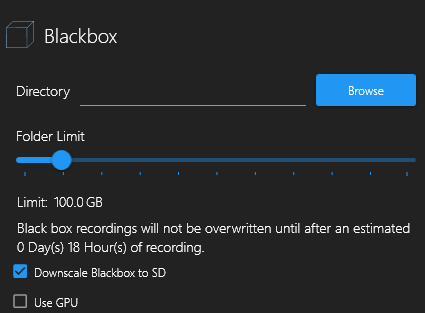
Black Box( )
Enable Black Box
Click the Browse button to open a Windows File Explorer and select a folder in which to store Black Box recording files.
Open the File/Folder Settings again to adjust your Black Box Folder Limit using the slider button.
Note: The Folder Limit - The Day(s) / Hour(s) values are an estimate and will change depending on how many GBs you allocate to the Black Box folder Limit.
Example: Limit: 100.0 GB.Black box recordings will not be overwritten until after at least 1 Day(s) 13 hours) of recording.
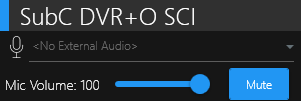
Selecting Microphone
Select a Microphone before configuring any Channels if you wish to embed audio &/or save audio as a separate file.
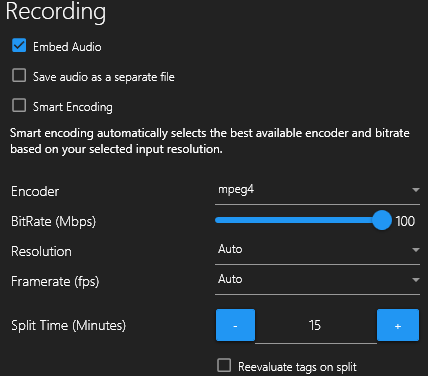
Recording Settings
Embed Audio
Embeds any audio from the microphone input into the recorded video
Save Audio as a separate file
Use this option if you prefer to have your audio and video files separate.
Smart Encoding
Automatically selects the best available encoder and bitrate based on your selected input resolution and the system’s capabilities.
Encoder
Choose the type of compression applied to the videos. H.265 (HEVC) is recommended(*see note). For more information,
Resolution
Frame rate (fps)
Auto
Auto
3840x2160
30
1920x1080
20
1280x720
15
720x480
5
Split Time (Minutes)
Set the amount of time before a recorded video file splits.
Reevaluate tags on split
When selected, will modify the filename of recorded video files each time they split according to the tags in the Filename Template.
Resolution Presets
Quality
Resolution
Bitrate (Mbps)
SD
720 x 480
5
HD
1920 x 1080
25
4K
3840 x 2160
100
Notes
H.265 (HEVC) is an extension of the concepts in H.264 (MPEG-4 AVC) and compresses video twice as efficiently, resulting in significantly better video quality.
If the system is not using a GPU, mpeg4 may be the only option for the encoder
SubC suggests using a unique directory name and file name for each location or transect, along with a Year-Date-Month tag to be easily distinguished.