
If you do not have an SSL Certificate applied to your SubC SecureEdge Server, when Users paste the SecureEdge Stream URL into a browser to view, they will encounter a “Not secure” warning.
This document is provided to guide System Administrators in applying a Self-Assigned Certificate to your SubC SecureEdge Server and eliminate this “Not secure” warning message.
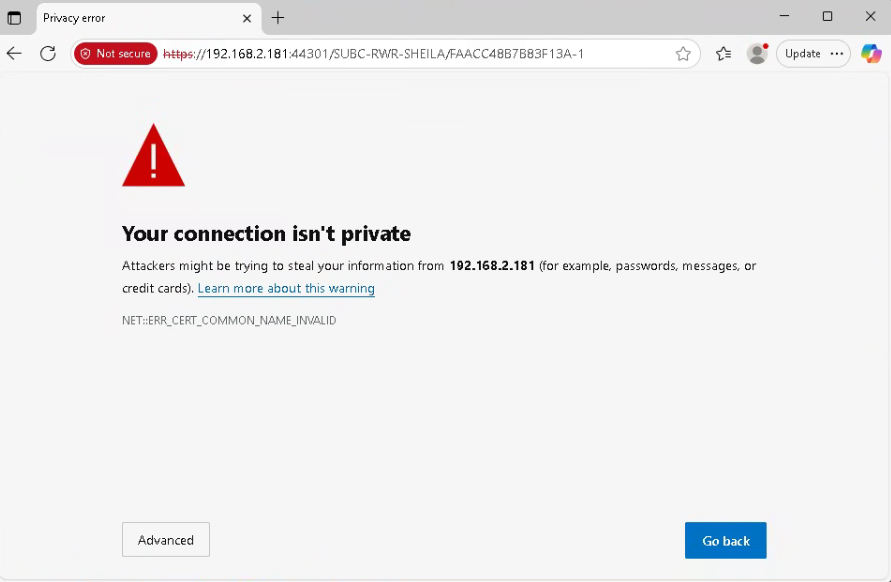
Table of Contents
What Is a Self-Asigned Certificate?
A self-signed certificate is a digital certificate that is created and signed by the same entity that will use it, rather than by a trusted third-party Certificate Authority (CA). Think of it as a form of identification you've created and vouched for yourself, as opposed to having it verified and issued by a government body.
Creating
The script "setupSSL.sh" with a provided domain/hostname and configuration file will generate several files needed to be used. The primary usage of the script is to generate a .key and .crt file to be used with the SubC Signaling Server, but there are other files to be used on a client system to allow that certificate to be trusted in the same way your browser trusts a Certificate Authority (CA).
Application Files (Primary Use)
|
Filename |
Description |
|---|---|
|
/subc.edge/ssl/{domain}.key |
The server's private key. This file is secret and should never be shared publicly. |
|
/subc.edge/ssl/{domain}.crt |
The server's public certificate, signed by our local Certificate Authority. |
Certificate Authority Files (For Signing & Trust)
|
Filename |
Description |
|---|---|
|
/subc.edge/ssl/subc-nc-edge6.ca.key |
The private key for the local Certificate Authority (CA). |
|
/subc.edge/ssl/subc-nc-edge6.ca.pem |
The root public certificate for the local CA. To avoid browser warnings during development, this file can be imported into your browser or OS trust store. |
Appending to a Client PC
Server Side
On the SecureEdge server, you will need to:
-
Generate the new self-assigned certificate based on the hostname of the system/PC
-
Copy the needed <domain>.crt and <domain>.key files into the needed location for the SubC Signaling server to see and use
-
Get a copy of the *<domain>.ca.pem file from the generated files and copy that onto the Client PC's
Generate SSL Files
-
Download the SSL script files from https://www.subcservices.com/utilities/scripts/subc.edge-ssl.zip
-
Extract the files to the location /subc.edge/scripts
-
Create a directory /subc.edge/ssl
-
Update permissions on the .sh files extracted
-
Create a .config file with information about your company
-
Run the script file /subc.edge/ssl/setupSSL.sh "<domain>” “<location>.config”
Example: /subc.edge/ssl/setupSSL.sh "subc-nc-edge3" "clarenville.ssl.config"
See Appendix for full example. -
Check the directory /subc.edge/ssl for the generated files
 # ll ../ssl/<domain>*
 -rw------- 1 root root  1704 Oct  5 21:48 ../ssl/<domain>.ca.key
 -rw-r--r-- 1 root root  1452 Oct  5 21:48 ../ssl/<domain>.ca.pem
 -rw-r--r-- 1 root root  1468 Oct  5 21:48 ../ssl/<domain>.crt
 -rw------- 1 root root  1704 Oct  5 21:48 ../ssl/<domain>.key
 -rw------- 1 root root  2787 Oct  5 21:48 ../ssl/<domain>.pfx
 -rw-r--r-- 1 root root  5412 Oct  5 21:48 ../ssl/<domain>.README.md
 -rw-r--r-- 1 root root 10831 Oct  3 23:26 ../ssl/<domain>.zip
Update the SSL Files for SubC Signaling Server
Using the script /subc.edge/scripts/sendToSignalingServer.sh "" to update the SubC Signaling Server.
The above script will look for the SubC Signaling server to be located at /subc.edge/subc.signaling/ with the SSL files to be placed in the location /subc.edge/subc.signaling/config/sslcerts.
If you have installed it else where manually copy the files and rename them based on the names listed in the production.json and development.json files.
-
Run the script /subc.edge/scripts/sendToSignalingServer.sh "<domain>"
-
Check for the line The new certificate and key have been deployed to the signaling server.
-
Verify that the server.crt and server.key files have been updated in the location /subc.edge/subc.signaling/config/sslcerts by typing
ls -l /subc.edge/subc.signaling/config/sslcerts
Get a Copy of the *.ca.pem File
In the generated files there is a file called ../ssl/<domain>.ca.pem. This is the file to be used on each client system to allow them to trust the SSL files you have generated.
-
Show the contents of the text file in the console by typing cat /subc.edge/ssl/<domain>.ca.pem
-
Select the contents of the file
-
Copy it to the Windows clipboard
-
On your Windows PC, create a new text file with the name .ca.pem and paste
-
Save the file
-
Put the file in a location or on something you will have access to from each client system
Client Side
From the client PC's you need to perform the below actions.
-
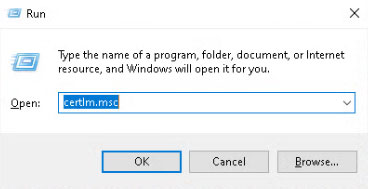
Press Win + R or Start -> Run
-
Type certlm.msc, and click OK
-
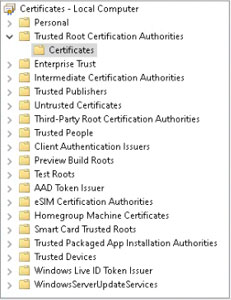
In the left pane, expand Trusted Root Certification Authorities
-
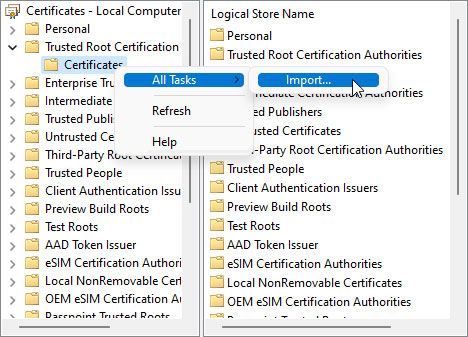
Right-click on the Certificates folder
-
Select All Tasks > Import....
-
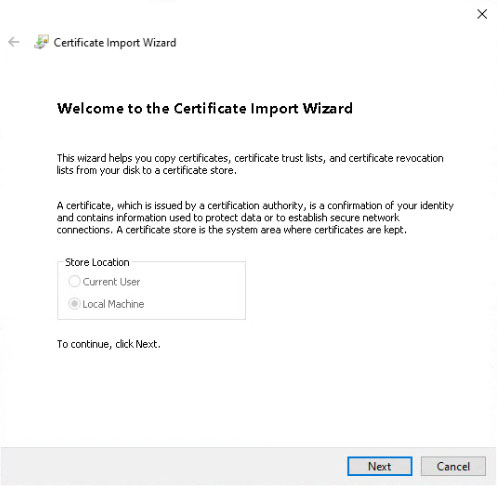
Click Next
-
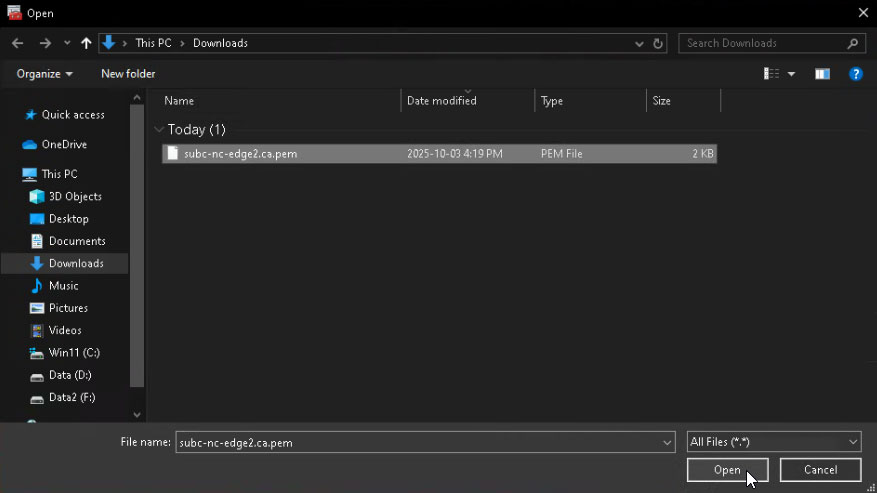
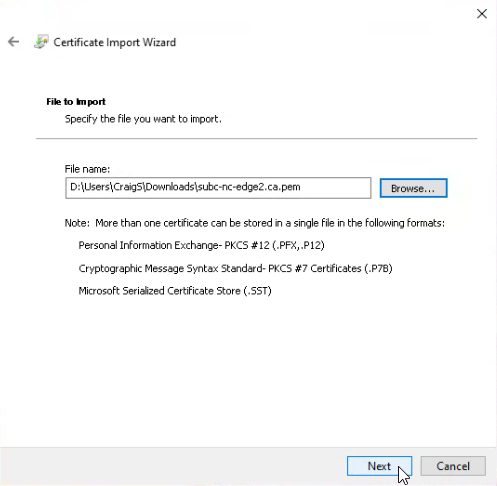
Click the Browse button
-
On the bottom right side, from the drop-down choose All Files (..)
-
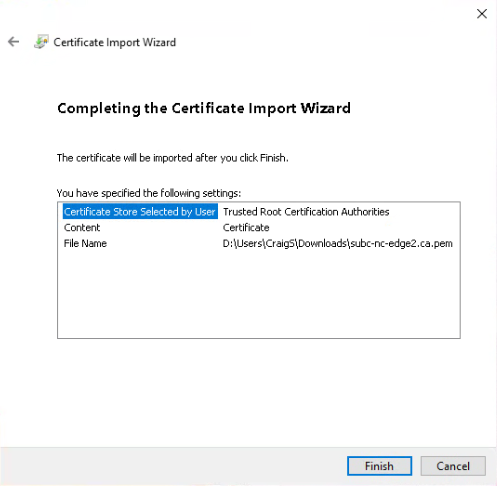
Select the .pem certificate file, click Open and then Next
-
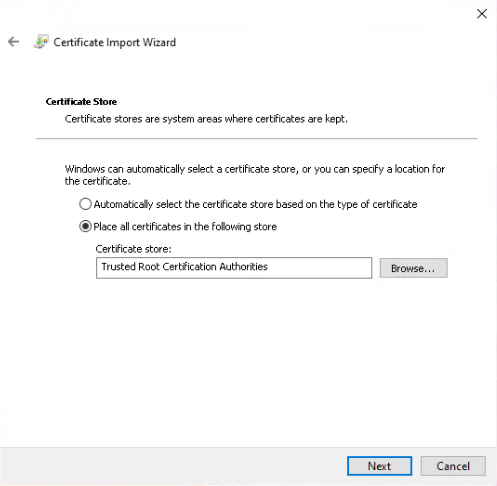
Click Next
-
Click Finish
-
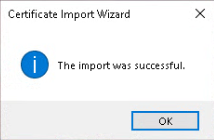
Click the OK button
-
Close your browser(s) and open one to your SecureEdge servers using a valid URL. The system your using should now trust the targeted SecureEdge server as a secure system
Appendix
Sample Config File
# --------------------------------------------------
# SSL Certificate Configuration for SubC Edge Server
# Location: Clarenville
# --------------------------------------------------

# Details for the certificate's subject line.
COUNTRY="CA"
STATE="Newfoundland and Labrador"
CITY="Clarenville"
ORG="SubC Imaging Inc."

# Cryptographic settings.
KEY_BITS=2048
VALID_DAYS=730 # 2 years
Sample Output
./setupSSL.sh "subc-nc-edge3" "clarenville.ssl.config"
# ./setupSSL.sh "subc-nc-edge3" "clarenville.ssl.config"
--- Generating Certificate Authority (CA) for subc-nc-edge3 ---
.+...........+.+++++++++++++++++++++++++++++++++++++++++++++++++++++++++++++++++*.+.+......+...............+..+...+.......+..+...+..........+++++++++++++++++++++++++++++++++++++++++++++++++++++++++++++++++*.........+.+........+....+...+.........+...+..+...+.+.....+.+......+........+.+......+...+.....+.......+..+.............+..+......+.......+.............................+....+.....+.+...+...+...+..+...+.......+..+......+............+...+......+...+..........+..+...................+..+............+.......+...........+...+.+.....+...............+...+..........+.....+.......+......+.....+...............+....+.........+......+......+.....+...+..........+.....+.+........+..........+.....+......+....+......+++++++++++++++++++++++++++++++++++++++++++++++++++++++++++++++++
.........+......+.+..+.+.........+..+......+.........+......+...................+++++++++++++++++++++++++++++++++++++++++++++++++++++++++++++++++*..+...+.+++++++++++++++++++++++++++++++++++++++++++++++++++++++++++++++++*..+....+...+...........+.+......+........+......+....+..+....+...+......+.....+.+.........+..+............+.+......+........+...+...+......+.............+..+.+.....+...+....+.....+............+.........+...............+....+...........+.+......+++++++++++++++++++++++++++++++++++++++++++++++++++++++++++++++++

--- Generating Server Certificate Signing Request (CSR) ---
..+........+...+....+.................+...+.+..+.......+.....+.+.....+....+..+...............+++++++++++++++++++++++++++++++++++++++++++++++++++++++++++++++++*.............+..+..........+...........+...+.........+.+.....+.+.........+..+...+.+++++++++++++++++++++++++++++++++++++++++++++++++++++++++++++++++*.+..+............+...............+...+....+......+.........+...+...+........+....+..+...+.+..............+......+.+......+.........+......+.................+.......+...+...+............+......+..+...+....+.....+.......+........+.+..+............+.+.........+..+...+.+.....+......+....+............+..+...+....+.....+.............+.....+...+.........+..........+...+++++++++++++++++++++++++++++++++++++++++++++++++++++++++++++++++
.............+.....+.+++++++++++++++++++++++++++++++++++++++++++++++++++++++++++++++++*....+...+..+...+......+...+......+............+....+...+..+...+++++++++++++++++++++++++++++++++++++++++++++++++++++++++++++++++*...+.....+.+..+...+.............+..+.........+...+...+.......+...........+.+...+.....+..........+..................+...+.................+...+.+.....+....+.....+.......+..+..........+..+...+.......+....................+.+...+.....+......+...+...+....+...........+....+..................+...+.................+..........+...+...+.....+.......+..+......+.......+........+.+......+........+............+.......+.....+.+..+............+...+..........+.........+......+..+...............+...+....+......+.....+.......+..+.+........+....+...............+..+..........+...+...+...+..+.........+.+...............+..+.+......+..............+.+...+..+....+.....+.........+...+...................+...+.....+.......+...+...+........+......+...+.+..+...+....+...............+..+....+..+...+.........+.+......+...+..+......+...+.........+.+..+.........+...+.+.....+................+........+......+.......+.....+.........+.+....................+...................+...+..+.+..+......+.......+...+..............+...+...+....+..+.............+..+++++++++++++++++++++++++++++++++++++++++++++++++++++++++++++++++

--- Signing Server Certificate with SAN for subc-nc-edge3 ---
Certificate request self-signature ok
subject=C = CA, ST = Newfoundland and Labrador, L = Clarenville, O = SubC Imaging Inc., CN = subc-nc-edge3
Server Certificate created at /subc.edge/ssl/subc-nc-edge3.crt

--- Generating PFX (PKCS#12) file ---
Server PFX bundle created at /subc.edge/ssl/subc-nc-edge3.pfx
        zip warning: name not matched: subc-nc-edge3*.*

zip error: Nothing to do! (subc-nc-edge3.zip)
Documentation created at /subc.edge/ssl/subc-nc-edge3.README.md

--- Process Complete ---
Your server files and documentation are ready:
Private Key:  .//subc.edge/ssl/subc-nc-edge3.key
Certificate:  .//subc.edge/ssl/subc-nc-edge3.crt
PFX Bundle:   .//subc.edge/ssl/subc-nc-edge3.pfx
Readme File:  .//subc.edge/ssl/subc-nc-edge3.README.md
cat ../ssl/subc-nc-edge3.README.md
# cat ../ssl/subc-nc-edge3.README.md
# SSL/TLS Certificate Documentation for: subc-nc-edge3
- Generation Date: Sun 05 Oct 2025 09:48:06 PM NDT
- Generated By: ./setupSSL.sh
- Configuration Used: clarenville.ssl.config
---
## 📄 File Breakdown
### Application Files (Primary Use)
* `/subc.edge/ssl/subc-nc-edge3.key`
    * **Purpose:** The server's private key.
* `/subc.edge/ssl/subc-nc-edge3.crt`
    * **Purpose:** The server's public certificate. **Includes SAN extension.**
* `/subc.edge/ssl/subc-nc-edge3.pfx`
    * **Purpose:** A PKCS#12 bundle containing both the private key and public certificate.
    * **Password:** `subc`
### Certificate Authority Files (For Signing & Trust)
* `/subc.edge/ssl/subc-nc-edge3.ca.key`
    * **Purpose:** The private key for the local Certificate Authority (CA).
* `/subc.edge/ssl/subc-nc-edge3.ca.pem`
    * **Purpose:** The root public certificate for the local CA. **This is the file you import into Windows to establish trust.**
---
## ✅ How to Trust the CA in Windows (No More Browser Warnings)
1.  Copy the `/subc.edge/ssl/subc-nc-edge3.ca.pem` file to your Windows machine.
2.  Press **Win + R**, type `certmgr.msc`, and press Enter.
3.  Right-click on **"Trusted Root Certification Authorities"** -> **All Tasks** -> **Import...**
4.  Browse to and select the `/subc.edge/ssl/subc-nc-edge3.ca.pem` file (select "All Files").
5.  Place the certificate in the **"Trusted Root Certification Authorities"** store and finish the wizard.
6.  Restart your browser.
---
## 🛠️ Verification Details
(Verification details will be appended here)
### 1. Private Key Integrity Check
```sh
$ openssl rsa -in /subc.edge/ssl/subc-nc-edge3.key -check -noout
RSA key ok
```
### 2. Key & Certificate Modulus Match
```sh
# MD5 of the Private Key's modulus: MD5(stdin)= 608730cd248b526716590ba09ee79903
# MD5 of the Certificate's modulus: MD5(stdin)= 608730cd248b526716590ba09ee79903
```
### 3. Certificate Content Details
```sh
$ openssl x509 -in /subc.edge/ssl/subc-nc-edge3.crt -text -noout
```
```text
Certificate:
    Data:
        Version: 3 (0x2)
        Serial Number:
            1b:53:7e:ec:a2:ee:be:3a:11:78:69:c1:3c:06:b6:4c:bc:d8:50:3d
        Signature Algorithm: sha256WithRSAEncryption
        Issuer: C = CA, ST = Newfoundland and Labrador, L = Clarenville, O = SubC Imaging Inc., CN = SubC Imaging Inc. subc-nc-edge3 CA
        Validity
            Not Before: Oct  6 00:18:06 2025 GMT
            Not After : Oct  6 00:18:06 2027 GMT
        Subject: C = CA, ST = Newfoundland and Labrador, L = Clarenville, O = SubC Imaging Inc., CN = subc-nc-edge3
        Subject Public Key Info:
            Public Key Algorithm: rsaEncryption
                Public-Key: (2048 bit)
                Modulus:
                    00:c6:c6:7c:9b:cf:0f:33:7d:ad:35:14:bf:bf:bf:
                    1b:3a:e7:2f:7c:26:89:a7:f6:a9:7d:dd:71:f9:23:
                    26:f2:36:94:7a:c3:fe:71:26:41:11:07:84:01:9d:
                    96:42:f5:49:90:77:a6:30:6f:9b:55:2c:a0:a6:5a:
                    58:a9:44:68:62:5b:f0:17:67:6e:67:1d:56:72:19:
                    b9:cf:74:f1:b5:d1:dc:2b:06:db:19:42:c5:94:47:
                    37:dd:60:ef:5f:ed:f1:a0:37:94:de:8a:57:e8:0f:
                    1d:6b:75:ef:42:a4:00:60:0c:cf:56:a7:f9:09:6a:
                    0e:30:24:ad:4d:52:00:ac:eb:d1:23:a8:bd:be:18:
                    9c:2f:95:84:51:bd:9b:32:00:e7:71:f2:93:56:a3:
                    98:d5:5c:45:5f:2d:00:38:62:82:48:09:1c:26:f0:
                    d3:3a:61:78:98:6a:82:64:e9:09:31:7f:d4:06:27:
                    10:7b:ce:67:48:94:fd:bd:7c:03:c2:d2:0d:88:2a:
                    68:60:ba:a2:3d:83:69:c0:d4:0d:58:e4:bd:ba:b4:
                    12:f4:a4:8b:04:24:9d:78:4c:4d:8f:28:10:e1:1e:
                    f1:51:5b:7a:f8:28:c0:f4:a2:36:eb:b8:22:69:56:
                    33:73:98:8a:39:ba:f7:fe:54:17:d2:0e:7a:75:4a:
                    c6:df
                Exponent: 65537 (0x10001)
        X509v3 extensions:
            X509v3 Authority Key Identifier:
                D6:D8:28:53:D8:00:F6:48:11:60:D0:40:B8:08:1E:32:54:42:8A:EA
            X509v3 Basic Constraints:
                CA:FALSE
            X509v3 Key Usage:
                Digital Signature, Non Repudiation, Key Encipherment, Data Encipherment
            X509v3 Subject Alternative Name:
                DNS:subc-nc-edge3
            X509v3 Subject Key Identifier:
                BB:5C:64:46:34:A5:39:28:01:2D:D3:F8:66:33:79:C0:0F:76:B8:37
    Signature Algorithm: sha256WithRSAEncryption
    Signature Value:
        b5:21:c3:b5:3a:7d:f3:d3:96:b7:99:5b:b7:dd:1e:24:de:9a:
        05:f6:69:c2:df:87:4d:da:71:30:40:57:6b:12:ac:0a:2a:a0:
        9a:7e:7c:a4:9f:8f:2f:3b:70:f5:46:20:b2:3f:5a:95:81:89:
        5d:26:d7:18:43:26:a6:55:0f:c3:23:c5:be:fd:07:6c:c5:e6:
        15:38:69:6a:75:f7:28:37:98:bd:09:5c:c4:8e:5a:e2:6f:83:
        8a:2e:f7:33:b4:13:f6:5d:ec:f1:2d:6c:2e:cc:7c:64:89:6a:
        98:64:6f:6c:1d:09:d3:28:f0:ae:52:2f:1c:c6:84:e9:58:bb:
        61:cc:64:b7:81:df:c0:da:6c:39:17:f0:3b:9a:c9:9d:a8:4f:
        ce:6b:ae:09:c2:14:b2:88:3e:a1:68:57:fb:2a:88:ce:e6:47:
        b2:b8:80:24:48:74:93:e1:14:ca:1a:c1:64:89:79:42:31:c8:
        2e:5a:89:0a:12:da:c3:74:0b:f9:0f:6a:cf:90:12:5e:8c:c7:
        02:fe:af:71:2d:07:c3:5d:79:a0:44:7c:86:88:ce:c7:33:46:
        be:a3:69:d0:d5:0d:0a:14:a0:65:fe:22:3d:49:bb:cf:20:4f:
        53:0b:d0:77:ae:c3:82:bf:85:ff:9f:2a:37:0a:2a:af:8c:20:
        a7:f1:e7:ba
```
ll ../ssl/subc-nc-edge3*
    # ll ../ssl/subc-nc-edge3*
    -rw------- 1 root root  1704 Oct  5 21:48 ../ssl/subc-nc-edge3.ca.key
    -rw-r--r-- 1 root root  1452 Oct  5 21:48 ../ssl/subc-nc-edge3.ca.pem
    -rw-r--r-- 1 root root  1468 Oct  5 21:48 ../ssl/subc-nc-edge3.crt
    -rw------- 1 root root  1704 Oct  5 21:48 ../ssl/subc-nc-edge3.key
    -rw------- 1 root root  2787 Oct  5 21:48 ../ssl/subc-nc-edge3.pfx
    -rw-r--r-- 1 root root  5412 Oct  5 21:48 ../ssl/subc-nc-edge3.README.md
    -rw-r--r-- 1 root root 10831 Oct  3 23:26 ../ssl/subc-nc-edge3.zip