
If you have a NVIDIA Graphic Card as well as Integrated Graphic Card in the system on which your SubC application is installed, in the NVIDIA Control Panel you can set the SubC application to use this higher performing NVIDIA GPU.
-
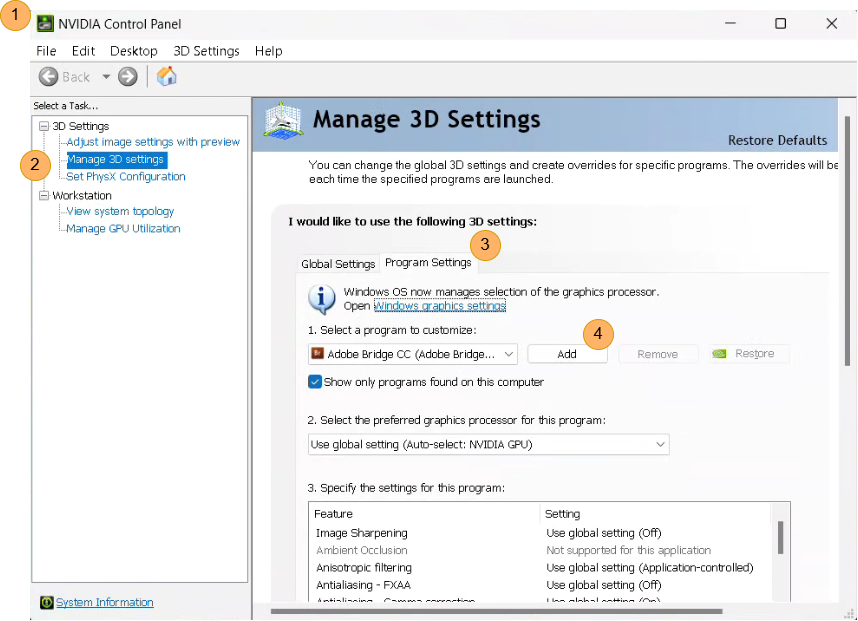
From the Windows Start menu, open Nvidia Control Panel
-
Select Manage 3D settings
-
Select the Program Setting tab
-
Click the Add button
-
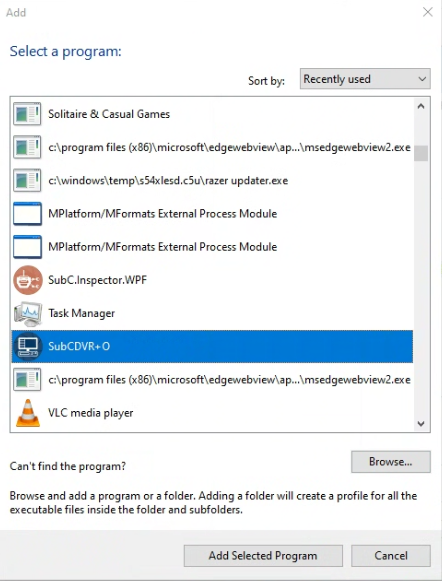
Select SubC application from the program list.
If you don’t see SubC application in the list, use the Browse button to navigate to the drive where the SubC application is installed. Example: C:\SubC DVR+O v7\SubCDVR+O.exe
-
In “1. Select a program to customize” field you should now see the drive and path to the SubC application executable. Example: C:\SubC DVR+O v7\SubCDVR+O.exe
-
In “2. Select the preferred graphics processor for this program” field, select High-performance NVIDIA processor
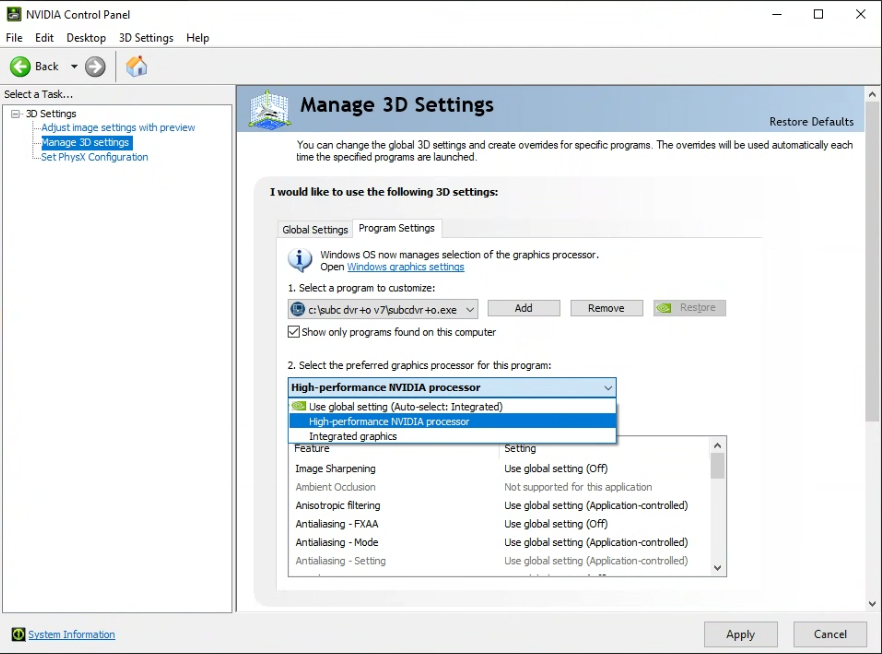
Click Apply button
Close the NVIDIA Control Panel
Open the SubC Software desktop application again.