
SubC encourages you to consider using this method of preserving your SubC Software Application Settings folder as a means of saving your SubC application’s Channel configurations so you can reuse those Settings for a future job or as a way to quickly recover, reload and redeploy your SubC application configuration.
You can utilize this method with SubC Software desktop applications.
Example - SubC DVR+O
You are using SubC DVR+Ov7 for a project called “ABC-Project-June-2025”
Once you have all of your DVR+O Channels set with your video input sources, preferred configuration, and overlays, you can make a copy of the DVR+Ov7 Settings folder to preserve it.
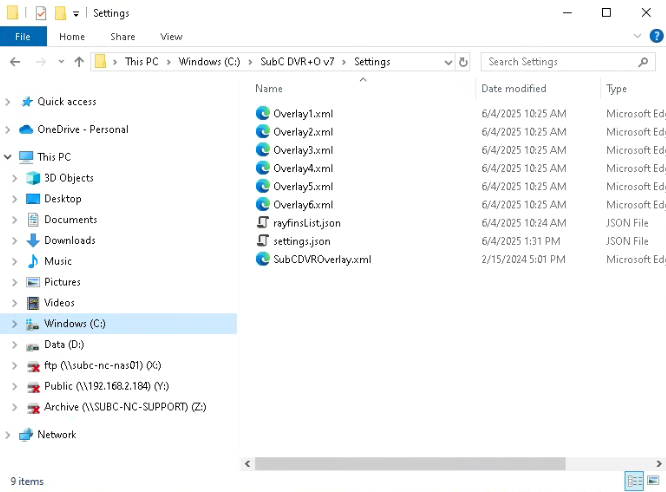
Settings folder content
Example C:\SubC DVR+O v7\Settings folder contents
Make a Copy of Settings folder
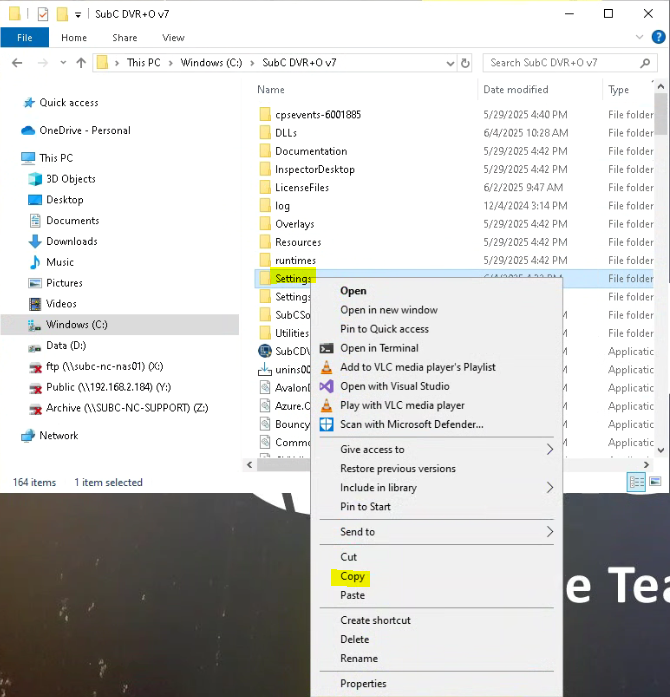
In the C:\SubC DVR+O v7 folder
Right Click on Setting folder and select Copy
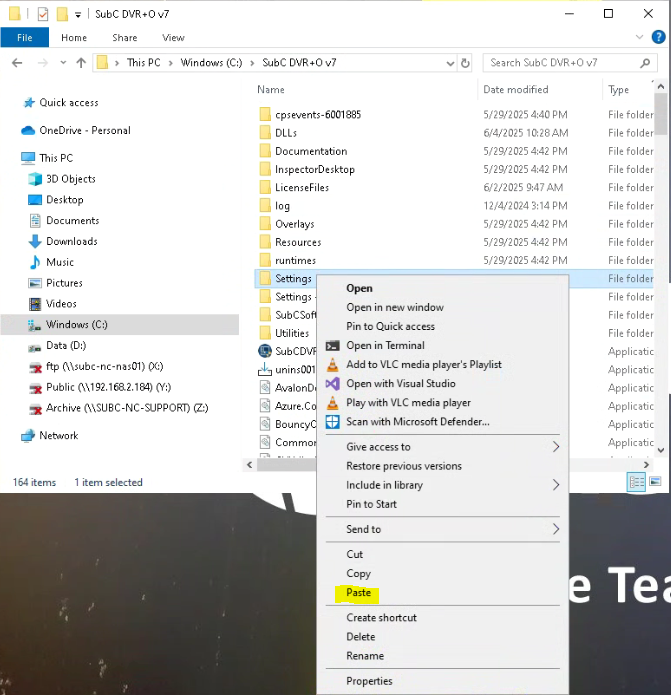
Right on white space anywhere in the same C:\SubC DVR+O v7 directory (or another 'projects' directory if you prefer), and select Paste
This will place a copy of the current Settings folder, and its contents named “Settings - Copy”
Rename “Settings - Copy” to “Settings-ABC-Project-June-2025”
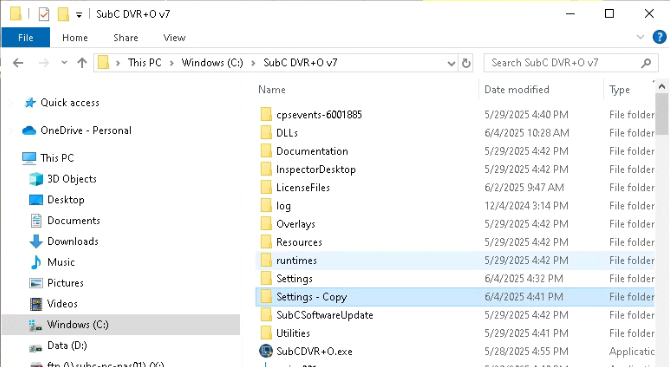
You can now use “Settings-ABC-Project-June-2025” as backup to quickly reload and redeploy your Channel configurations.
We recommend that you also save “Settings-ABC-Project-June-2025” to another system, a network storage drive or backup system.
Use Scenarios
DR/Business Continuity
If your SubC Software application host PC suffers a critical failure, you can get back to an operational state again quickly by:
-
Reinstall the SubC Software application on another system
-
If you have a physical dongle license for your SubC application - just plug the dongle into the new system before you launch the SubC application.
-
If you had a virtual license for your SubC application installed on the system that failed, contact SubC Support (email: support@subcimaging.com) and we will get you setup with a new virtual license for your SubC application on the new system promptly.
-
Rename the new C:\SubC Software\Setting folder to something like Settings-Orig
Example: C:\SubC DVR+O v7\Setting → C:\SubC DVR+O v7\Setting-Orig -
Copy the “Settings-ABC-Project-June-2025” folder to C:\SubC DVR+O v7 folder on the new system
-
Make a copy of Settings-ABC-Project-June-2025” in that same folder.
-
Rename “Settings-ABC-Project-June-2025 - Copy” to “Settings”
-
Start DVR+O application and it will read the “Settings” folder contents that now has your preserved Channels configuration.
Project Closeout
When “ABC-Project-June-2025” is finished, you may want to save your C:\SubC Software\Setting file again to preserve any changes that may have been applied in your SubC Software Channels configuration over the course of this project.
Follow the same steps outlined in the Make a Copy of Settings folder section above.
-
This time you may want to use the project end date in the folder name.
-
Rename your current Settings - Copy folder to Settings-ABC-Project-June-30-2025
-
Again, backup your Settings-ABC-Project-June-30-2025 to another system, a network storage drive or backup system.
New Project
Before you start a new project, you may wish to start your SubC Software application configuration with a ‘clean-slate’ - the original default Settings folder.
If you still have the copy the original default Settings folder (“Settings-Orig” )
-
Delete the current C:\SubC Software\Setting folder
-
Copy & Paste C:\SubC Software\Setting-Orig folder to “Settings-Orig-Copy”
-
Rename Settings-Orig-Copy to Settings
-
Start the SubC Software application and configure the Channels for your new project.
-
When you have your SubC Software configured for your new project
-
Right Click on Setting folder and select Copy
-
Rename “Settings - Copy” to something meaningful like “Settings-[New-Name]-Project-July-2025”
-
Backup your Settings-[New-Name]-Project-July-2025 to another system, a network storage drive or backup system.
-
Returning to a Previous Project
Your client at “ABC” has requested your team to return to do another project, the same as the previous project you did in “July 2025”.
You’ll be glad that you saved “Settings-ABC-Project-June-30-2025” folder as it will save you time getting ready to start this new project!
-
Copy Settings-ABC-Project-June-30-2025 to SubC Software system C:\SubC Software\ folder
-
Rename Settings-ABC-Project-June-30-2025 to the new project Settings-ABC-Project-Aug-2025
-
Copy & Paste Settings-ABC-Project-Aug-2025 to Settings-ABC-Project-Aug-2025 - Copy
-
Rename Settings-ABC-Project-Aug-2025 - Copy to Settings
-
Start the SubC SubC Software application and its Settings folder now will have all of the Channel and configuration specifications for this return to this ABC-Project-Aug-2025 project
-
Over the course of this project, periodically, if you’ve made any new configuration changes &/or at the end of this project, be sure to follow the Project Closeout steps again to preserve this project’s Settings.
-
Make a copy of current Settings folder
-
Rename your current Settings - Copy folder to Settings-ABC-Project-Aug-31-2025
-
Again, you may want to use the project end date in the folder name.
-
Backup your Settings-ABC-Project-Aug-31-2025 to another system, a network storage drive or backup system.
-