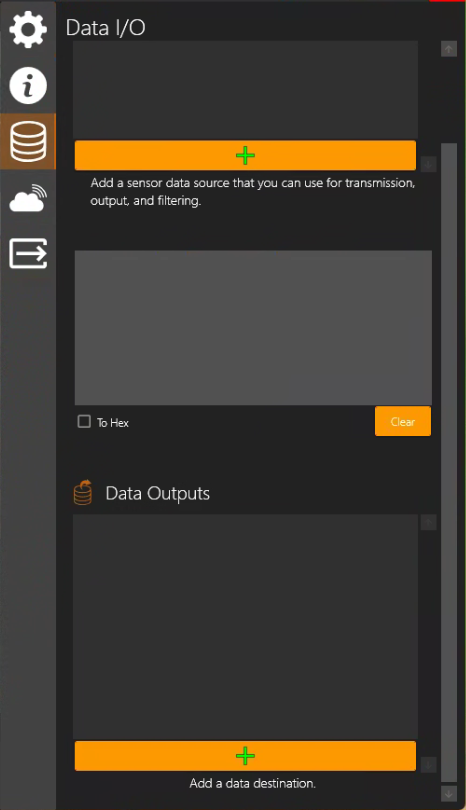
Menu → Settings
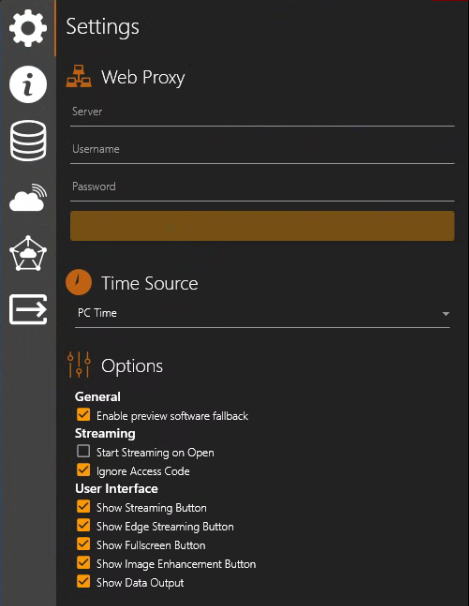
In Settings you can set Web Proxy and Time Source, and Options.
Web Proxy
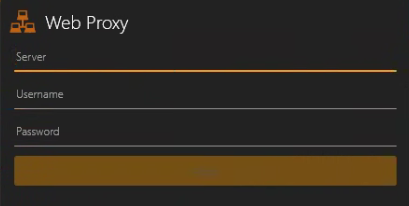
If your Network uses a proxy server, enter the proxy server name in the Server field, enter Username and Password, and click Apply.
A proxy server is a system or router that provides a gateway between users and the internet. Therefore, it helps prevent cyber attackers from entering a private network. It is a server, referred to as an “intermediary” because it goes between end-users and the web pages they visit online.
Time Source
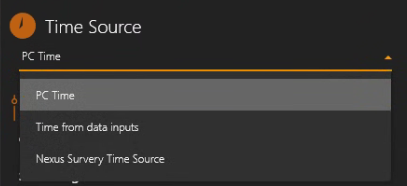
PC Time - to sync the DVR+O / SCI time source with the computer’s clock.
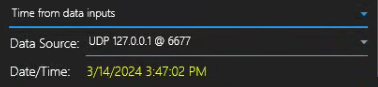
Time from data inputs - you must first have Data Input configured with incoming data that includes date & time data.
Example using Time from data inputs - NMEA Sender as Data Input Source.
Nexus Survey Time Source - for use with Wood Nexus IC
Options
General
-
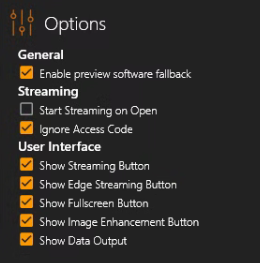
Enable preview software on fallback - If the Stream Channel Preview & Main view video is not visible when the User has accessed the Stream host PC via remote desktop, you can turn on the Enable preview software fallback toggle and then you’ll be able to see the Preview & Main video.
Streaming
-
Start Streaming on Open - When you close the Stream application, it remembers the Channel configurations (stores in its settings file) where you left off and those configurations will be set when you open the Stream application again. You can also optionally turn on “Start Streaming on Open” feature so that when you open the Stream application again, it will automatically start streaming the previously configured Channels.
-
Ignore Access Code - Used for Presentation Input. You can connect a Channel to a Presentation without providing the Presentation Access Code.
User Interface
-
Show Streaming Button

-
Toggles the Stream Button from visible to not visible. Unselect if you wish to prevent the Stream Desktop application (i.e. Receiving side) from activating Streaming on the Channels (You can control start / stop Streaming Channels from the SubC Streaming Service Web application.)
-
-
Show Edge Streaming Button

-
Toggles the EdgeStream Button from visible to not visible. Unselect if you wish to prevent the Stream Desktop application (i.e. Receiving side) from activating SecureEdge Streaming on the Channels (You can control start / stop Streaming Channels from the SubC Streaming Service Web application.)
-
-
Show Fullscreen Button

Toggles the Fullscreen Button from visible to not visible. Unselect if you wish to prevent users from using this “pop out a fullscreen video” window feature.
-
Show Image Enhancement Button

Toggles the Image Enhancement Button from visible to not visible. Unselect if you wish to prevent users from using this “Image Enhancement” feature.
-
Show Data Output - Select if you want to also have Data Output appear in the Menu → Data I/O panel.