

Select Menu → Output
The Output feature allows streaming of an active Stream Channel through RTSP Lan Streaming or HD/SD Output, making the video accessible to other computers on your network.
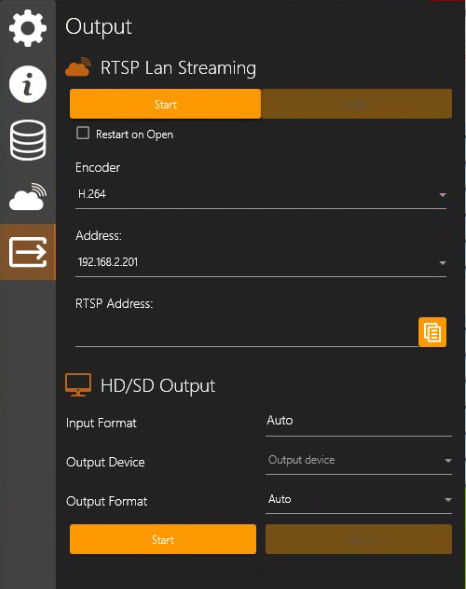
The Output feature allows streaming of an active Stream Channel through RTSP Lan Streaming or HD/SD Output, making the video accessible to other computers on your network.
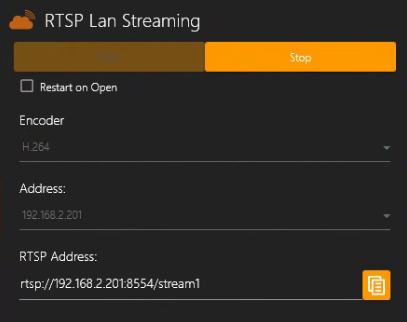
RTSP Lan Streaming gives you the ability to copy the streaming RTSP string of a configured Channel and paste it into another video application, such as VLC, on another PC within the same LAN as the source SubC Desktop application.
Restart on Open: Select this checkbox if you want this configured Channel to start RTSP Lan Streaming automatically when you start the Stream Desk top application.
Encoder: Select the desired encoder from this dropdown list. Options: H264 or mpeg4
Address: This field contains a list of IP Address(es) for each adapter you may have configured on this Stream Desktop app host system, allowing you to select whichever network you prefer to send the streaming through.
Start: Click the start button at the top to start streaming and the RTSP Address will appear in the field below.
RTSP Address: the RTSP address appears in this field. Click the copy button to copy the rtsp://<IP Address>/stream1 and paste it into another video application, such as VLC, to view.
Stop: Click the stop button at the top to stop RTSP Lan streaming
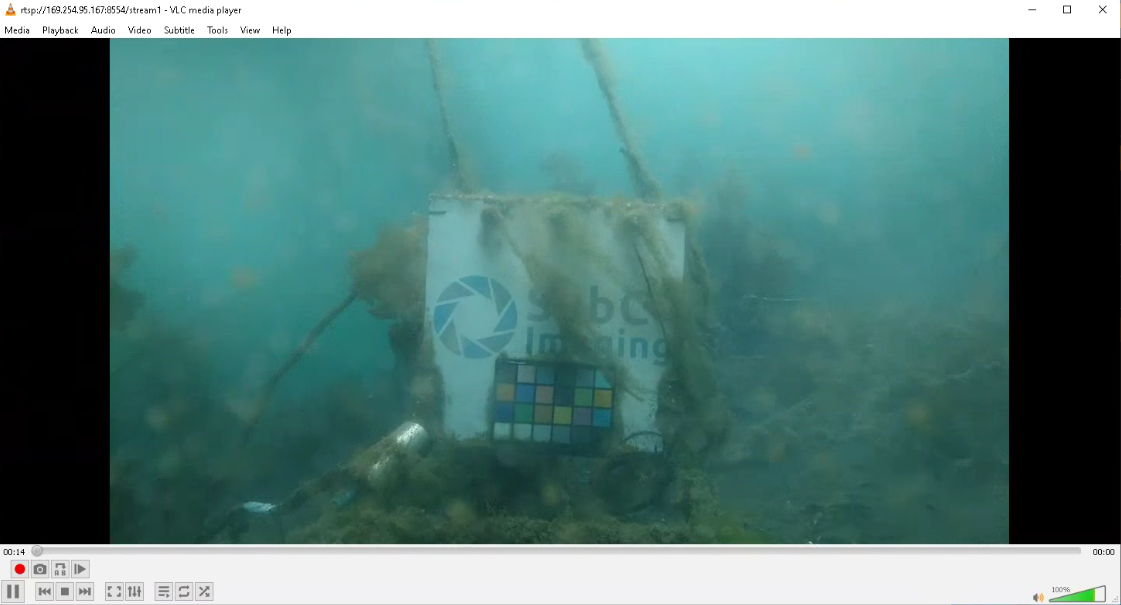
Example: VLC Media Player taking in RTSP Lan Streaming address.
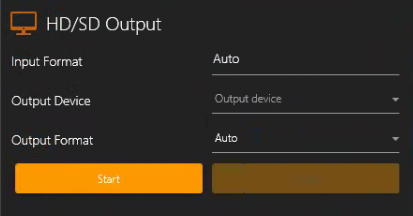
If you have multiple Channels, you can output each Channel video in HD or SD independently.
With HD/SD Output Input Format & Output Format fields, you can configure the hardware output quality.
-
Input Format - This filed is populated based on the Channel Input Type you have selected.
Examples:-
Capture Card → NTSC_2398
-
IP Camera → HD1080_30p
-
Presentation → HD1080_5994i
-
Screen Capture → Custom
-
-
Output Device – Select from a list of output devices attached to the system, such as Capture Cards.
-
Output Format - Select from the list of formats available based on the Input Format.
-
Start – Start outputting video to the selected Output Device
-
Stop - Stop outputting video to the selected Output Device