SubC SecureEdge Server is similar to SubC Cloud Stream Servers, with the main difference being, SecureEdge Stream Servers reside within your LAN.
SubC SecureEdge Server is a LAN Stream Server that you install and use to stream videos within your LAN. See Data Security and Streaming for more details.

|
Internet access is not required when you use SubC SecureEdge. An Edge License is not required on your Stream DT host system to take an Edge Stream in as Input to your Stream DT app Channels. Activation of your SubC Stream DT application host system with SubC Cloud Streaming Service Group is not required if you are only using SecureEdge. |

|
An Edge License is required on your Stream DT app host system if you wish to stream your desktop application Channels to your SecureEdge Server. |

|
Internet access and Activate your SubC Stream DT application host system with SubC Cloud Streaming Service Group is required if you also want the ability to stream your SubC Software Channels to SubC Cloud Stream Servers. This will allow you to also invite others onshore/outside of your LAN to view those Channels via SubC Presentations through their Internet browser. |
If you wish to implement SubC Secure Edge Server in your LAN, please contact Team@subcimaging.com
Streaming to your Edge Server
On one of your SubC Software application host system within your LAN, configure a Channel with video input and stream it to your Edge Server.
On a SubC Stream system within your LAN, configure a Channel with a video Input and stream it to your Edge Server.
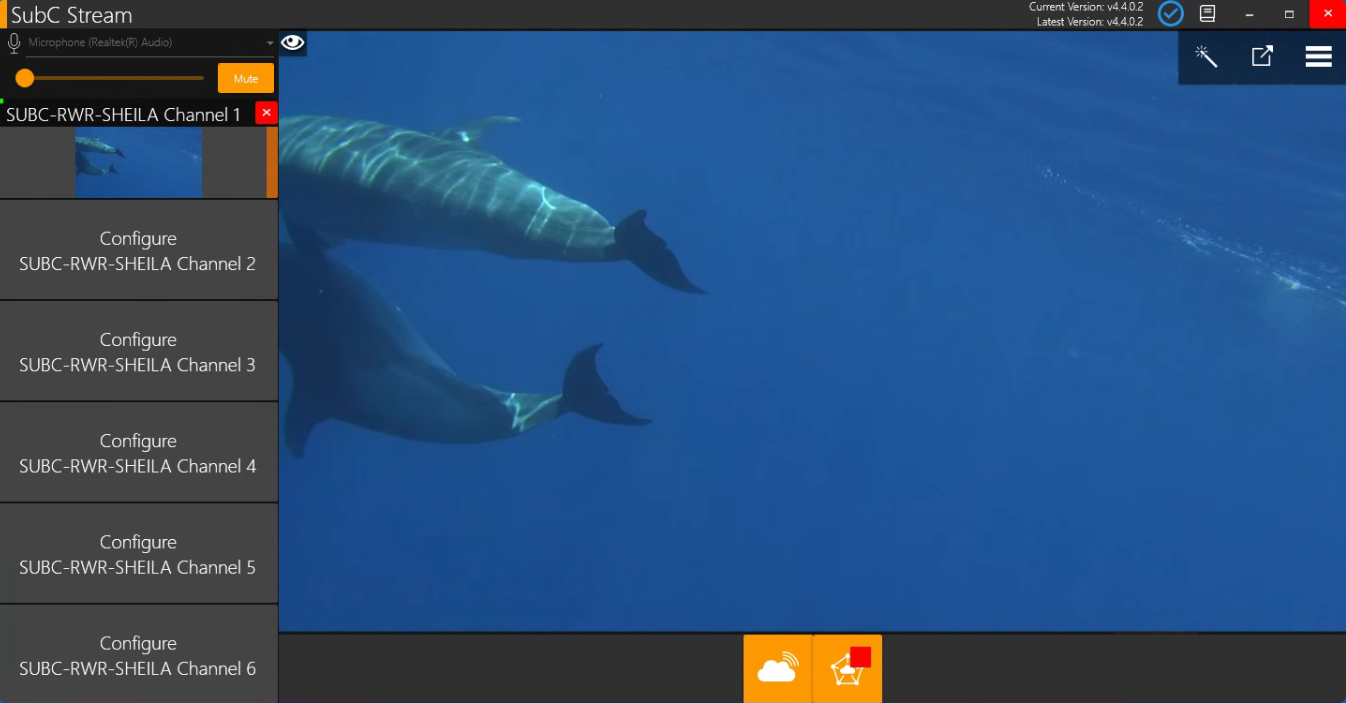
Once the Channel is configured with video Input


Click the Start Edge Streaming button
The Edge Streaming button will change to include a red square - indicating that the Channel is now actively streaming to the Edge Server.
Click this button again when you wish to Stop the Channel streaming to the Edge Server.
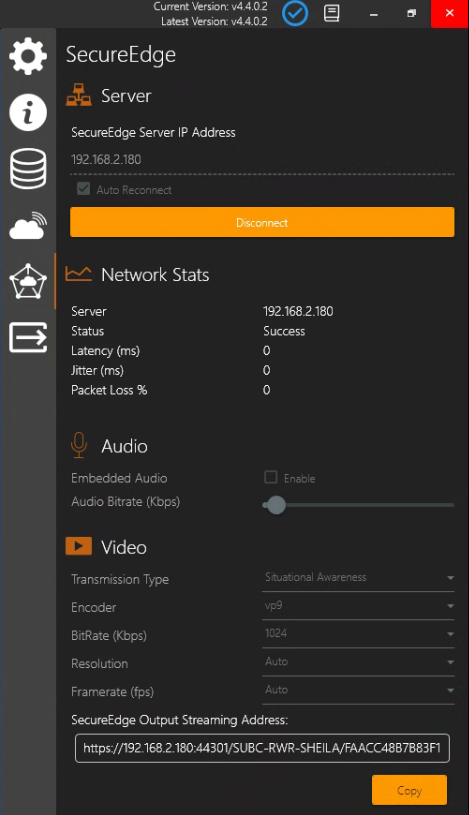
Menu → SecureEdge
Server
-
SecureEdge Server IP Address - enter your Edge Server IP address.
-
Auto Reconnect - select this checkbox if you want to automatically reconnect to this Edge Server when you open the SubC Stream desktop application.
-
Connect / Disconnect - click this toggle button to connect/disconnect to the Edge Server.
Network Stats
-
Server - shows the IP of the Edge Server
-
Status - Unknown will change to Success, once you’ve connected to the Edge Server.
-
Latency (ms) - Latency refers to the delay in network traffic between your PC and the Edge server.
-
Jitter (ms) - Jitter is when packets arrive at the destination in a different order than they were sent. (Typically caused by network congestion, route changes, etc. The longer it takes for packets to arrive, the more jitter can negatively impact the video and audio quality.)
-
Packet Loss % - Packet loss can happen when packets traveling across the network fail to reach the destination (usually caused by network instability and/or congestion).
Audio
-
Embedded Audio - Enable
If you have a microphone connected to your system through which you would like to communicate/add narration during your video streaming transmission, select Enable checkbox. -
Audio Bitrate (Kbps) - Default is set to 64Kbps. You can adjust the audio bitrate to improve the audio quality.
Video
You can change the values of the following using each drop-down field before you start streaming the Channel to the Edge Server. While streaming is active, these fields are not editable.
-
Encoder
-
Bitrate (Kbps)
-
Resolution
-
Framerate (fps)
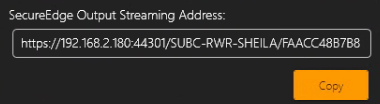
Copy the Edge Output Streaming URL address and share it with others on your LAN
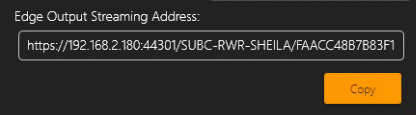
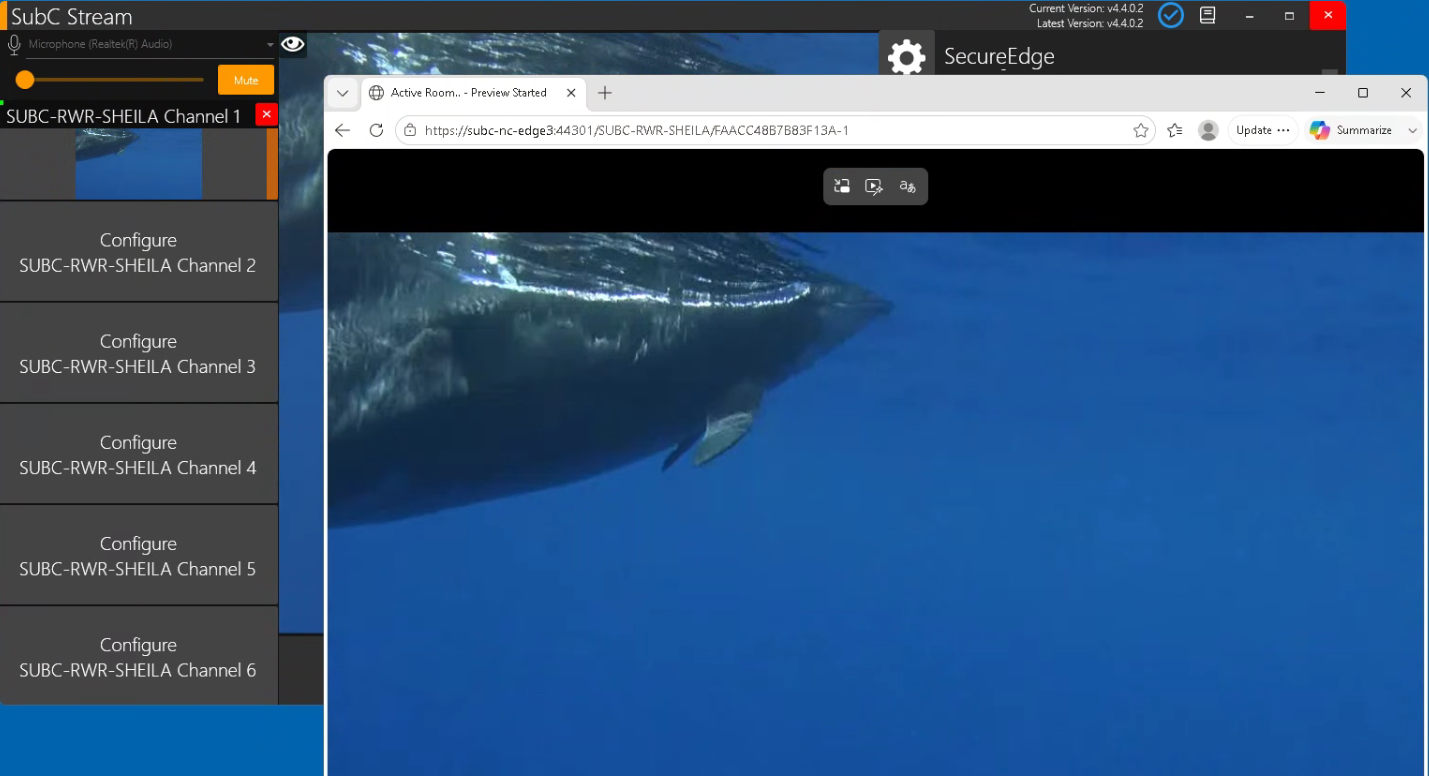
Paste this URL address it into a web browser to view the Edge streaming video.

SecureEdge Stream as Channel Input
You can also take the video of another SubC Software system within your LAN that is streaming its Channel(s) to your SecureEdge Server as Edge Channel Input on your SubC Software system.
-
Select a Channel and click Input type Edge
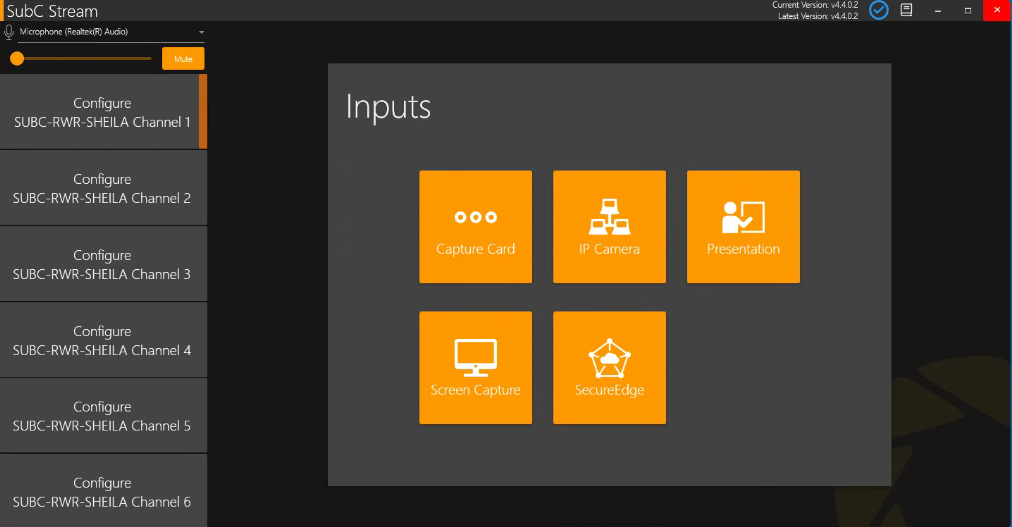
-
Enter the EDGE Server IP Address and click Connect
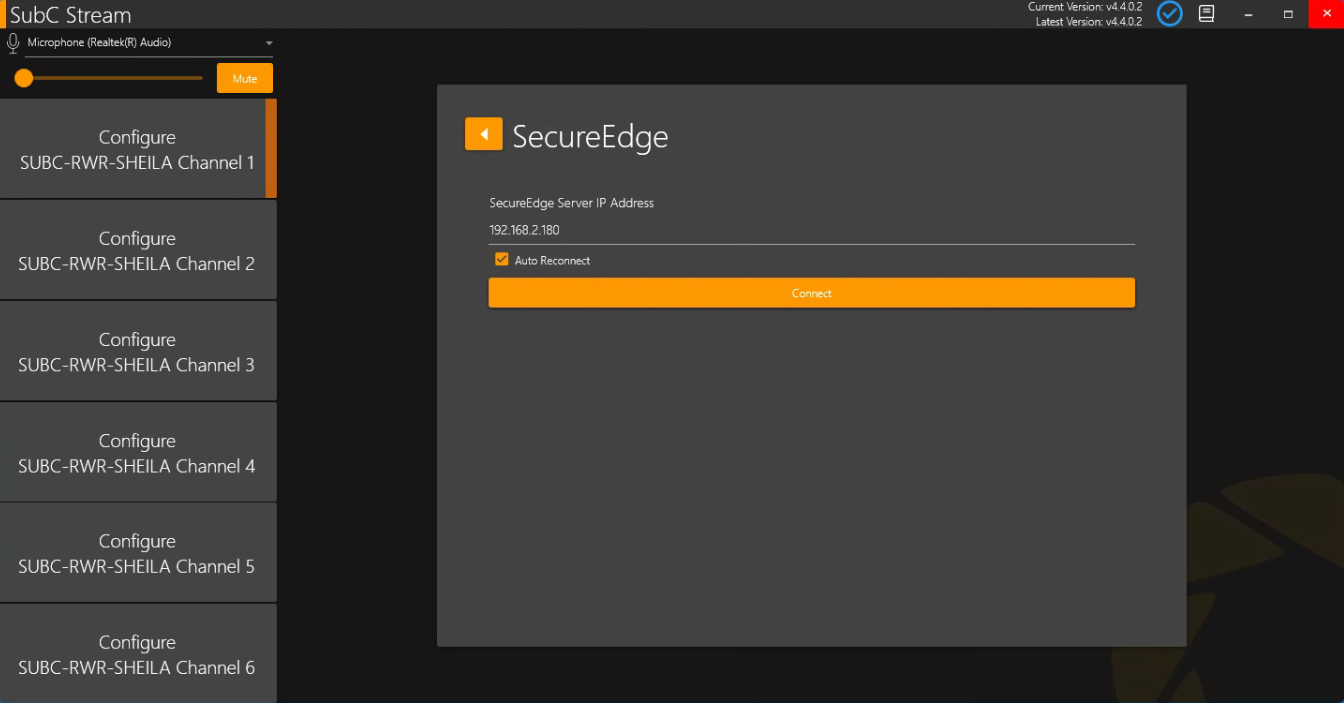
-
Once connected, the Peer and Channel fields appear. If there are multiple Edge Channels streaming on your network, you can select the specific Edge streaming channel you want from:
-
Peer (SubC Software system hostname that is Edge streaming its Channel) and
-
Channel (hostname & channel #)
-
Refresh if you do not see the expected Peer / Channels appear in these list fields.
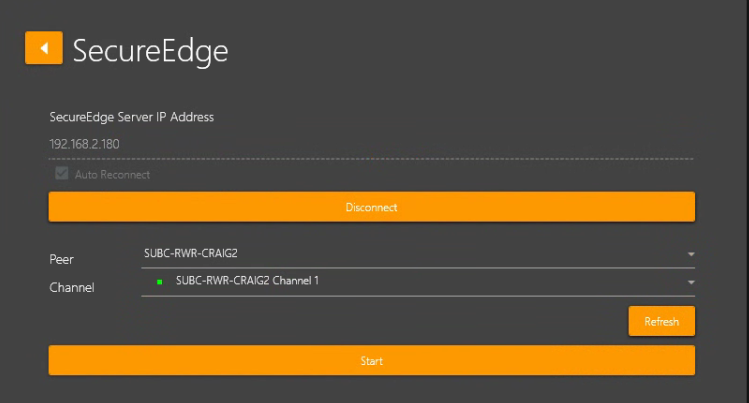
-
Once the Channel is configured with video SecureEdge Server Input, if you wish, you can also again stream the Channel to the SecureEdge Server in your LAN.


Click the Start Edge Streaming button in the bottom
The Edge Streaming button will change to include a red square - indicating that the Channel is now actively streaming to the Edge Server.
Click the button again to Stop the Channel streaming to the SecureEdge Server.
Menu → SecureEdge → Video
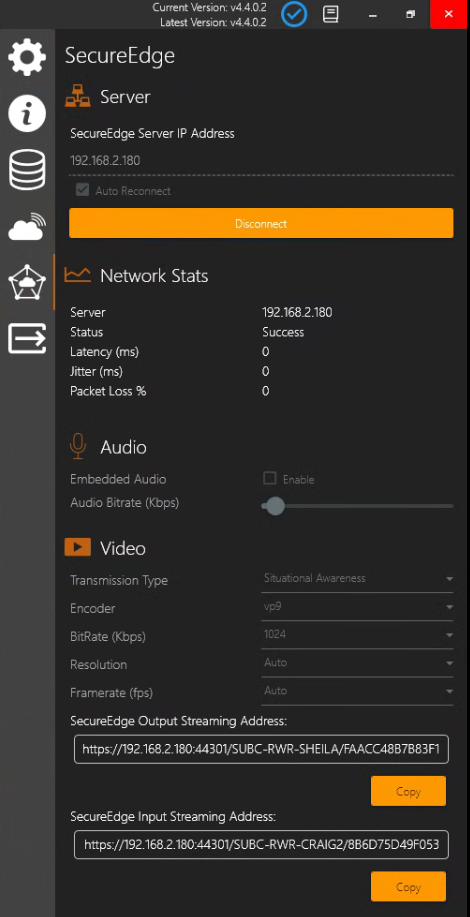
When taking a Secure Edge stream as Input and streaming that Channel back out again to a SecureEdge Server, you will see two Streaming Addresses in the Video section.
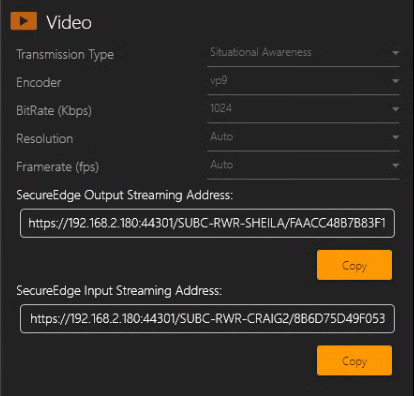
SecureEdge Output Streaming Address has the URL of your current Channel that is streaming to the Edge server.
SecureEdge Input Streaming Address has the URL of the Channel on another SubC system that is streaming to the Edge
Example using Stream desktop application
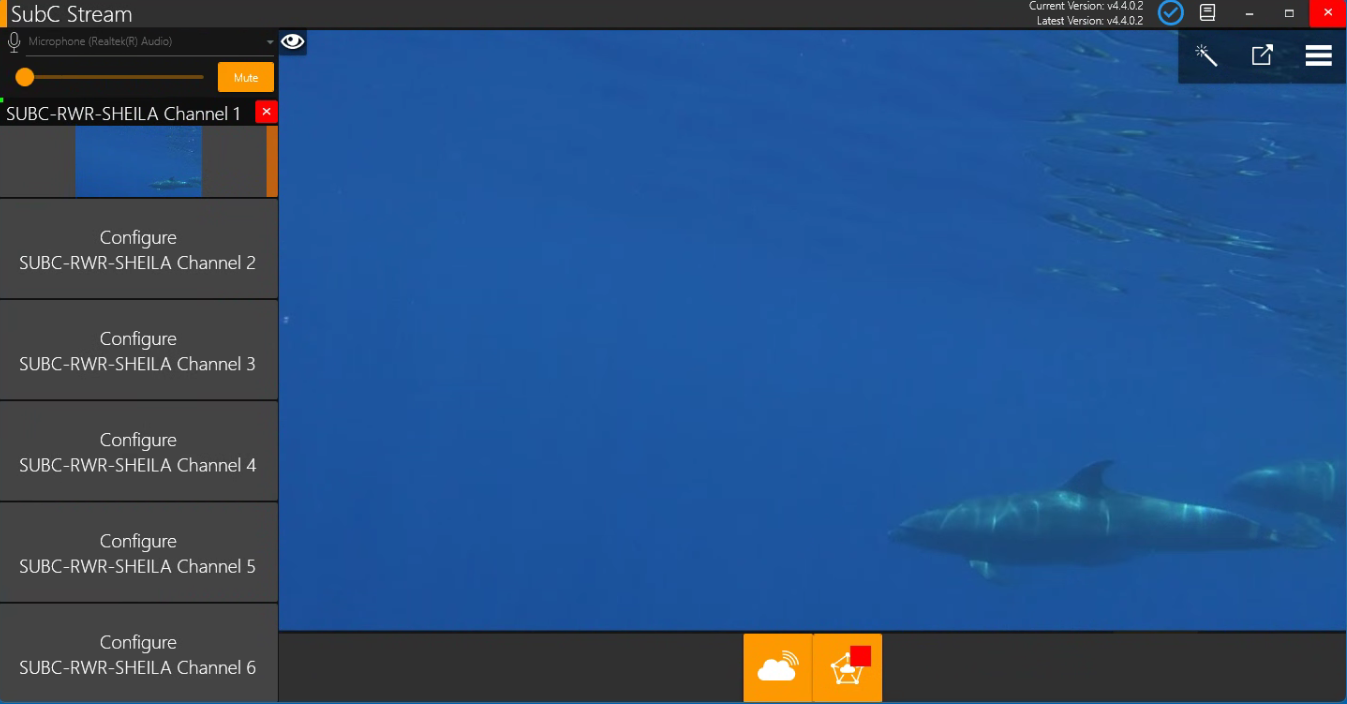
With the current Channel streaming to the Edge Server selected, select Menu → SecureEdge to see the details of your Channel streaming to the SecureEdge Server.
You can copy & paste the Edge Output Streaming Address URL into a web browser to view the Edge streaming video in another window. Share this URL with others to view in a browser on their system.