
“Artifacting” is when you see issues such as image pixilating, blurring &/or color blotches appearing in your incoming video.
Latency is when you see a delay between when a video is captured and when it is displayed on the viewer's screen.
Often both of these issues occur at the same time because they share an underlying cause.
This Troubleshooting tip describes methods that you can use to resolve both of these issues.
-
IP Camera Settings
If your video source is an IP Camera, login to your camera’s UI and note &/or adjust the following camera settings:-
Buffer: Adjust the buffer (up / down ?)
Neither of these IP Camera have a “buffer” setting
ADIA IP Camera 1: In Google Chrome browser: http://192.168.2.45/ Login: admin adminAXIS IP Camera 2: In Edge Browser http://192.168.2.50/ Login root root
-
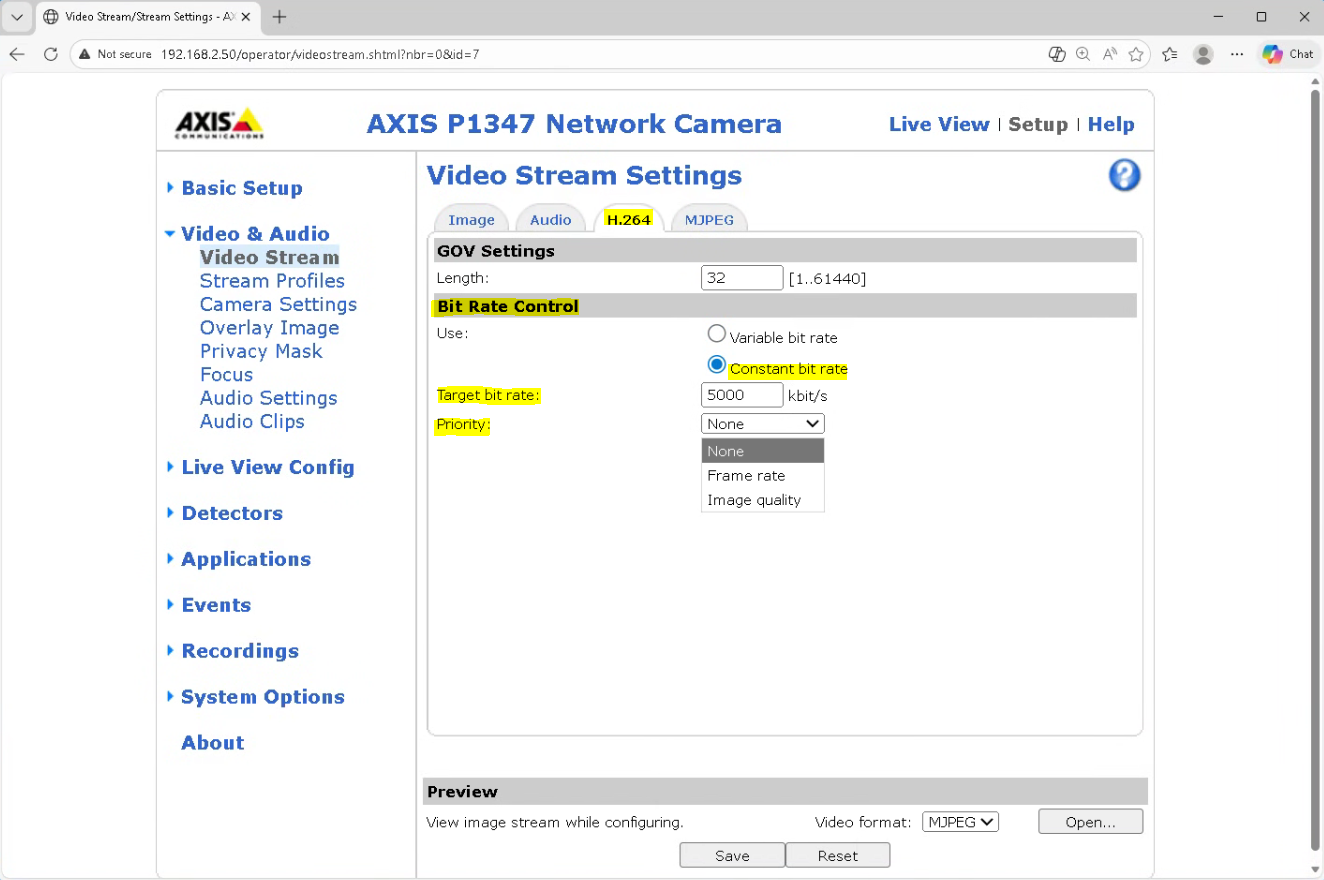
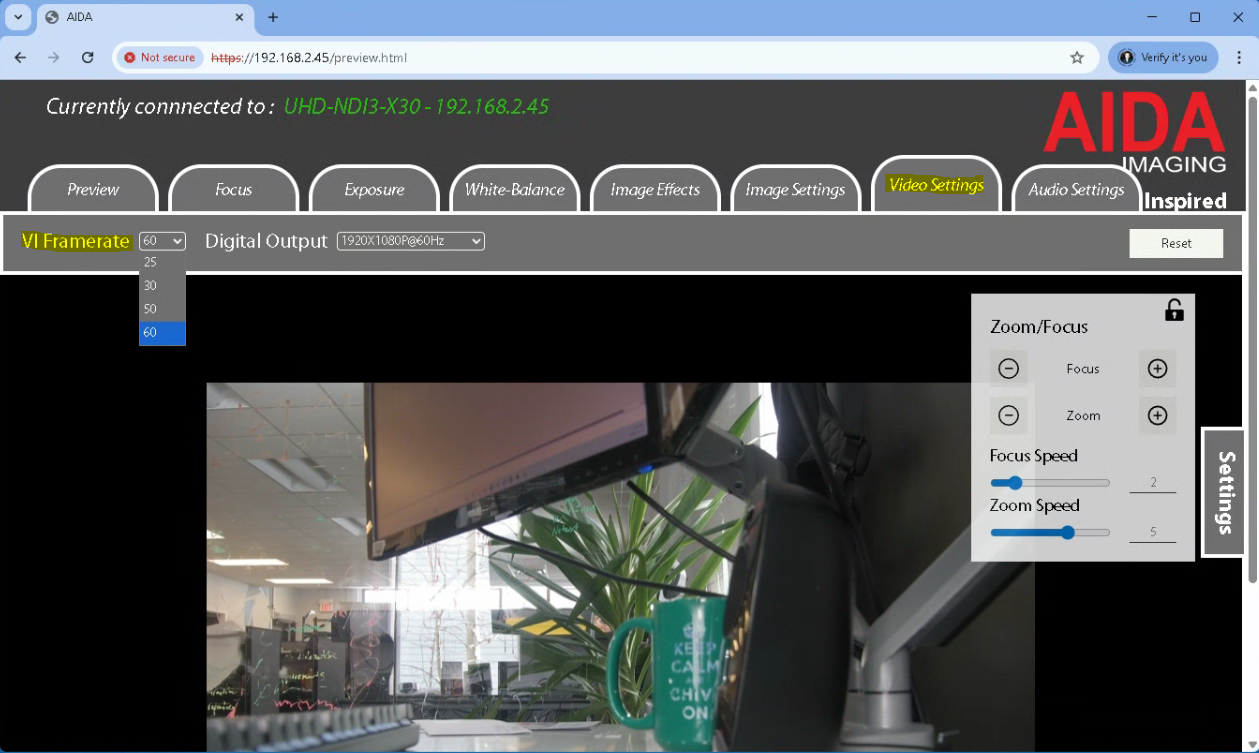
Bitrate: Reduce the camera bitrate
-
|
AXIS IP Camera Example |
ADIA IP Camera Example |
|---|---|
|
|
|
|
|
-
SubC Software Settings
In SubC Software desktop application, make the following adjustments:
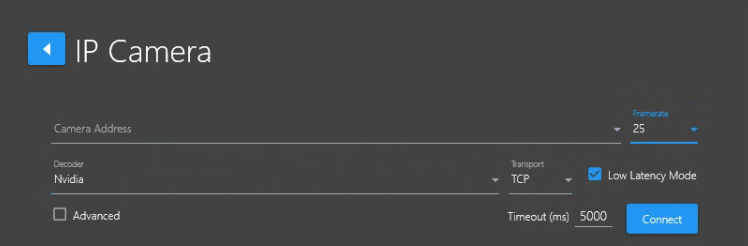
Example using SubC DVR+ IP Camera Input type.-
Set Framerate to match that which the IP Camera is sending
-
Set Transport to TCP
-
Select Low Latency Mode
-