One-Time Stream Presentation as Channel Input
One-Time Stream is a convenient way to quickly stream & share a video. You can also use One-Time Stream Presentation as Presentation Input to Channel(s).
If you have not yet created a One-Time Stream Presentation, go to the Streaming Services web app Menu → Presentations, create a Presentation and select One-Time Presentation option.

Click the Green + circle to create a new Presentation
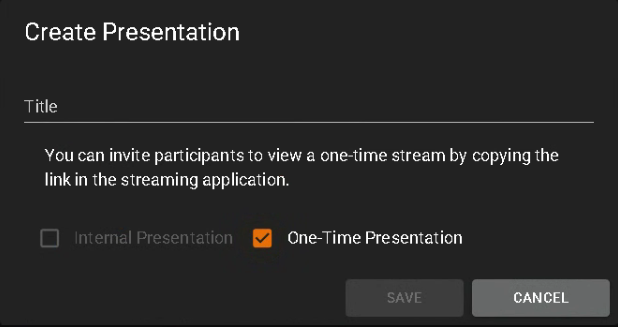
Select One-Time Presentation
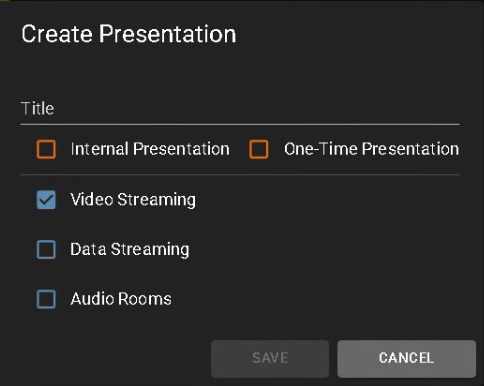
Give the Presentation a meaningful Title and click Save. It's a good idea to include “one-time-stream” or “OTS” in the title to make it easy to identify.
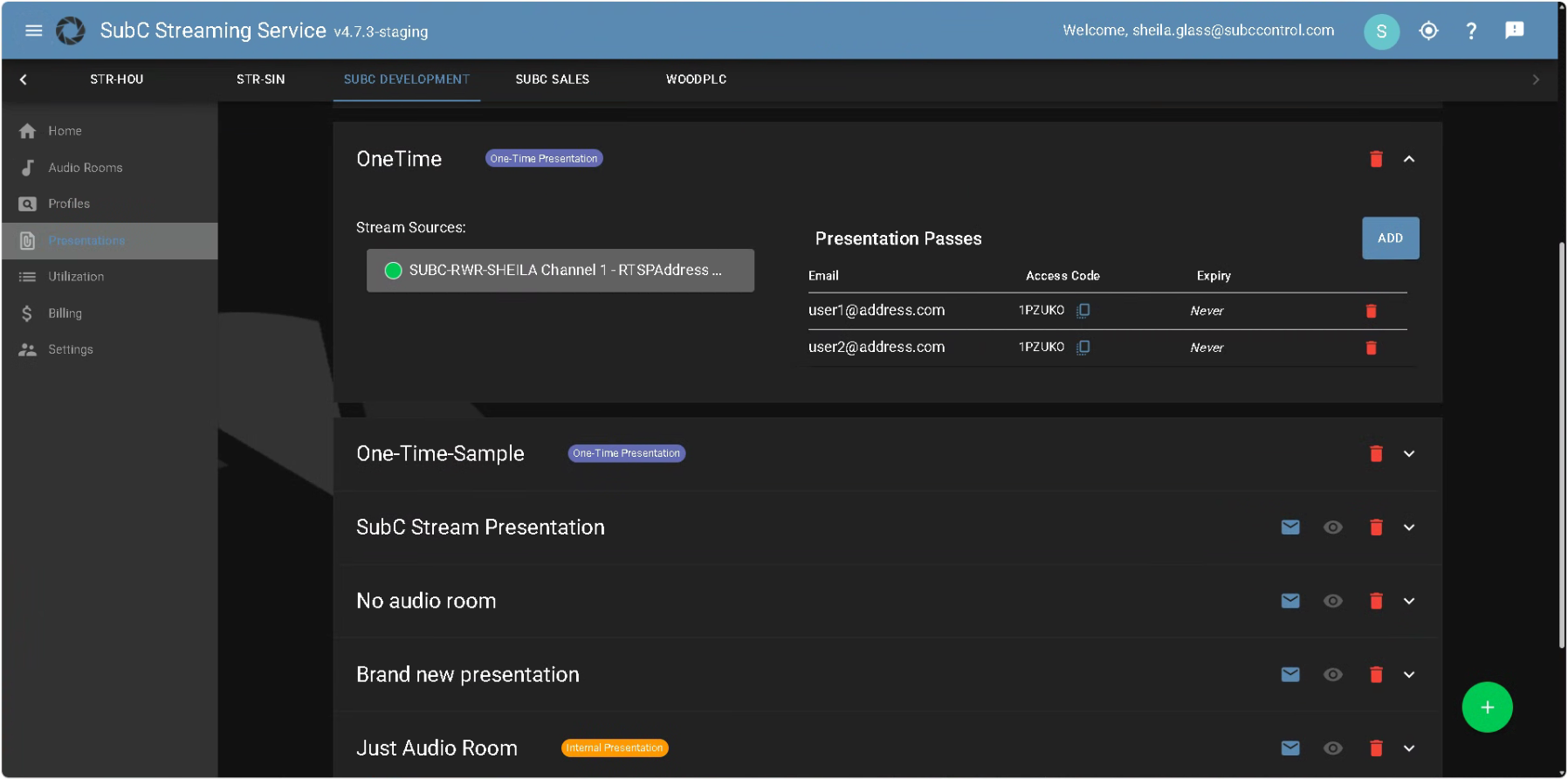
(Once you have assigned the Presentation to a Channel, the Hostname/Channel# will appear under Stream Sources in the Streaming Service Web app - Presentation UI.)
Next, proceed to assigning a Stream Desktop application Channel to Presentation Input - One-Time Stream Presentation.
|
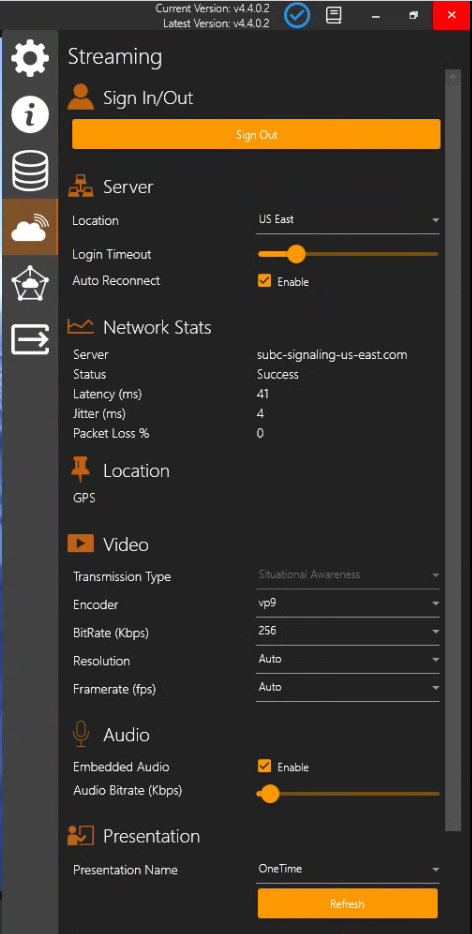
Select Menu → Streaming and click Sign In You will be prompted to select your SubC Streaming Service Account. (your company email address i.e. your.name@company.com) Example: 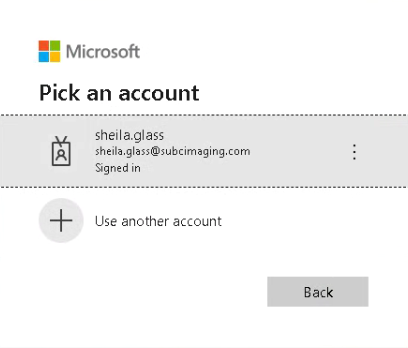
A SubC Streaming Service Authentication Code will be sent to your email address. Copy and paste that code into the Enter code field and click Sign in. 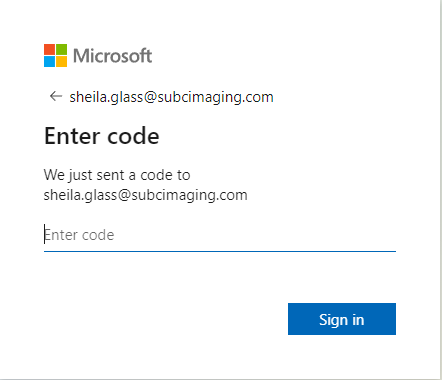
When you are successfully signed in, you’ll see this Authentication Complete message. 
|
|
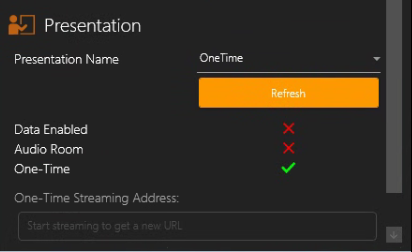
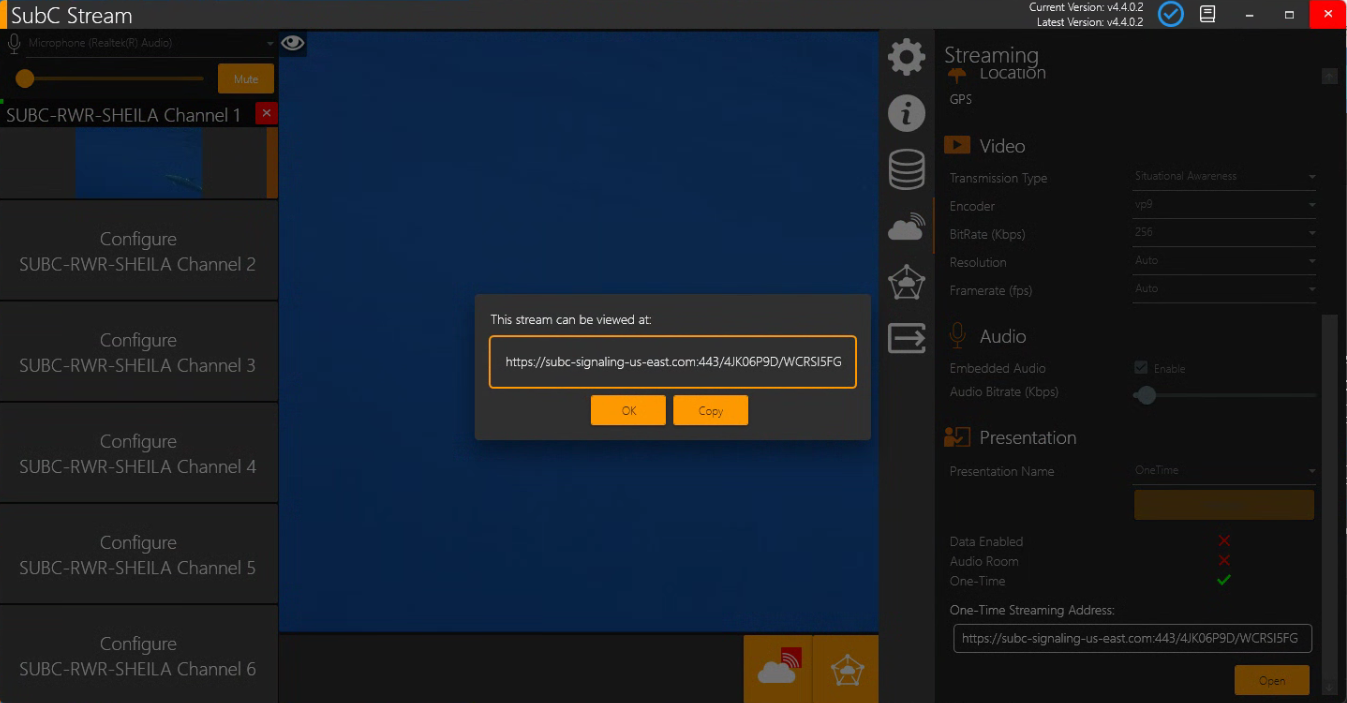
Still in Menu → Streaming scroll down to the Presentation section and in Presentation Name dropdown field select your OneTime Presentation. |
|
Click the Start Streaming button. The link to the OneTime Stream Presentation will appear in the Main video view… 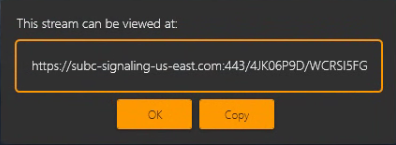
Copy this link and view the streaming video in a Browser. This URL will also remain in the Menu → Streaming → Presentation → One-Time Streaming Address field. 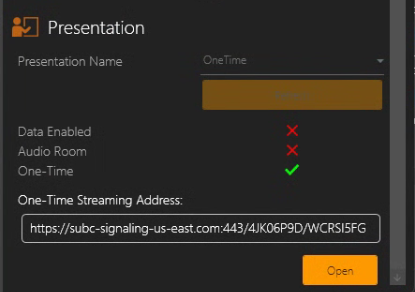
|
Now, you can connect another Stream DT Channel with Presentation Input.
-
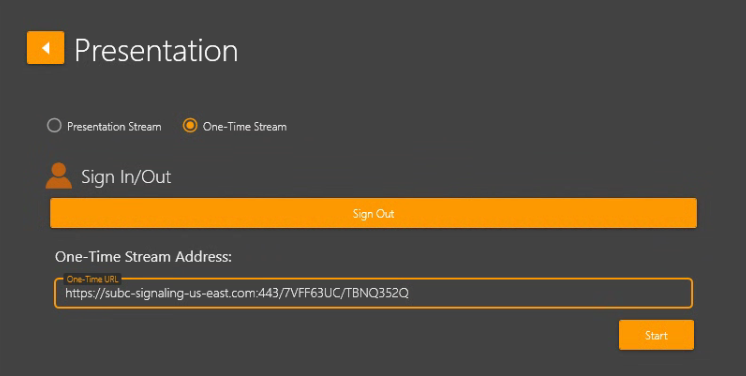
Select One-Time Stream
-
Sign In using your Streaming Service Account (your email address)
-
Paste the URL for the Streaming OneTime Presentation into the One-Time Stream Address field
-
Click Start
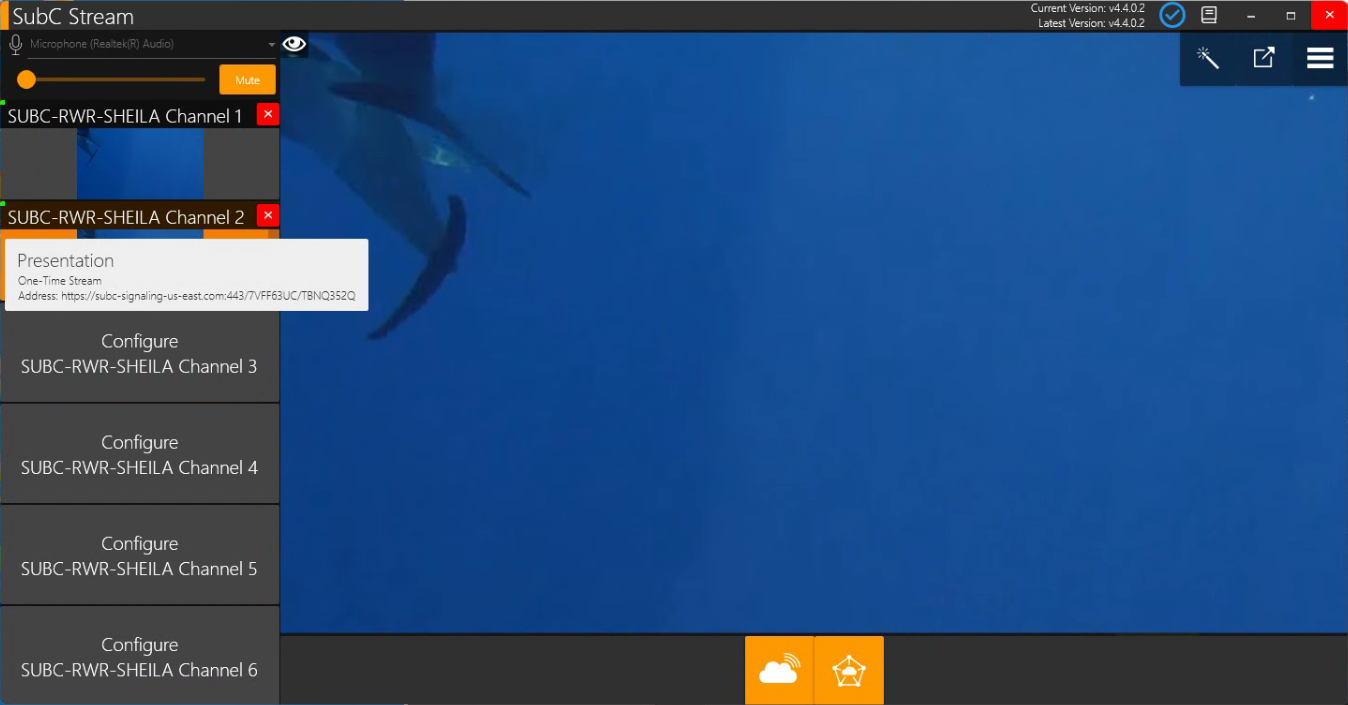
In this example (*for demonstration purpose*) we are streaming to our OneTime Stream Presentation on Channel 1 and taking in that OneTime Stream Presentation as Input on Channel 2. (*The typical use case is to take in the Presentation as Input on another Stream DT system’s Channel)