If you are already familiar with SubC Streaming through SubC Cloud Stream Servers, think of SubC SecureEdge Server as having your own Stream Server within your LAN and you do not require Internet to access your local SecureEdge server.
To use the SecureEdge Channel Input, you must also have a SubC SecureEdge Server installed in your LAN.
Connect a Channel to SecureEdge Stream
See Data Security and Streaming and Streaming with SubC SecureEdge
If you are interested in implementing SubC SecureEdge Stream Server, please contact team@subcimaging.com.
Streaming to SecureEdge Server
You’ll need to have a SubC Desktop application that has SecureEdge streaming feature enabled. This is achieved by having a SubC SecureEdge license on the SubC Desktop application host system.
In the SubC Stream Desktop application, connect to your SubC Secure Edge Server.
Then, configure a SubC Stream Channel with video input and stream that Channel to your Secure Edge Server. See Menu → Streaming with SubC Edge
Stream Desktop System
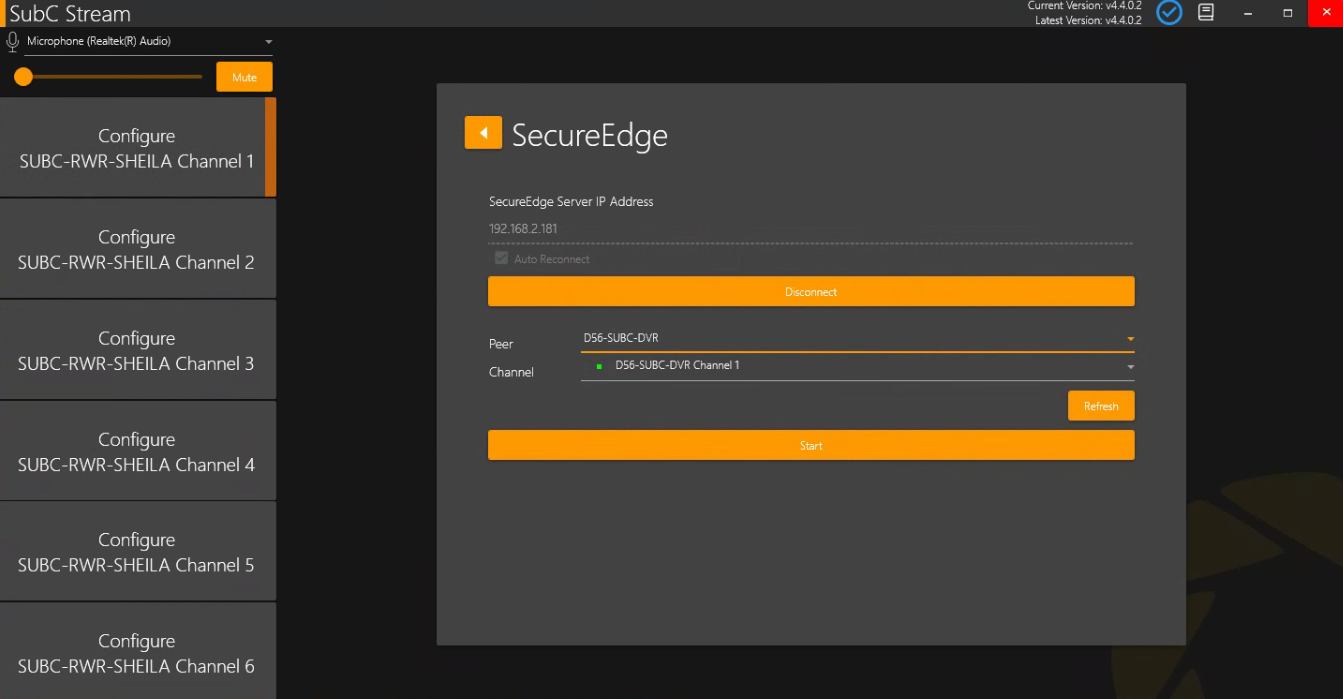
In the Stream Desktop application on another system within your LAN, you can then take that SubC Channel (that is streaming to the SecureEdge Server) in as SecureEdge Input to your Stream Desktop Channel.
-
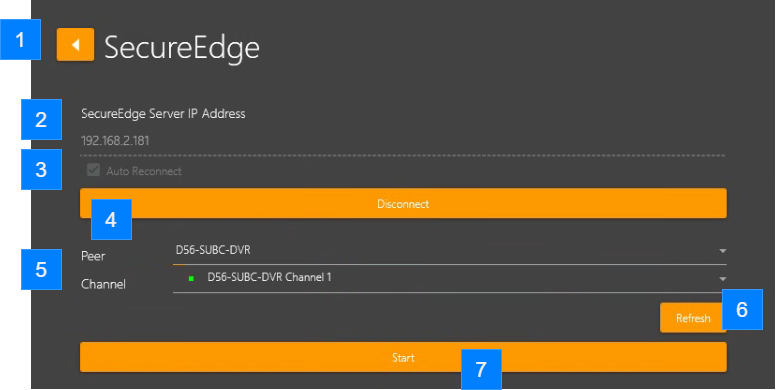
Back Arrow – Returns to the Input selection screen
-
SecureEdge Server IP Address - Enter the IP Address of your SecureEdge Server
-
Auto Reconnect - Check this box if you want to automatically reconnect to your SecureEdge Server automatically. In the event of a network comms interruption, once it is restored, your Channel will resume its connection to the input source.
-
Click Connect/Disconnect toggle button to connect to your SecureEdge Server
-
When the SecureEdge Server is receiving a video Channel(s) from SubC SecureEdge licensed system(s) within your LAN streaming to it, you will see:
Peer: Lists of name(s) of the SubC System(s) that are streaming video to the SecureEdge Server.
Click this drop-down field and select a System that is streaming video to the SecureEdge Server.
Channel: The Channel(s) of the SubC System that is streaming video to the SecureEdge Server will have a green dot indicating that the Channel is actively streaming to the SecureEdge Server.
Click this drop-down field to see Channel(s) on the Peer that are streaming Channel(s) to the SecureEdge Server. -
Click Refresh if the Peer is not showing &/or the Channel has a red dot (indicating that the Channel is not active).
If after clicking Refresh, you still do not see the Peer &/or Channel as active, check the SubC System that you expect to be streaming Channel(s) to the SecureEdge Server. -
Click Start after you have selected Peer and Channel to take that SecureEdge video stream as input to your Stream Channel.
Once the Channel is connected to the Edge Peer & Channel, you will see the video coming into your Stream Channel.
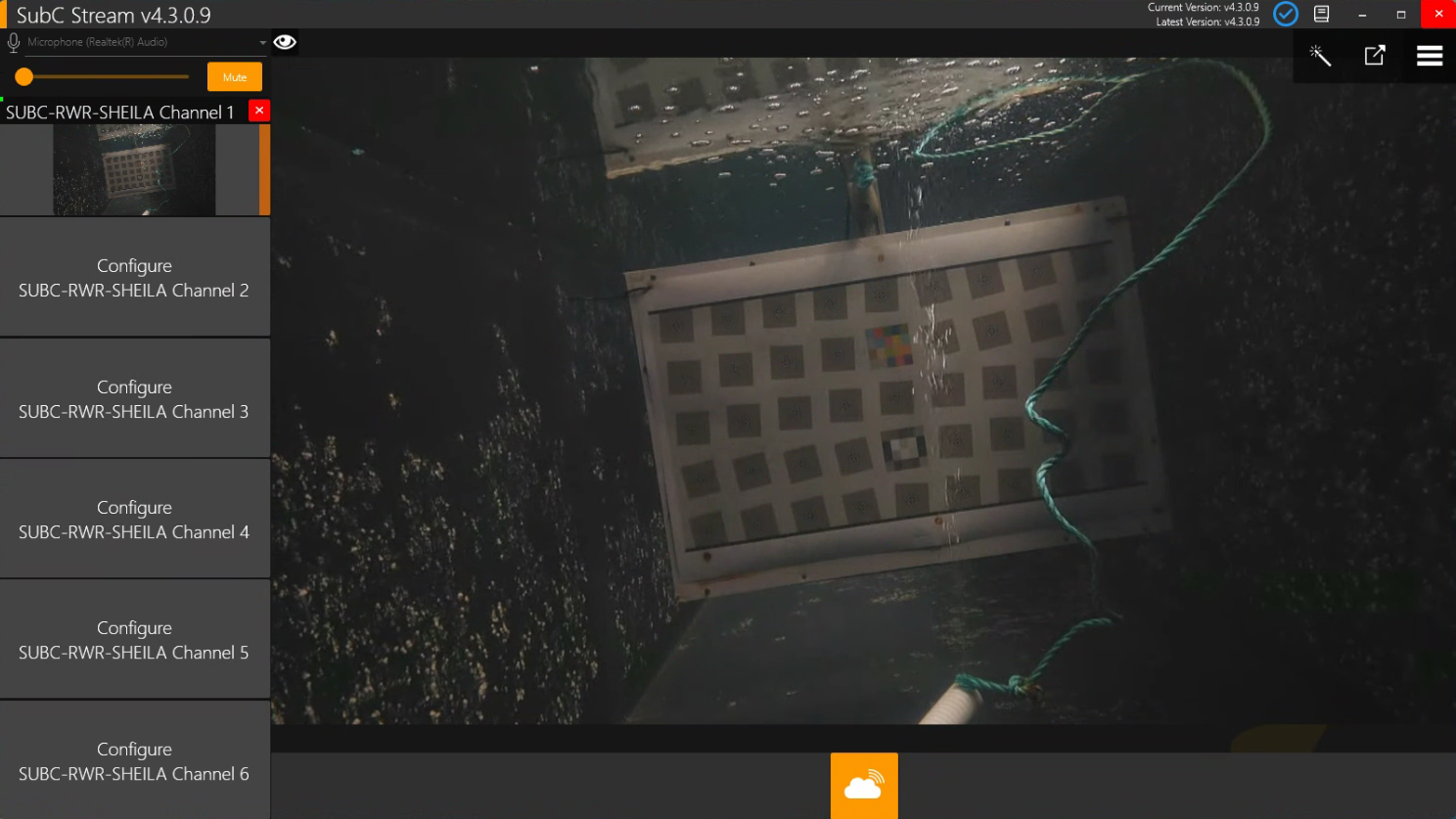
Edge Server Streaming Video + Data
Like SubC Cloud Stream Servers, SubC SecureEdge LAN Stream Servers can also transmit date with video.
When you connect a SubC Stream Channel to an SecureEdge streaming Peer and Channel you can take the SecureEdge streaming Channel in on any of your Stream Desktop application Channels.
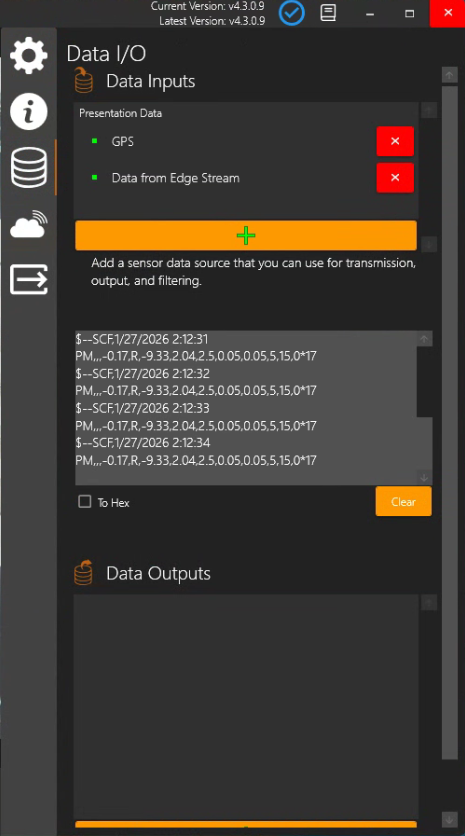
But to also get data that may also be streaming with the SecureEdge video, connect to the SecureEdge streaming Peer and Channel to your SubC Stream Channel 1, and open Menu → Data I/O → UDP Broadcast to Port 55443.
Data I/O → UDP Broadcast
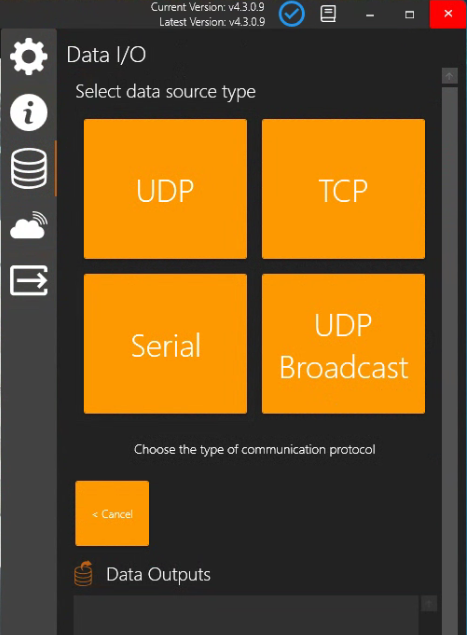
Port 55443
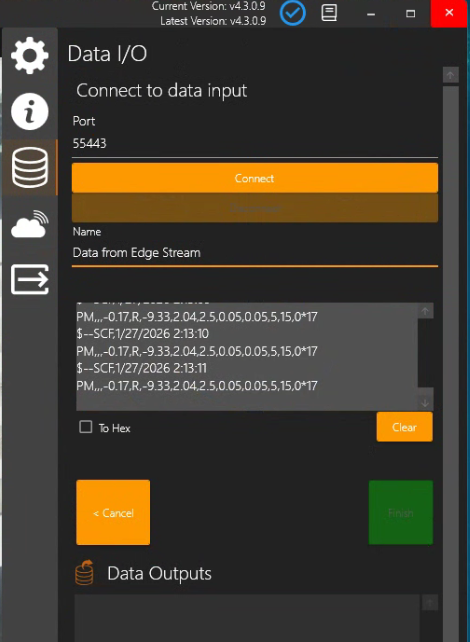
It's a good idea to give this Data connection a Name before you click Connect. Then Click Finish
Data from Edge Stream is now coming in on Channel 1