The Presentation Input in SubC Stream takes an active Streaming Channel’s Presentation as its video input source.
Presentations are created & configured in SubC Streaming Service Web application and are accessible in SubC Stream Desktop application as Presentation Input.
The Presentation (created in the SubC Streaming Service web application, Menu → Presentations) must be assigned to a Channel and Streaming in order for the Presentation to be available to the Stream Channel as Presentation Input.
Below is an overview of the Presentations Input in the Stream Desktop UI
Presentations using Transmission Type: RealTime
Sending Side Stream Desktop Channel Menu → Streaming Video → Transmission Type: RealTime
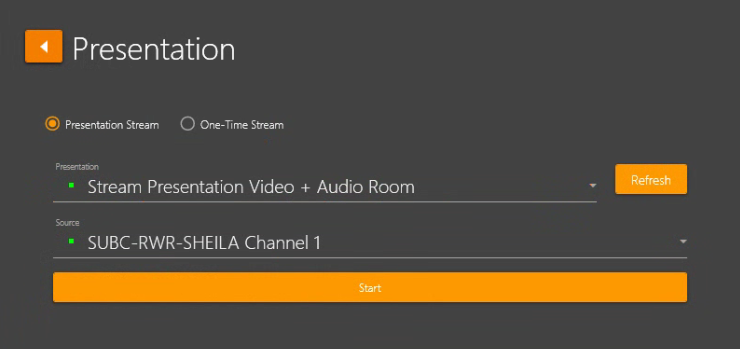
Access Code is optional for Presentation Input.
To remove the requirements for Access Code, In Menu → Settings Options → Streaming → Select Ignore Access Code
-
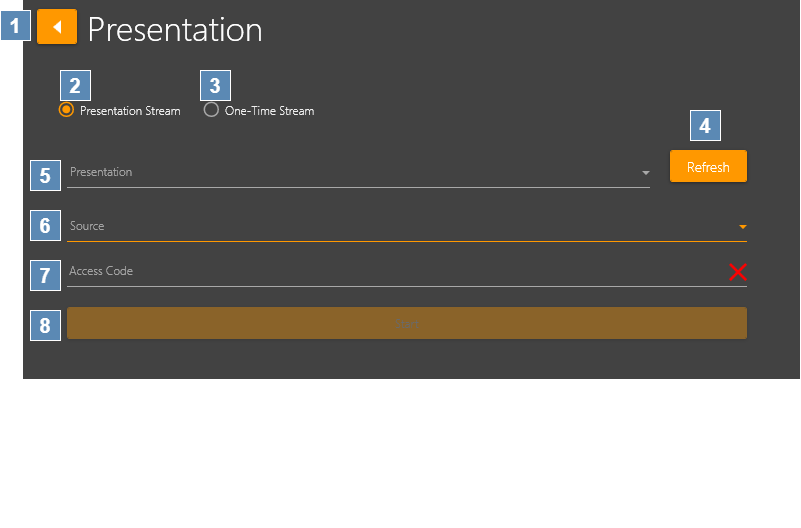
Back arrow – Return to the Input options window.
-
Presentation Stream - Select if you want to connect to a regular streaming Presentation.
-
One-Time Stream - Select if you want to connect to a One-Time Stream. See One-Time Stream page for details. Note how the options are different when One-Time Stream is selected.
-
Refresh - If you do not yet see the name of the Presentation to which you want to connect, click Refresh to reload the list of currently streaming Presentations.
-
Presentations – Drop-down field shows a list of Presentations created in the SubC Streaming Service Web application from which you can select.
-
The Presentation you select must be active. An active Presentation is identified by a green illuminated button in front of the Presentation Name.
-
-
Source – Select the Channel that is streaming the video to the Presentation
-
Access Code Enter the Access Code for the selected Presentation.
A unique Access Code is assigned to each Presentation created in the SubC Streaming Service web application. The Access Code ensures only those who you invite to your Presentations can login to the Presentation Web Viewer to view your presentation. To find a Presentation Access Code, go to SubC Streaming Services web application, select the Menu → Presentations, select the Presentation and copy Access Code. Note: Access Code is optional for Presentation Input. See images on right. -
Start – Click Start to begin the input Source with selected settings.
Presentations using Transmission Type: Smooth
Sending Side Stream Desktop Channel Menu → Streaming Video → Transmission Type: Smooth
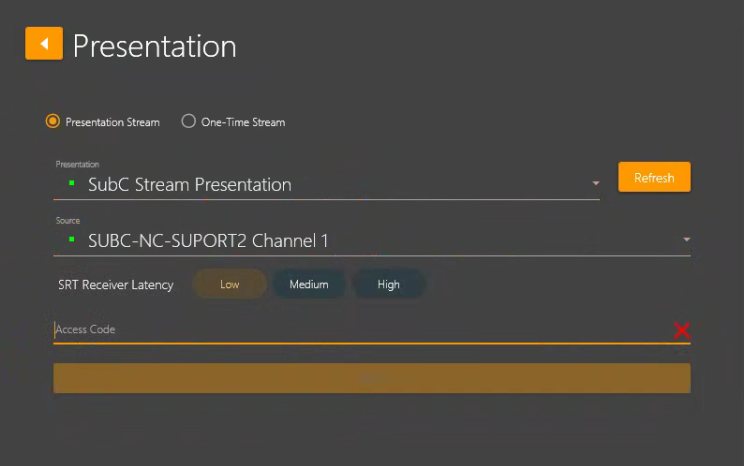
If you have selected a Presentation that is streaming via Transmission Type: Smooth, once the Presentation and Source is selected, the SRT Receiver Latency Low | Medium | High buttons appear. These settings allow you to adapt to variations in your Network quality.
You can select Low = 2s, Medium = 5s, High = 10s, whichever best suits your current Network conditions. Example: If you have optimal Network conditions, low dropouts, less buffering required, select Low for 2 seconds of buffering. If you need more buffering, select Medium for 5 seconds or High for 10 seconds.
Ignore Access Code - Optional
If you prefer not to have to enter a Presentation Access Code when you are using Presentation as Input to your Channels, you can select Menu → Settings → Admin Settings -->Ignore Access Code
Ignore Access Code only applies to Channel → Presentation Input; The Presentation Viewer web application still requires your invited viewers to authenticate with their email address and Presentation Pass.
Select Menu → Settings → Admin Settings → Ignore Access Code
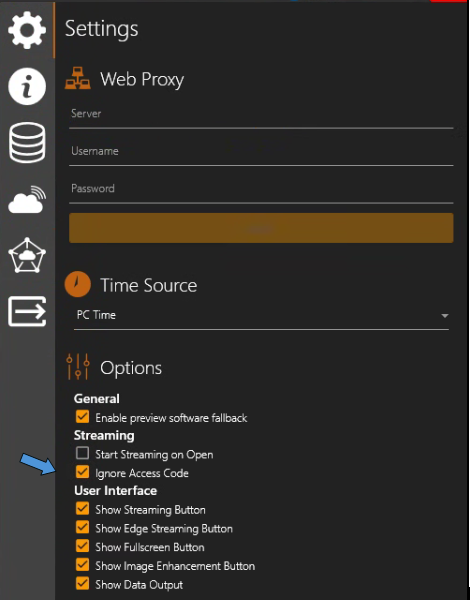
Check Ignore Access Code. When Ignore Access Code is checked on, the Presentations Input selection window will omit the Access Code field.
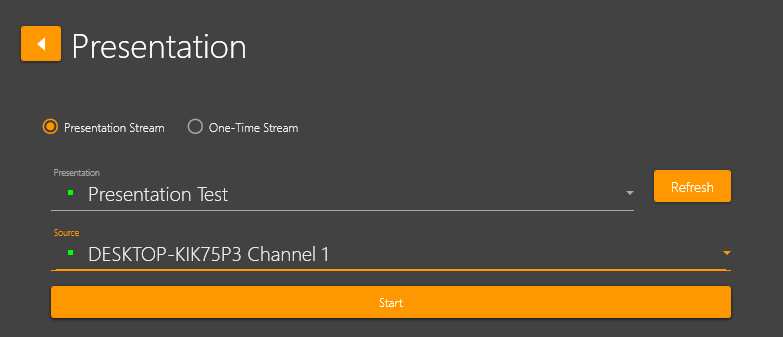
Select an active Presentation and its Source Channel [Ignore Access Code is on], Click Start
Using Presentation Input - Example
For demonstration purposes only - This is not a typical use case.
Typically, the Streaming Channel would be configured with Presentation Input on another PC running a SubC Stream enabled application. In this example we are just using the same Stream desktop application to illustrate a sending side Streaming (Channel 1) and receiving side using Presentation Input (Channel 2).
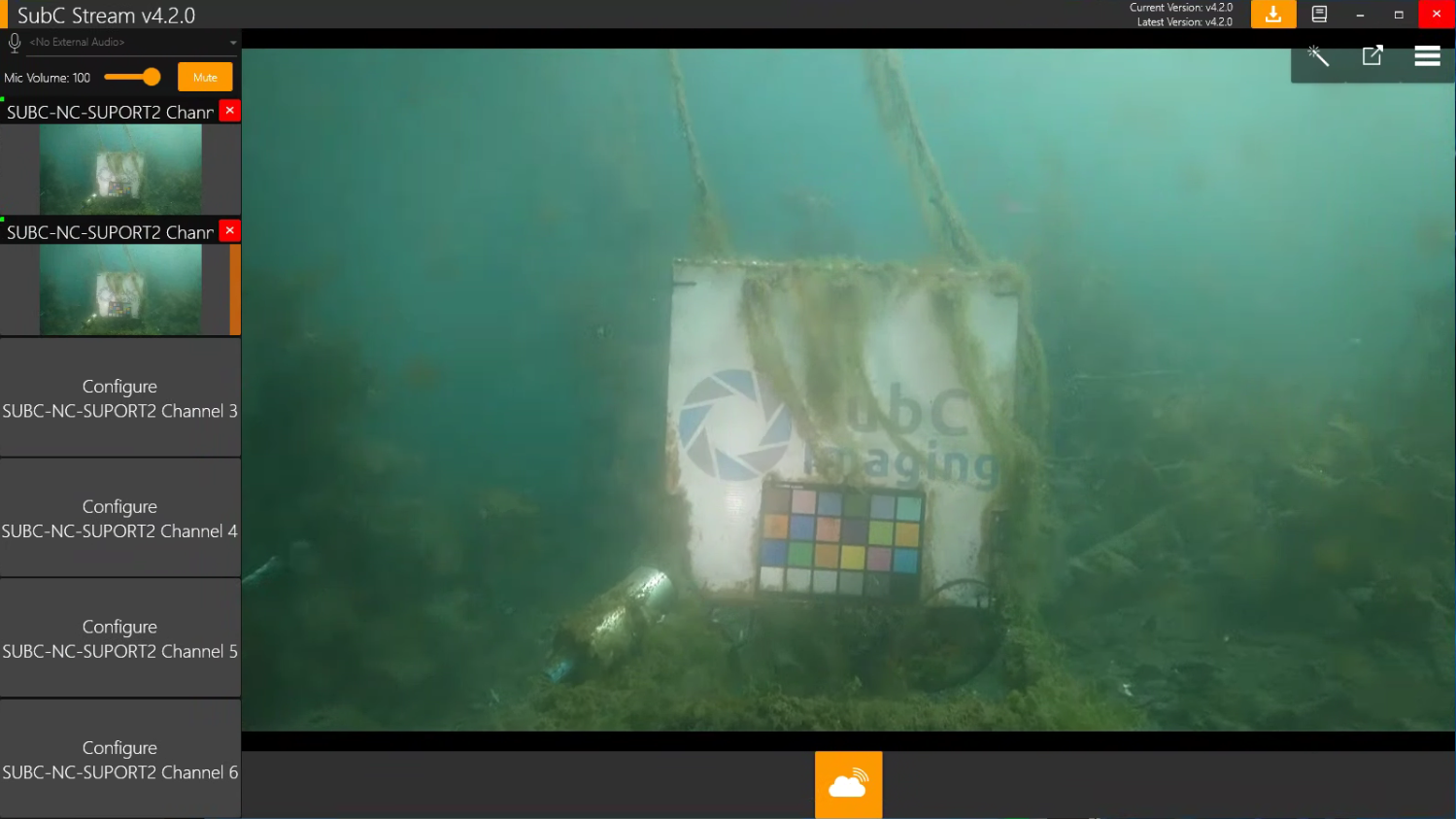
Below is an image of Stream Channel 1 Streaming video to a Presentation called “SubC Stream Presentation” and Channel 2 is configured with Presentation Input type, taking the “SubC Stream Presentation” as its input.